
¶ Email Notification
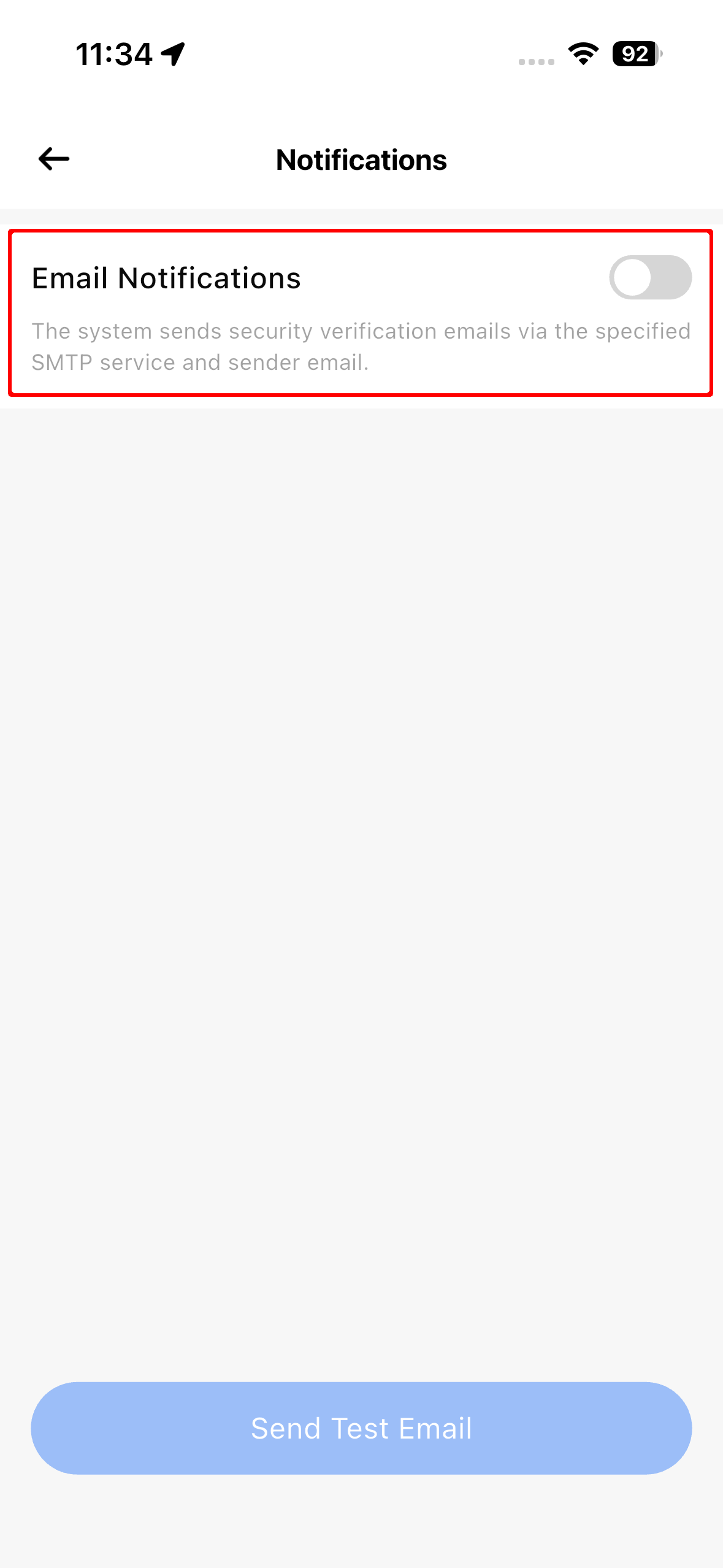
The email notification service enables the system to send emails, including two-factor authentication (2FA) emergency verification code emails and password reset emails.
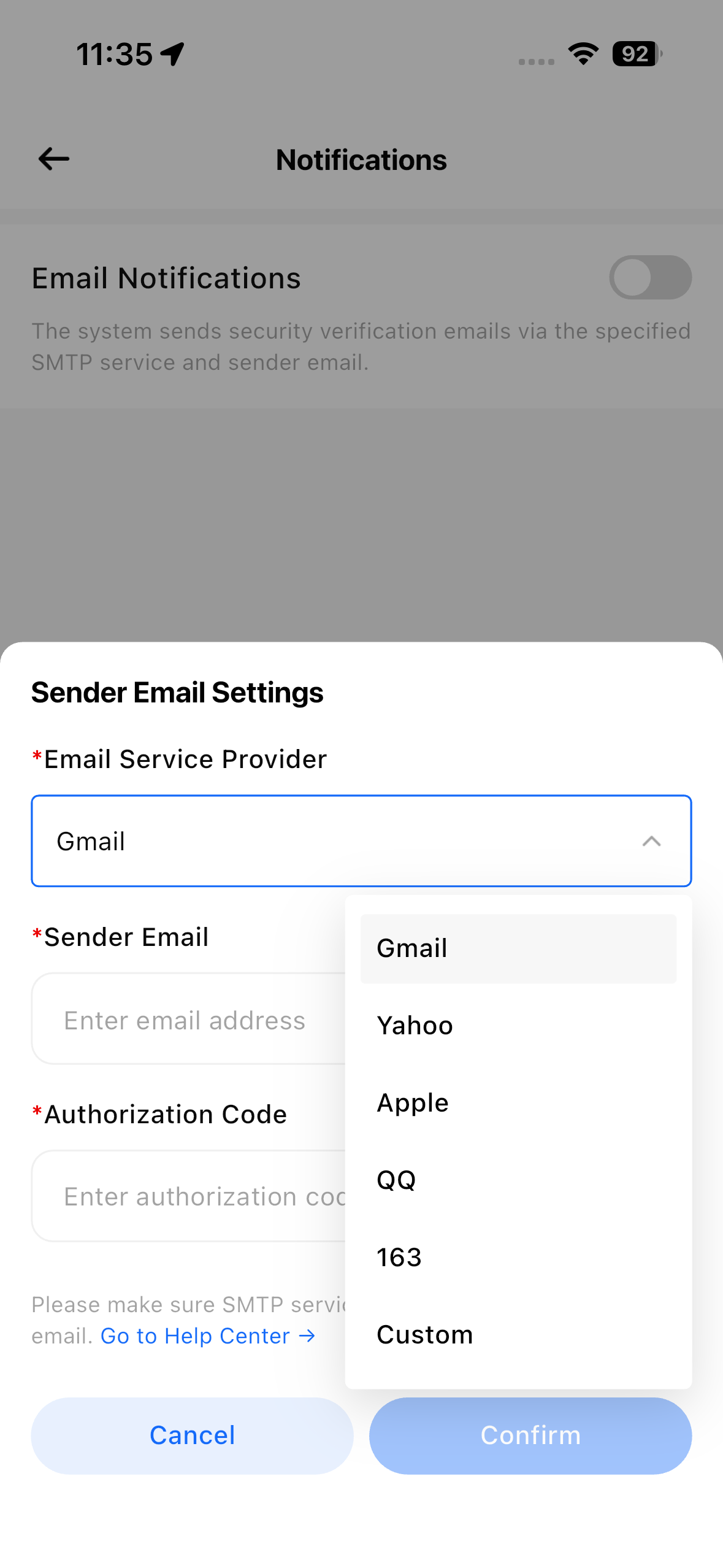
Supported email providers: Gmail, Yahoo, Apple, QQ, 163, and custom SMTP servers.
¶ Enable Email Notification Service
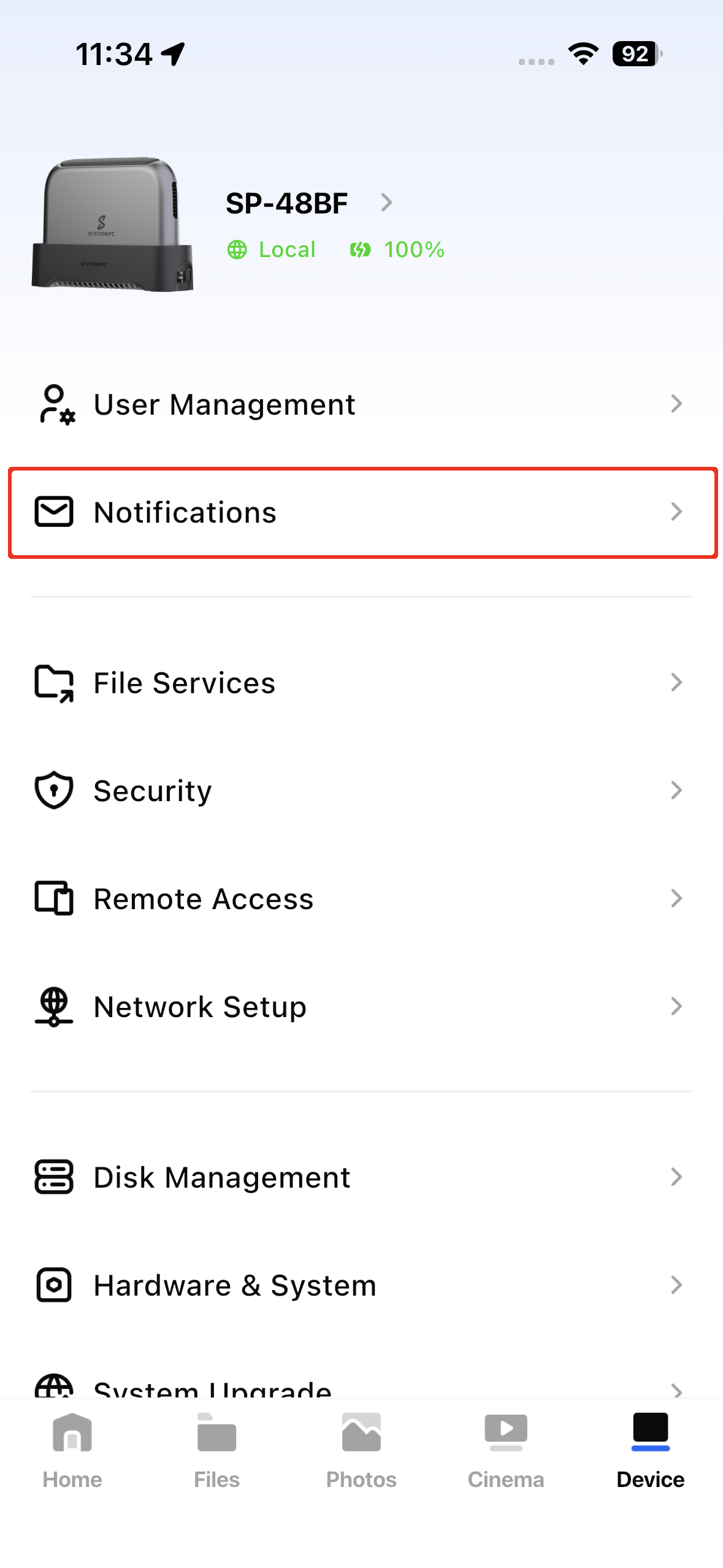
You can enable the service at Device > Notifications > Email Notification.
Select an email service provider based on your actual needs, obtain the corresponding authorization code following the instructions below, and submit to complete the setup.
After setup, we recommend running a send test to confirm the email service has been successfully authorized.
¶ How to Obtain an Email Authorization Code
¶ Gmail
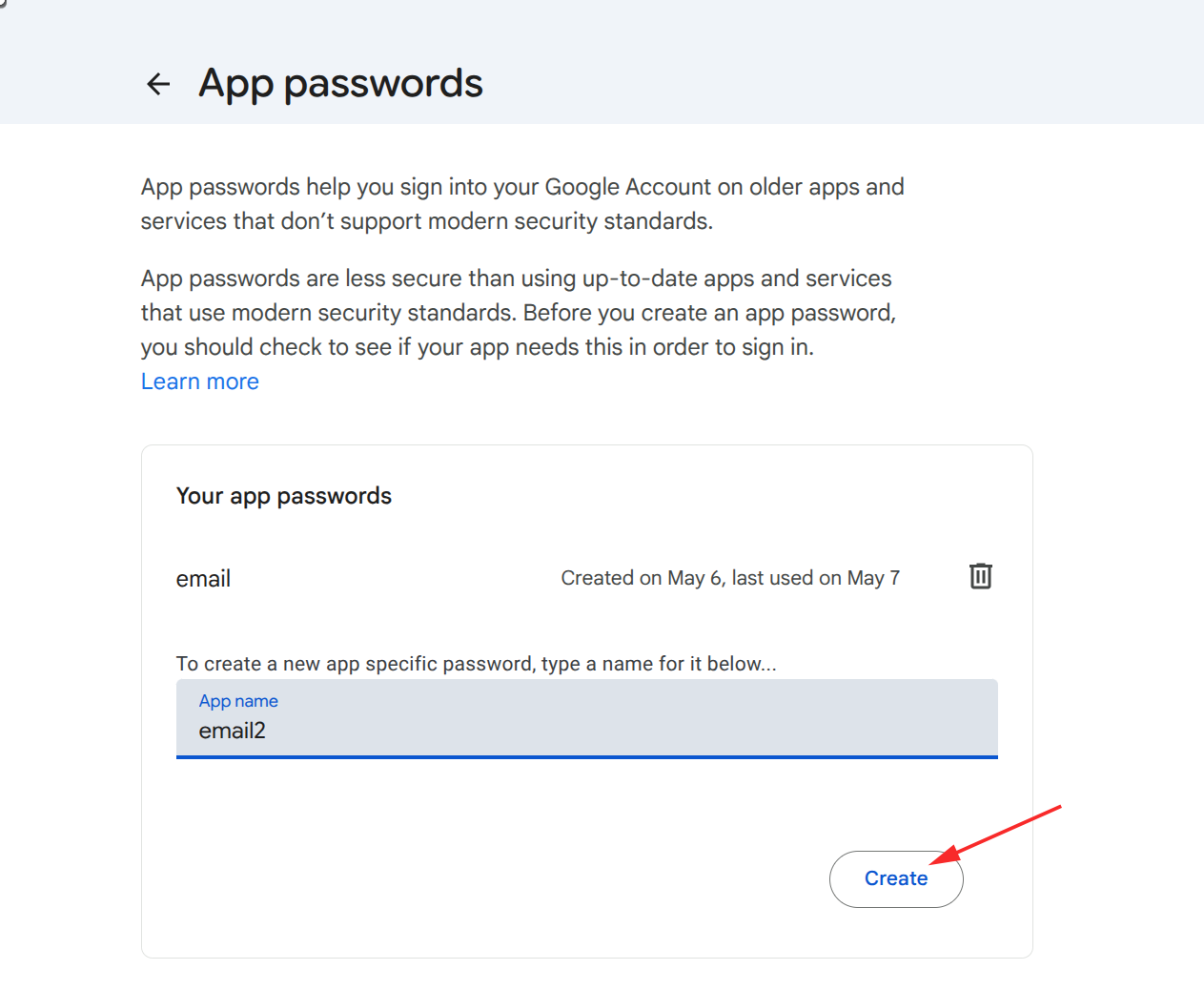
Go to myaccount.google.com to access your Google Account management page. Click the search icon, enter App passwords, and select the search result to navigate to the settings page.
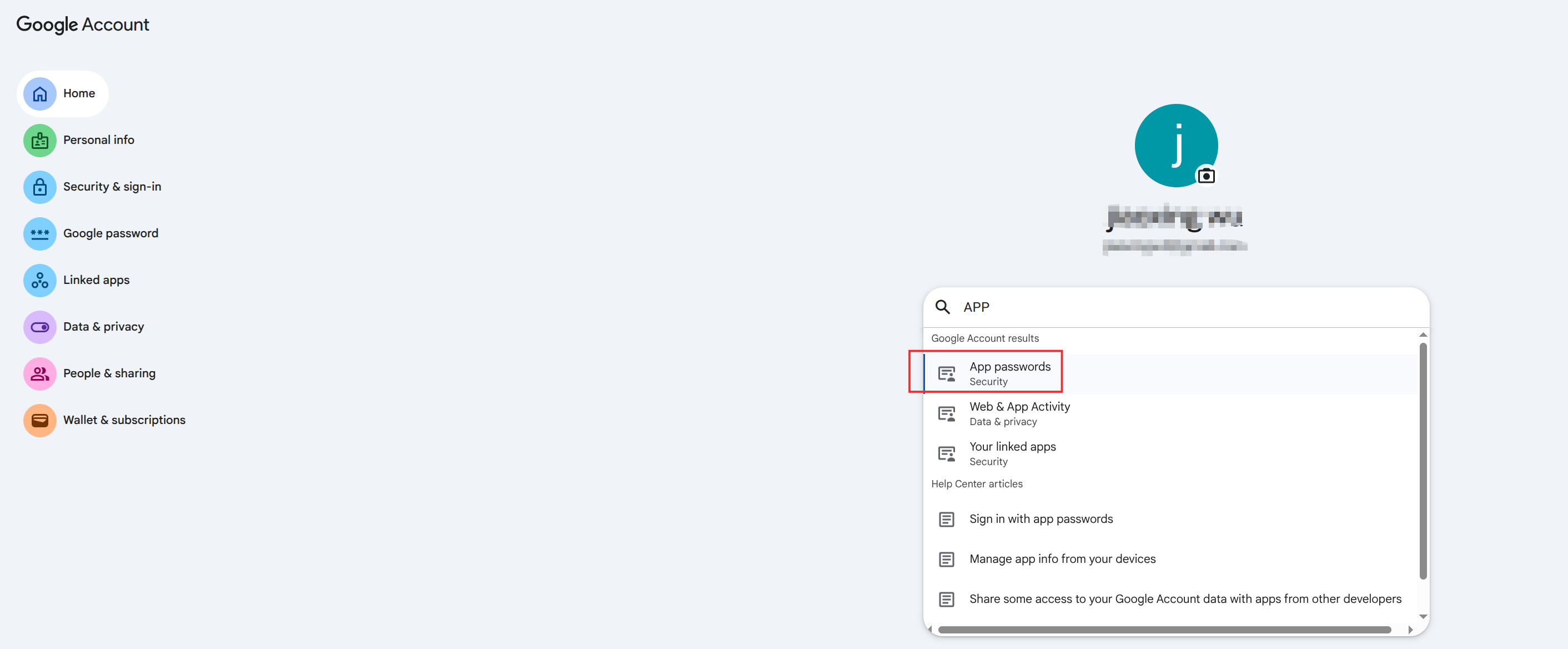
Enter a custom app name and click Create to generate your authorization code.
¶ Apple
Visit the official Apple ID website: appleid.apple.com and sign in with your Apple ID.
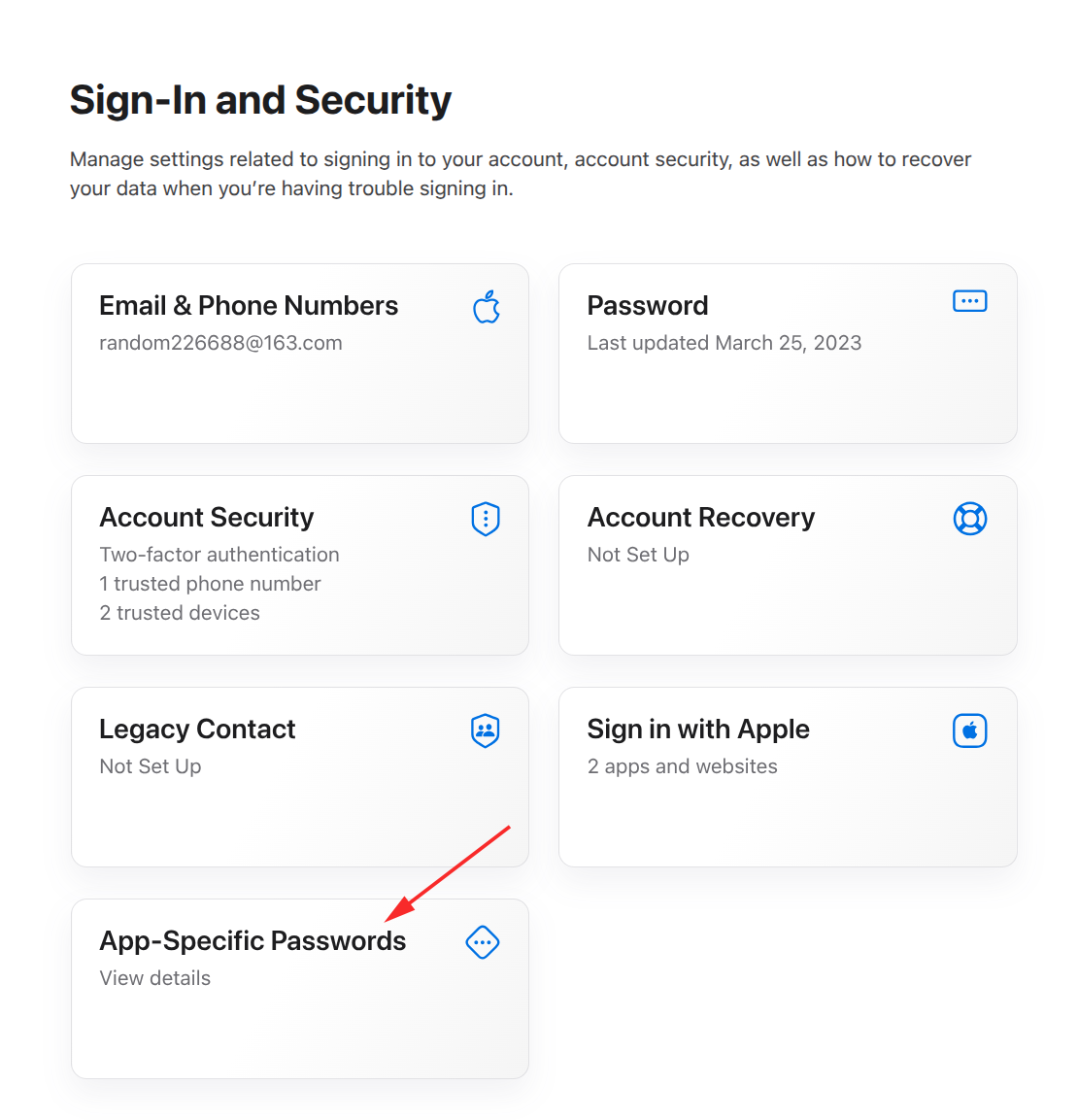
Go to Sign-In and Security > App-Specific Passwords.
Click Generate an app-specific password.
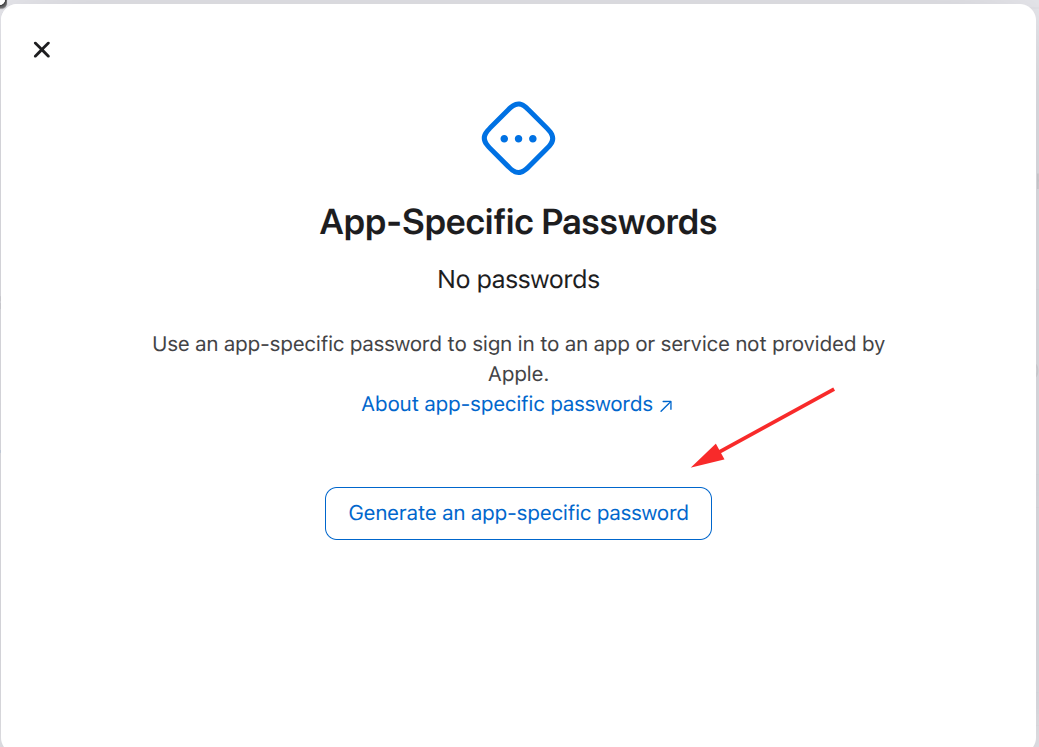
Enter a label to name this password (e.g. StationPC) and click Create.
¶ Yahoo
- Sign in to your Yahoo Account Security page (opens new window).
- Under "External connections," click Create app password.
- Enter your app's name in the text field.
- Click Generate password.
- Use the one-time password to log in to your 3rd party app.