¶ Two-Factor Authentication (2FA)
Two-Factor Authentication (2FA) provides a more secure login method. In addition to entering your password, you are required to provide a One-Time Password (OTP) to verify your identity in two steps, enhancing account security.
Note:
- Use an authenticator app that supports the TOTP protocol (such as Microsoft Authenticator (opens new window));
- It is recommended to configure a security email in advance to receive emergency verification codes if your phone is lost.
¶ Prerequisites
- Verify system time accuracy: Check and correct system time deviations. A time mismatch between your phone and the system will cause verification failure for time-based one-time passwords. To keep the system time accurate at all times, it is recommended to enable automatic time synchronization.
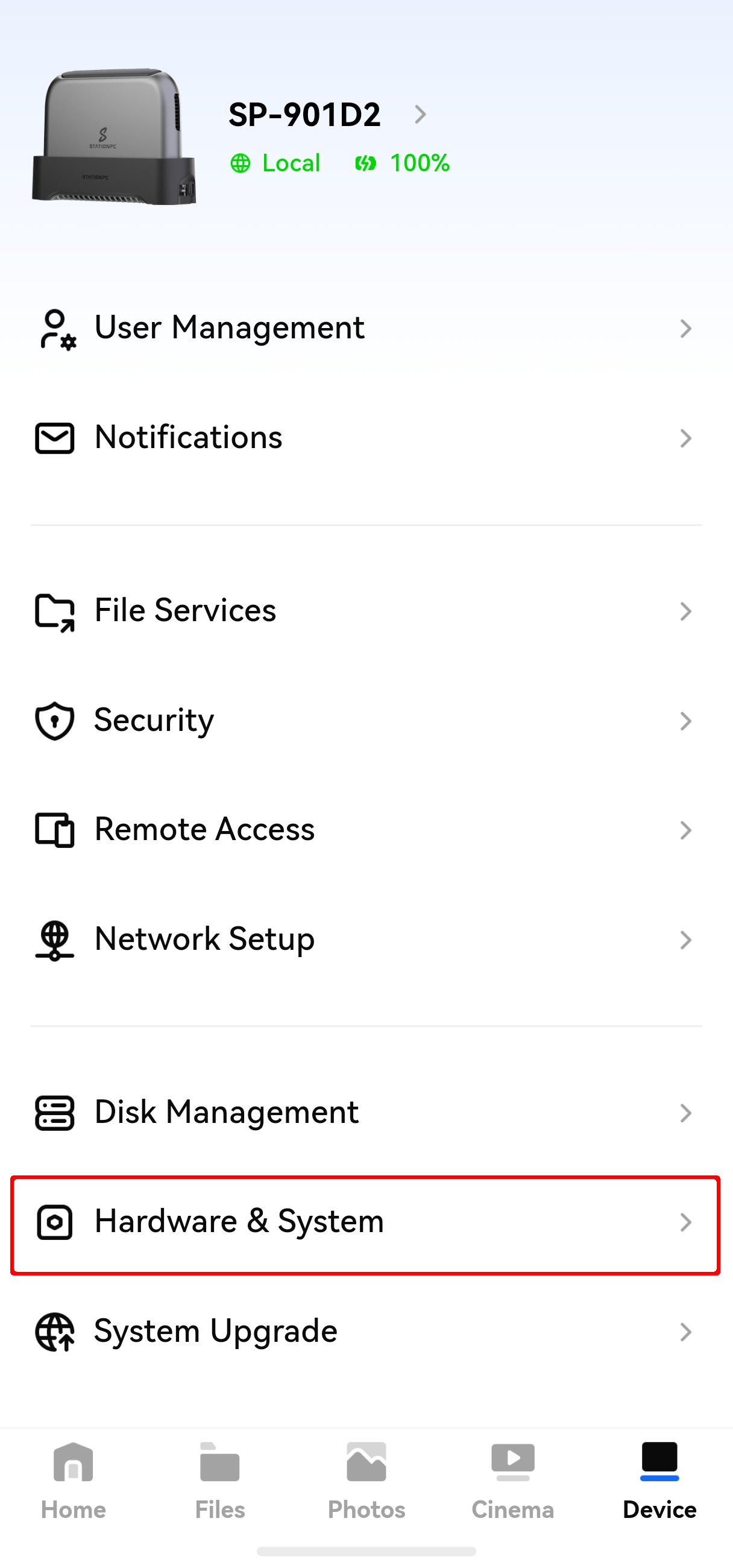
Enable email notification service Enable the email notification service to grant the system permission to send emails. This allows the system to send password reset emails, 2FA emergency verification code emails and more to your configured security email.
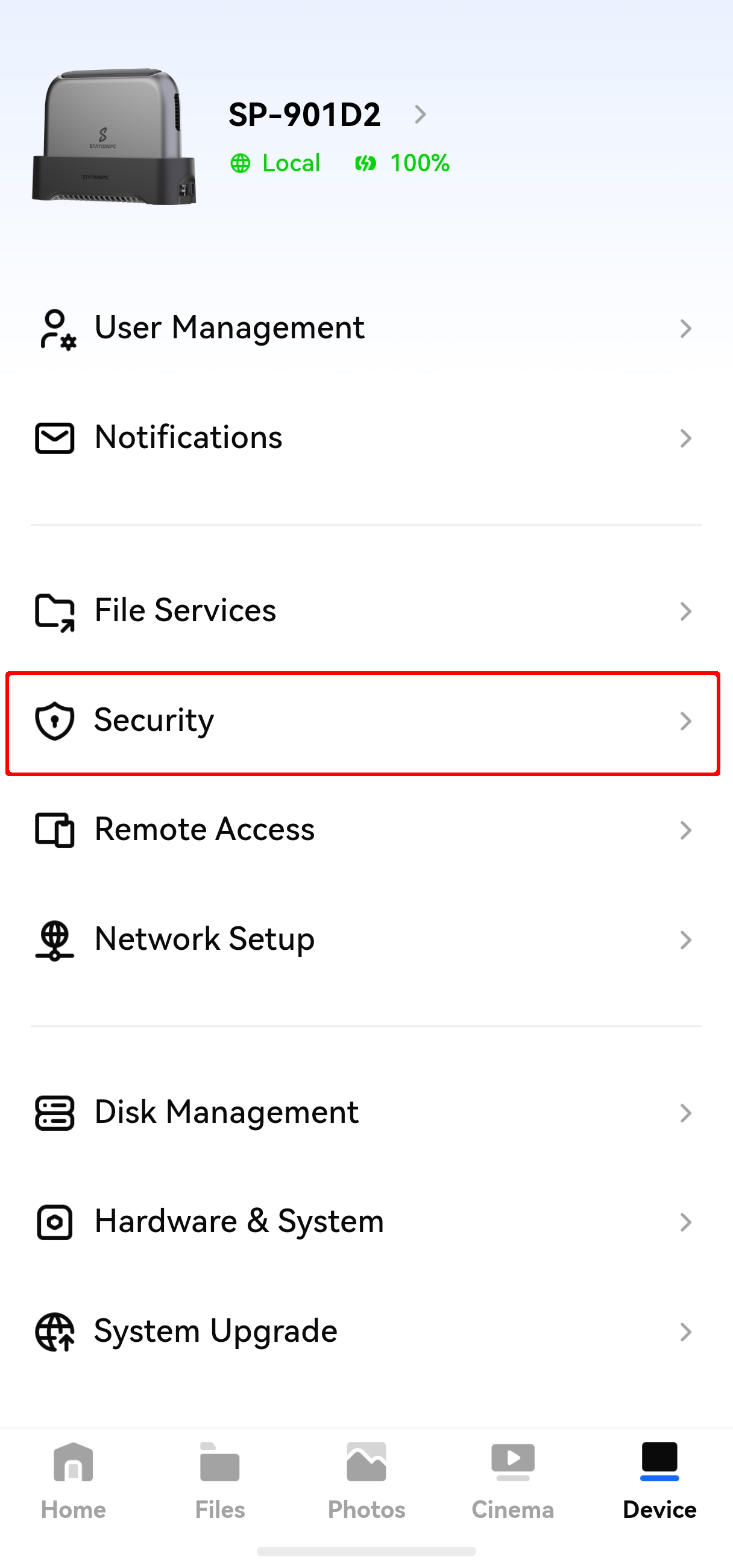
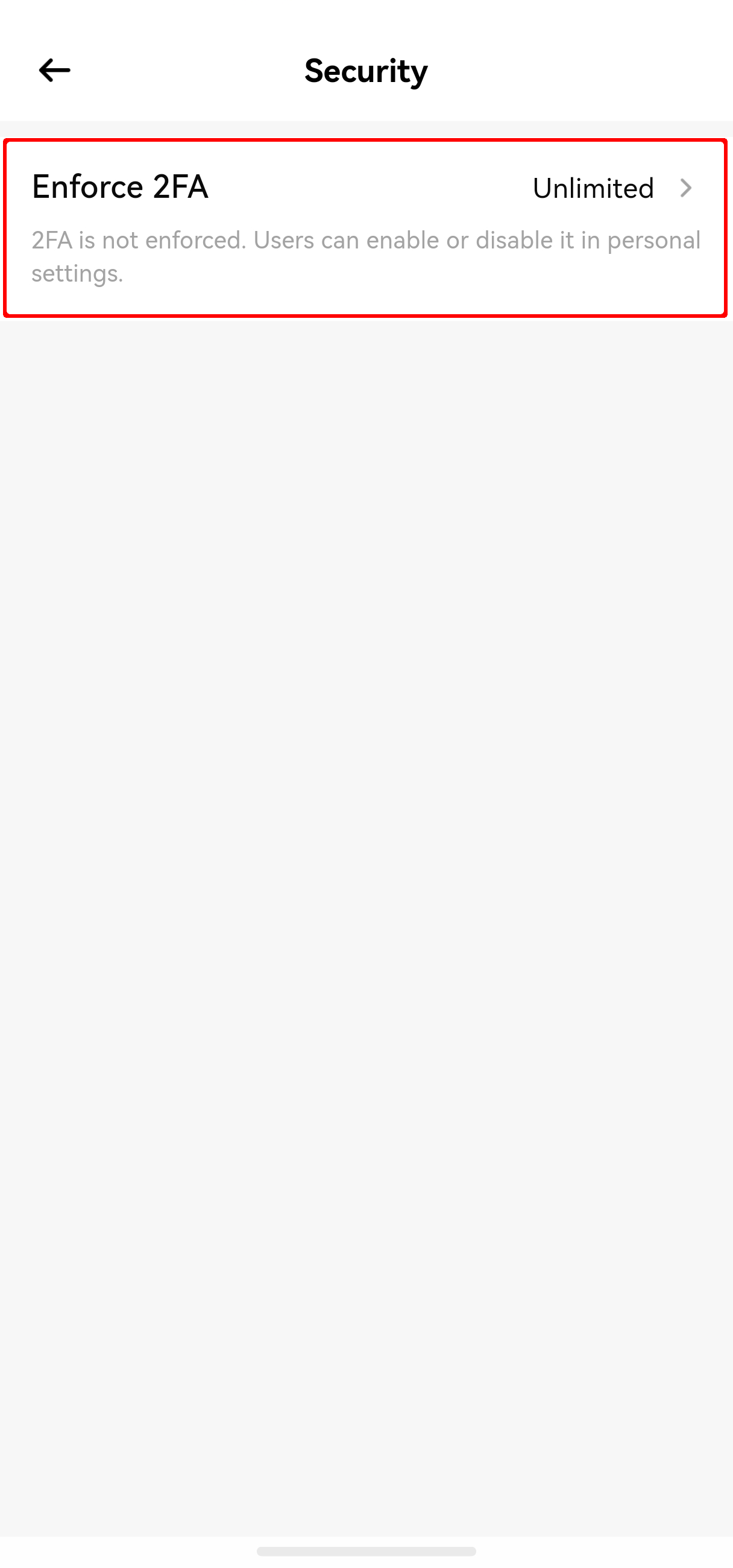
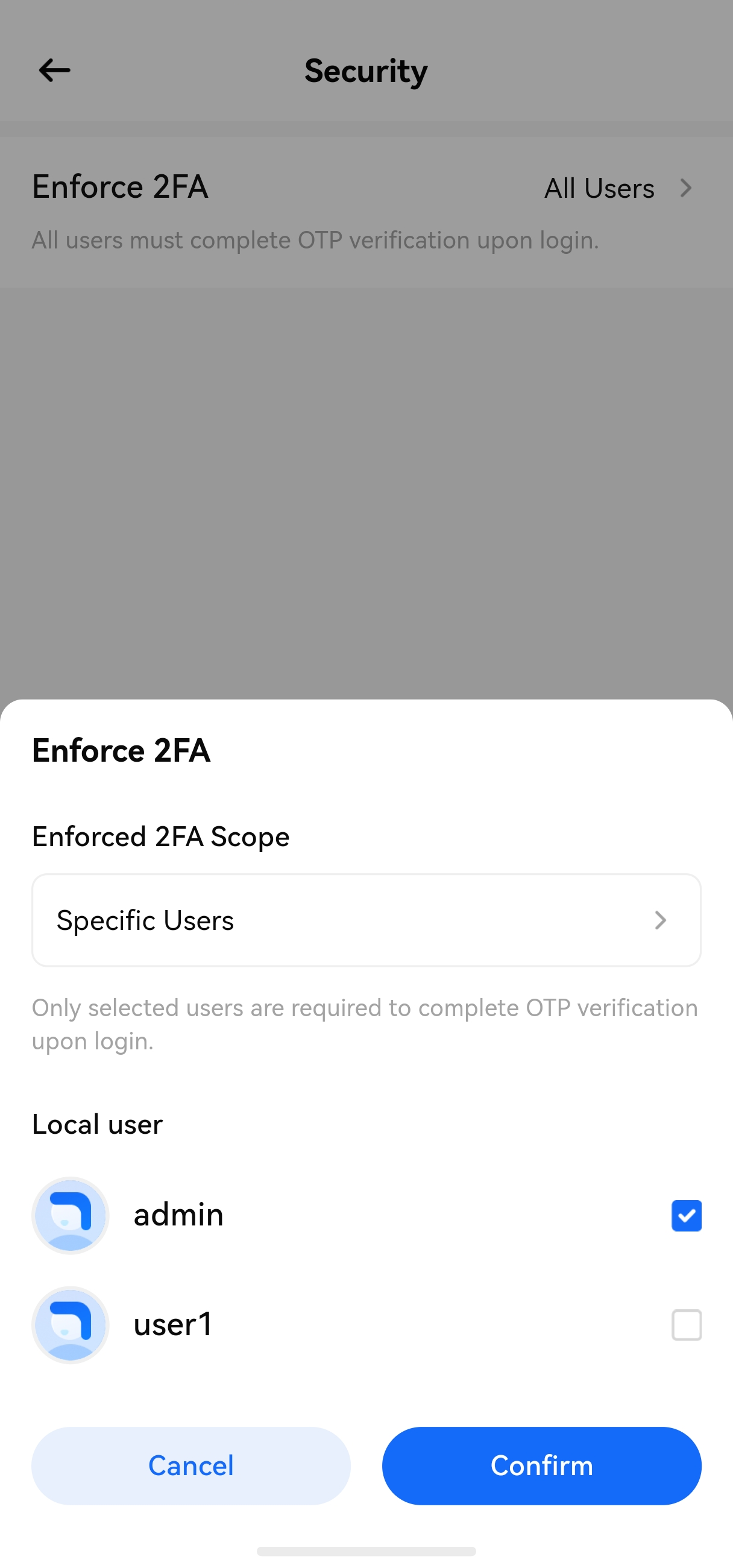
Enforce mandatory two-factor authentication You can apply mandatory 2FA to all users or selected users. Define the user group that requires enhanced account security, and enable mandatory 2FA for them.
¶ User Setup Process
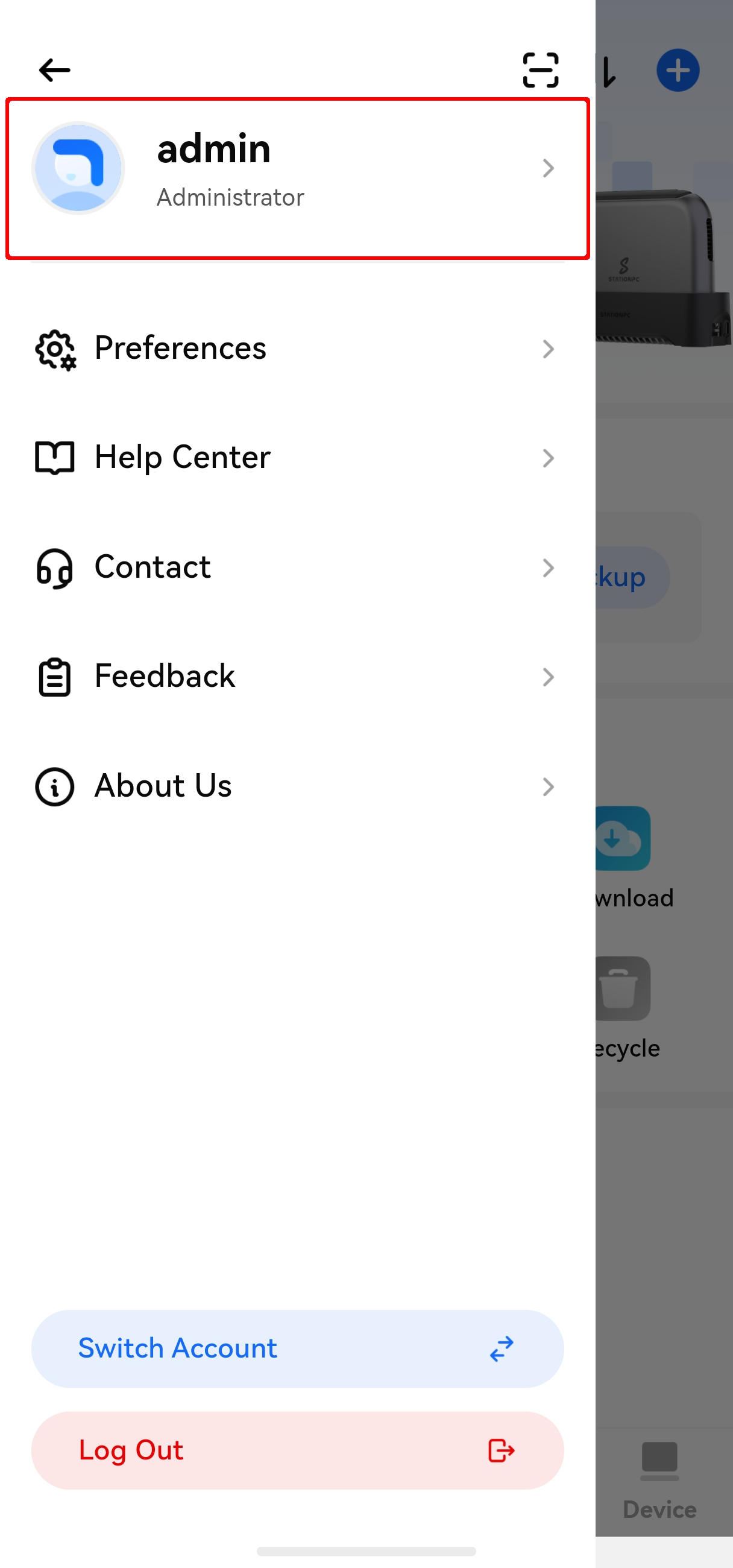
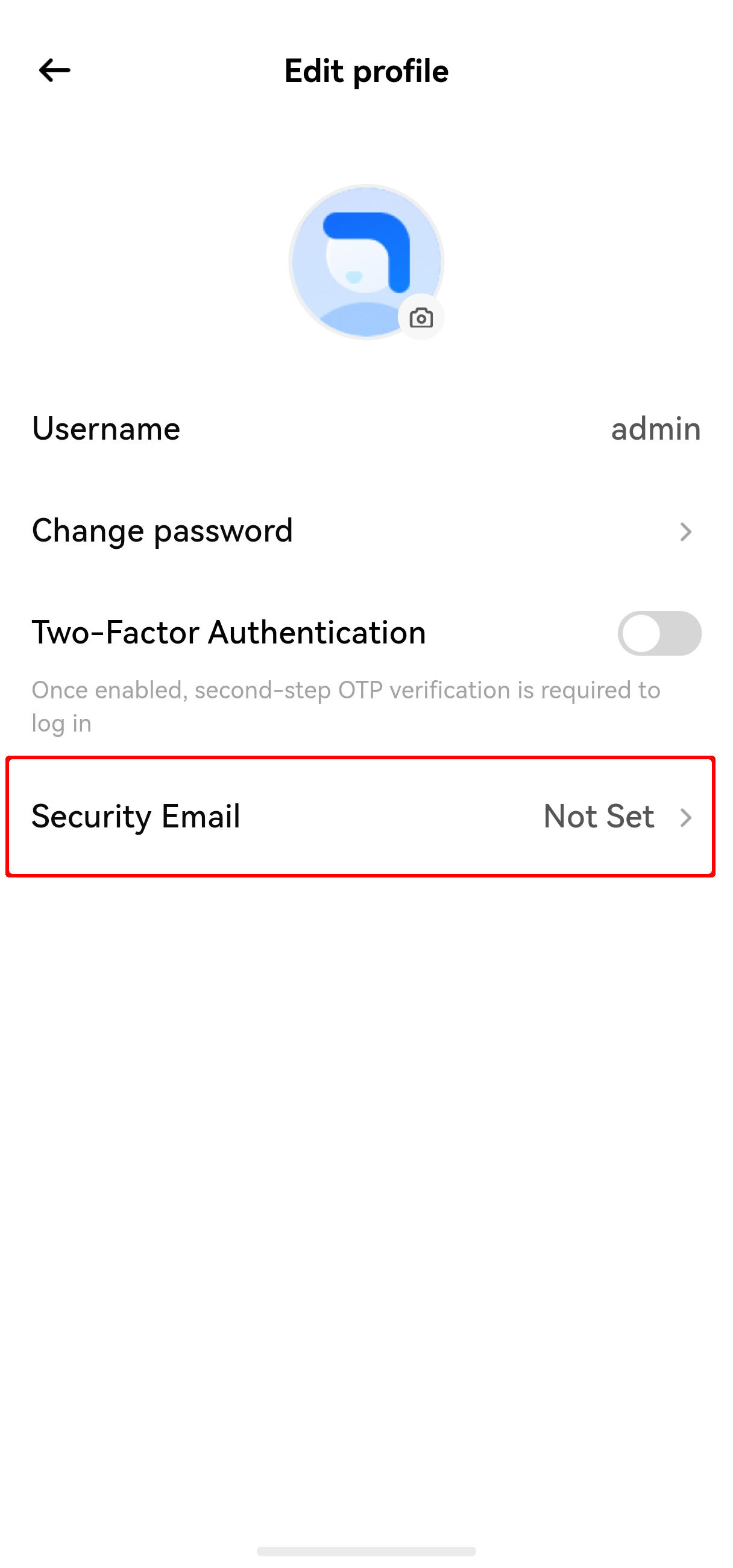
Go to the Personal Settings page to set up your security email and enable two-factor authentication.
¶ Set Up Security Email
To avoid being unable to log in if your phone or secret key is lost, set up a security email first.
¶ Enable Two-Factor Authentication
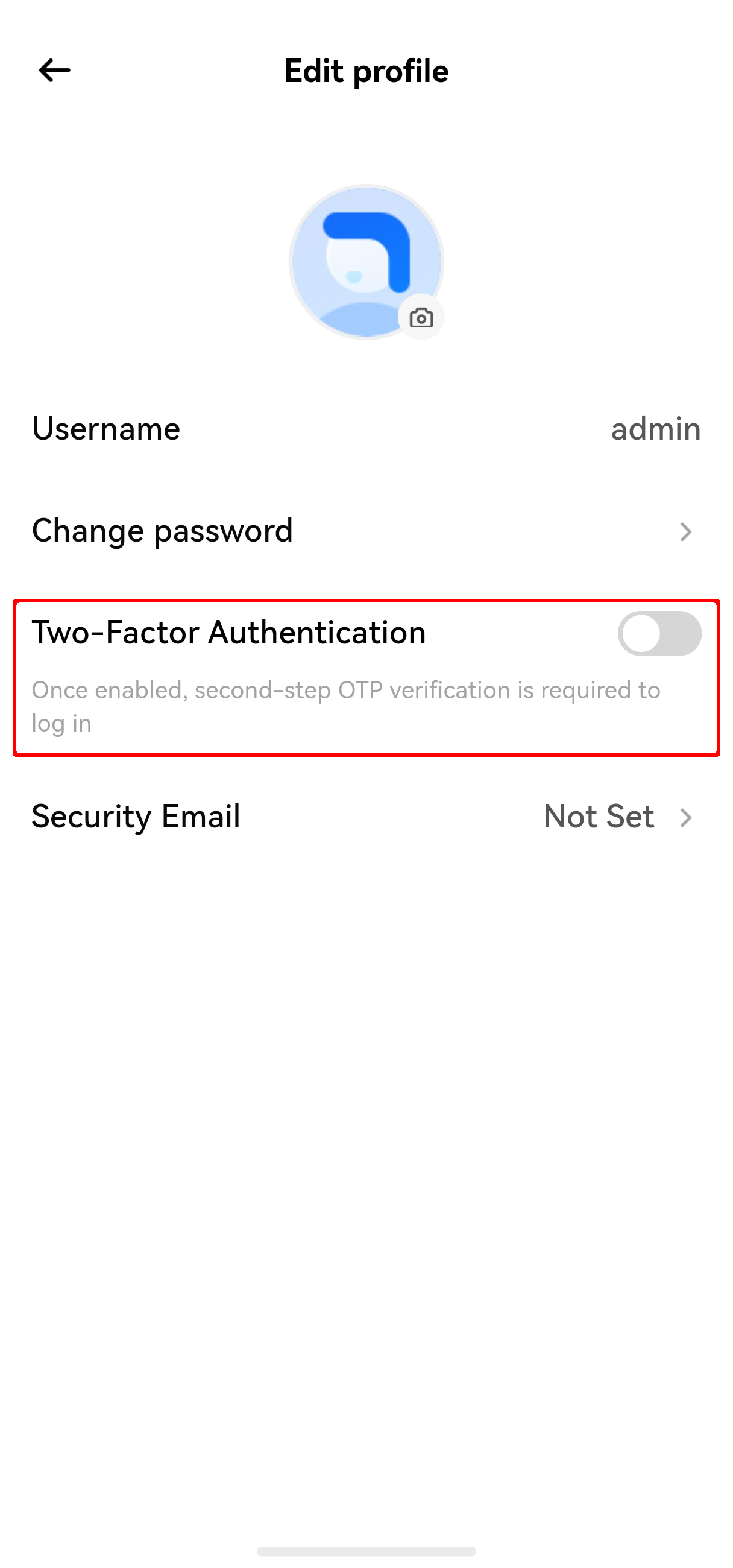
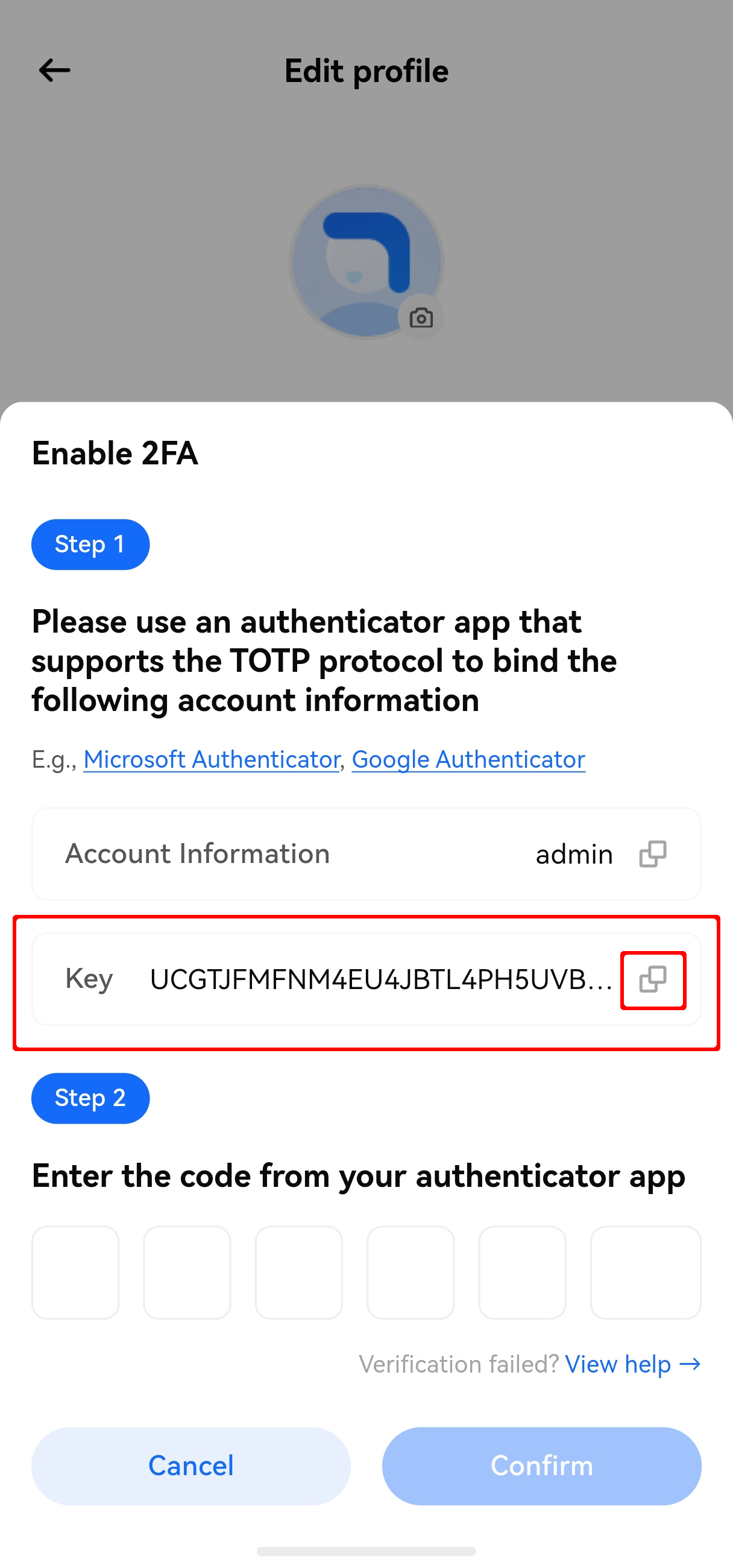
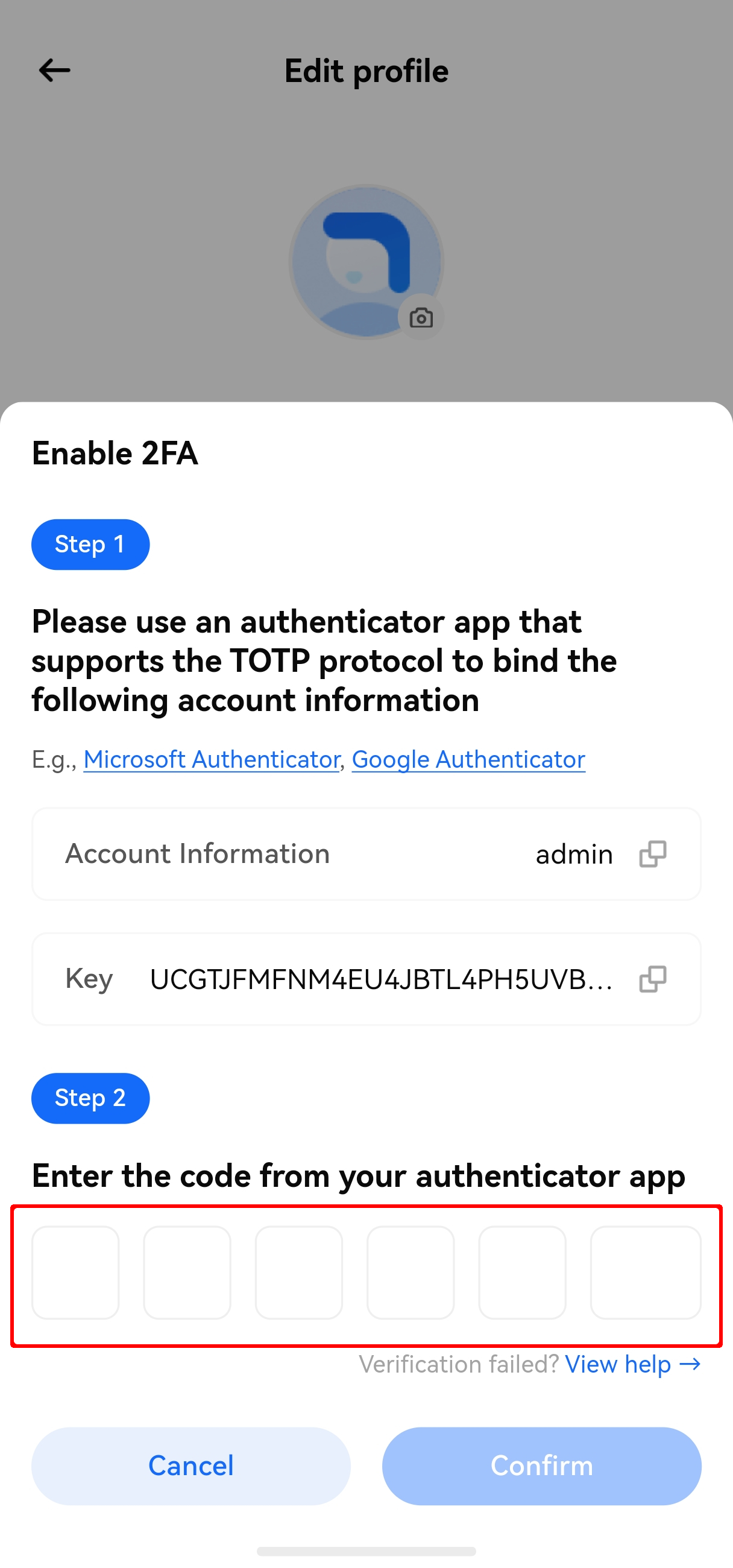
- Tap the enable button and enter your login account;
- Copy the secret key. Use an authenticator app that supports the TOTP protocol (such as Microsoft Authenticator) to complete the key binding following the prompts;
- Enter the dynamic verification code displayed in the authenticator app in the verification field to complete the setup.
¶ Login Process
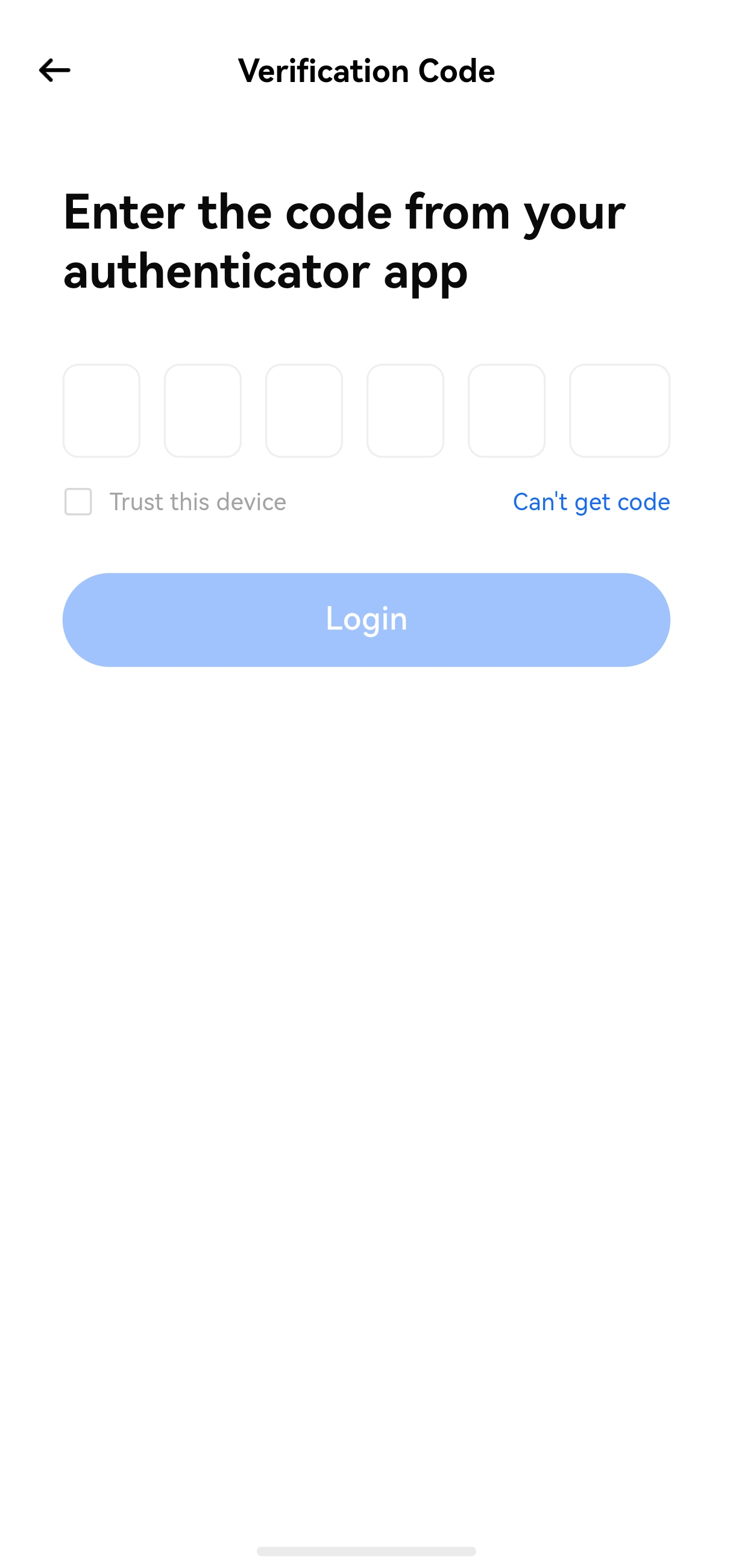
Once 2FA is enabled, you need to complete two verification steps to log in:
- Enter your account and password;
- Enter the dynamic verification code displayed in the authenticator app to log in.
Note:
- On the verification code entry page, you can check Trust this device. Once checked, you will not need to enter a verification code again when logging in on this device.
- If you cannot obtain the dynamic verification code, tap Cannot get code on the verification page. The system will send a one-time emergency verification code to your security email, which you can enter to complete login.
¶ Authenticator App Guide
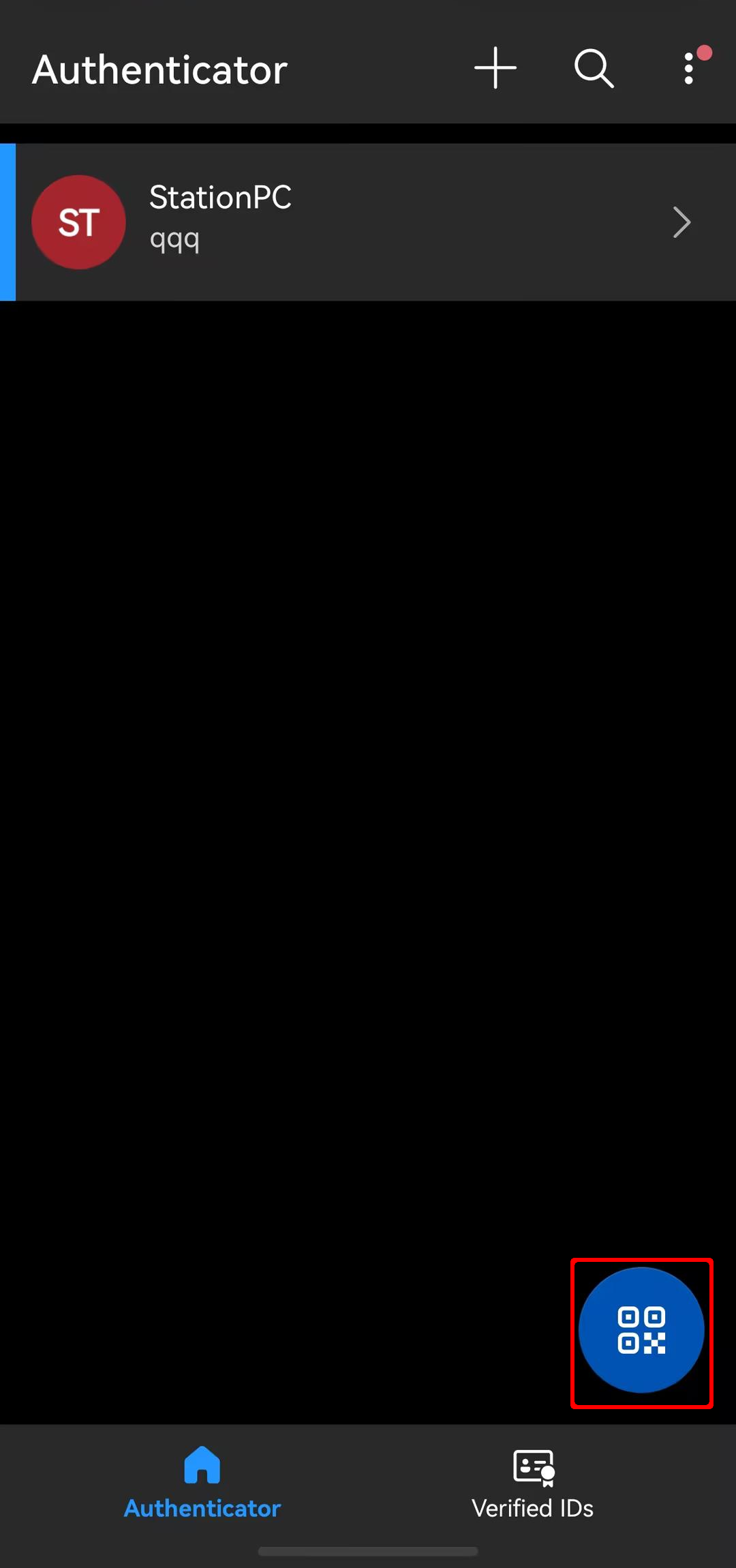
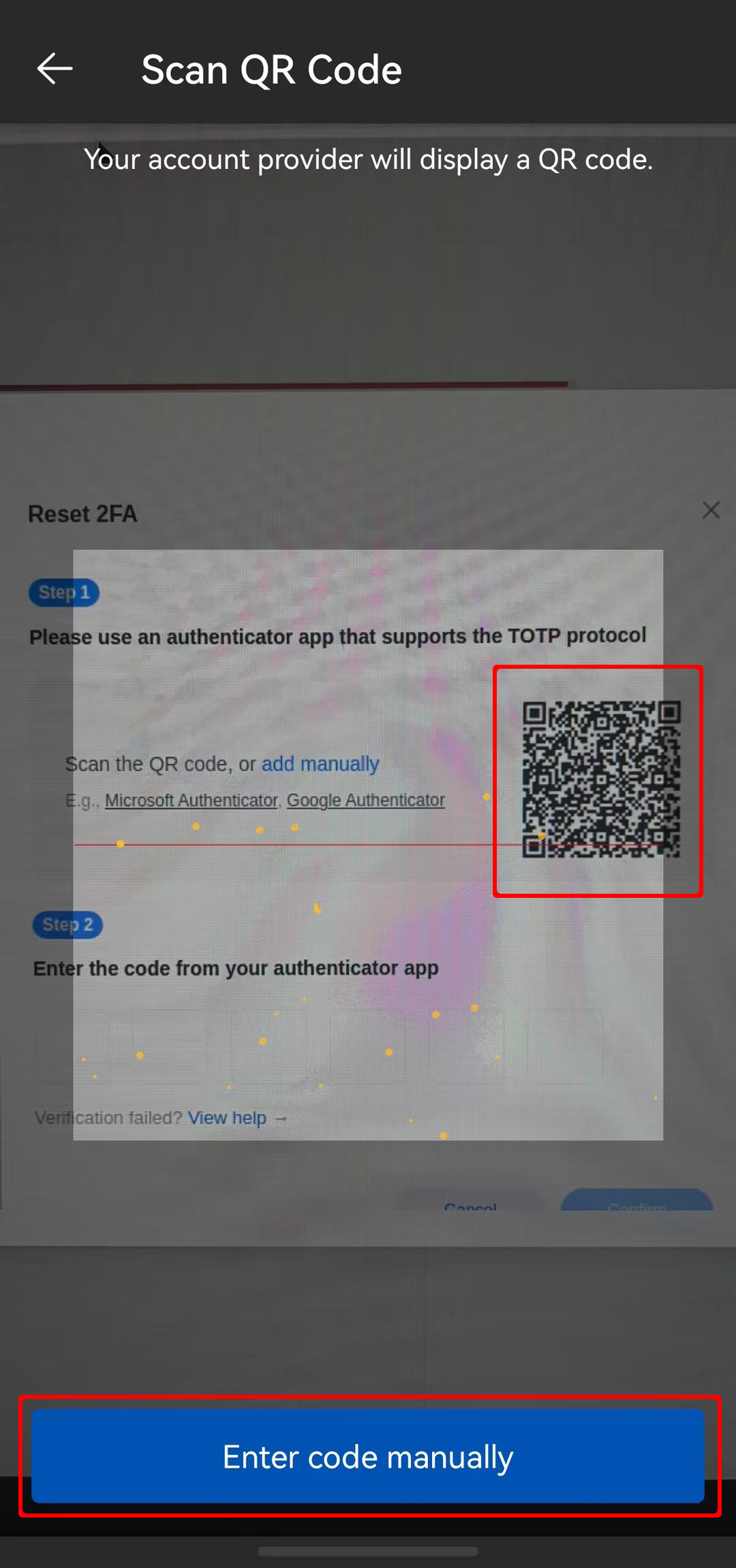
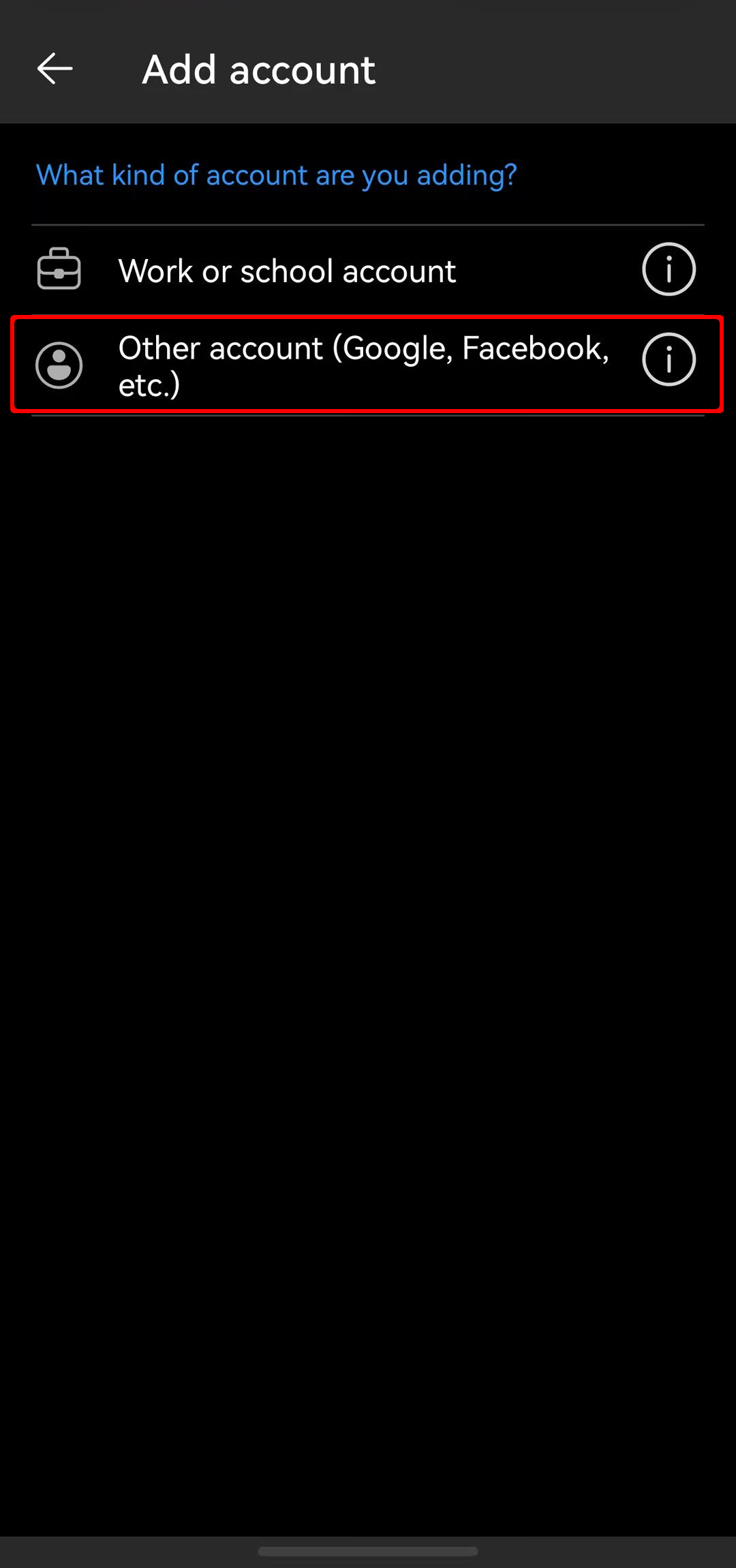
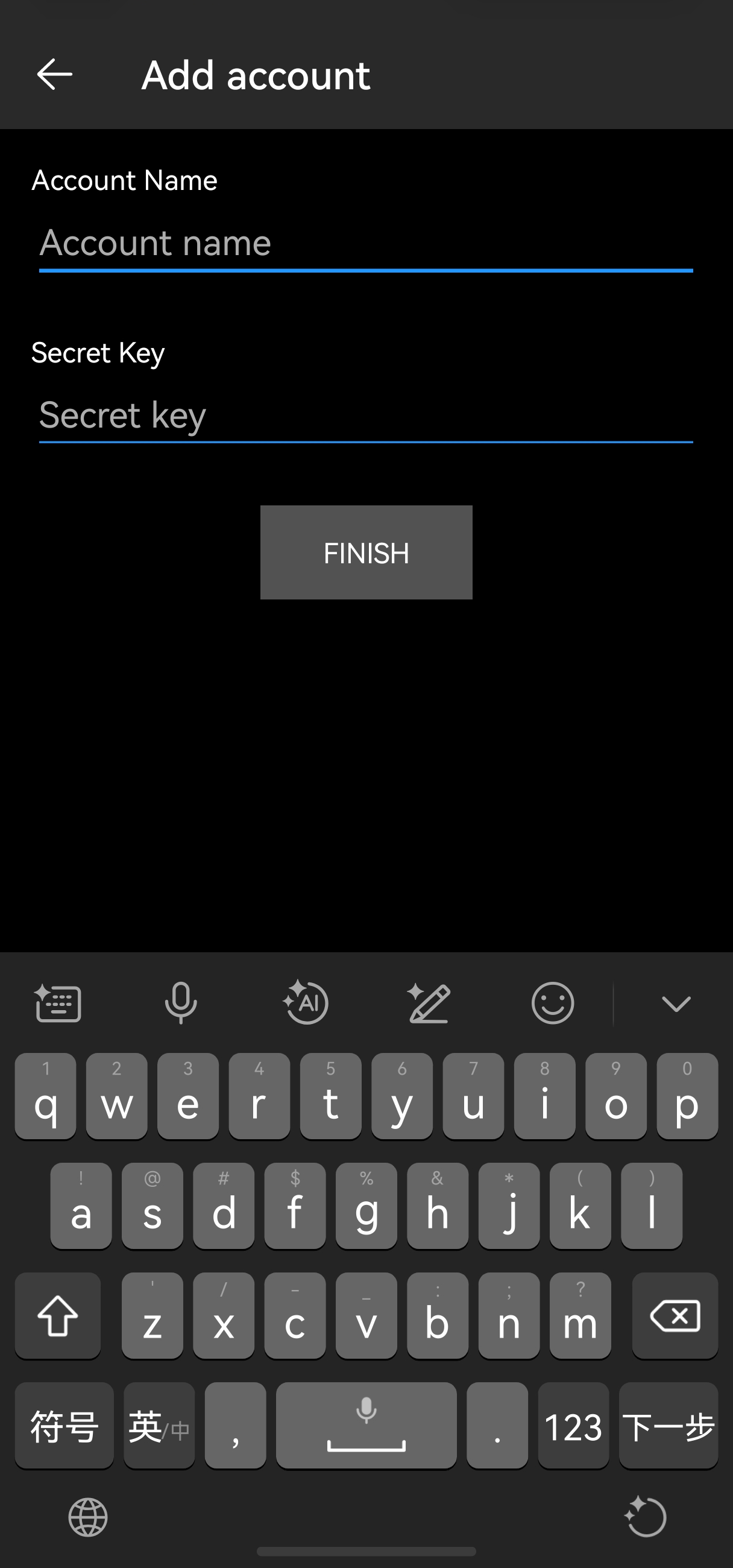
Any authenticator app that supports the TOTP (Time-based One-Time Password) protocol can be used. You can add accounts manually by entering the account and secret key, or scan the QR code via the Web/PC client.
¶ Microsoft Authenticator