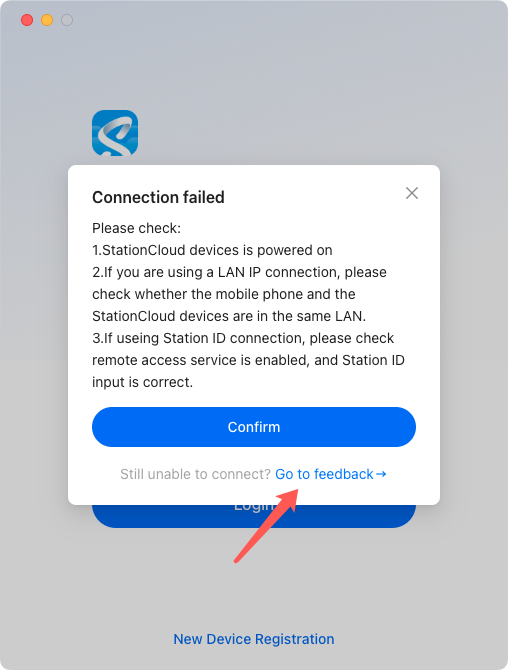
¶ PC Client Connection Failed
If you encounter a connection failure when using the PC client to access PocketCloud, please follow the steps below to troubleshoot.
¶ 1. Check if PocketCloud is in AP Mode
When a mobile phone connects to PocketCloud via direct WiFi, the device will automatically enter AP Mode, which may cause the PC client to fail to connect.
About AP Mode: The device acts as a hotspot to create an independent WiFi network. After connecting to this hotspot, other devices (mobile phones / computers) can communicate locally with the device and access files stored on it directly.
Check the device’s small screen. If the icon below appears, the device is in direct connection mode (AP Mode). 
¶ 2. If AP Mode is Enabled
If you still need to connect the device from your PC, follow these steps:
On the device screen, go to the AP Mode page to view the WiFi name, password, and IP address of PocketCloud.
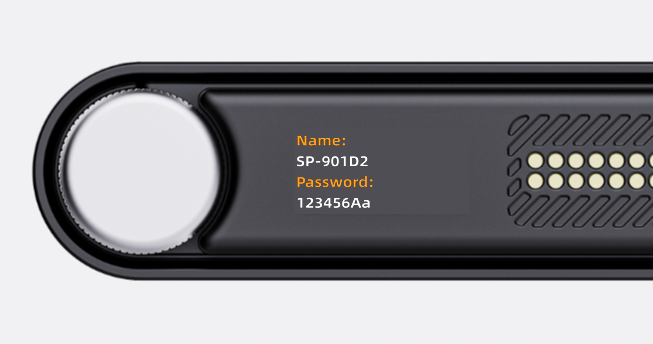
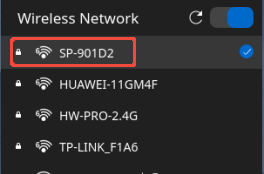
Open your computer’s WiFi settings, search for and connect to the corresponding PocketCloud WiFi.
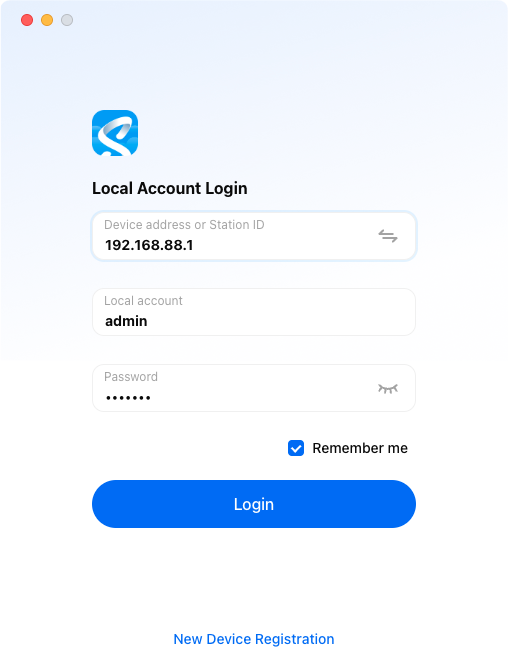
After successfully connecting to the WiFi, enter the IP address obtained in Step 1 in the client, or click Scan Local Network to detect the device.
¶ 3. If AP Mode is NOT Enabled
Please troubleshoot based on your login method:
¶ Login via IP Address
Make sure PocketCloud and your PC are on the same local area network (LAN) and have a valid network connection.
Check the device screen to confirm whether PocketCloud is connected to the network.
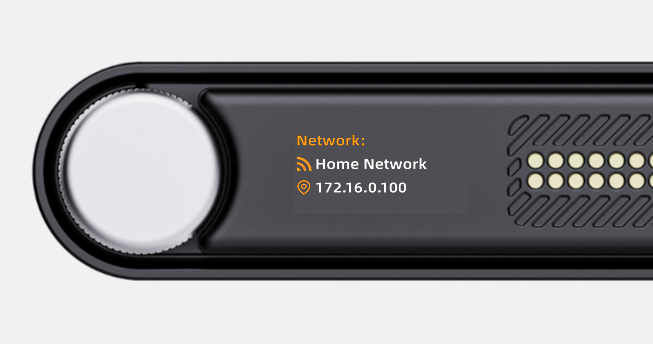
If not connected, use the mobile app to configure WiFi for the device, or connect an Ethernet cable via the docking station.
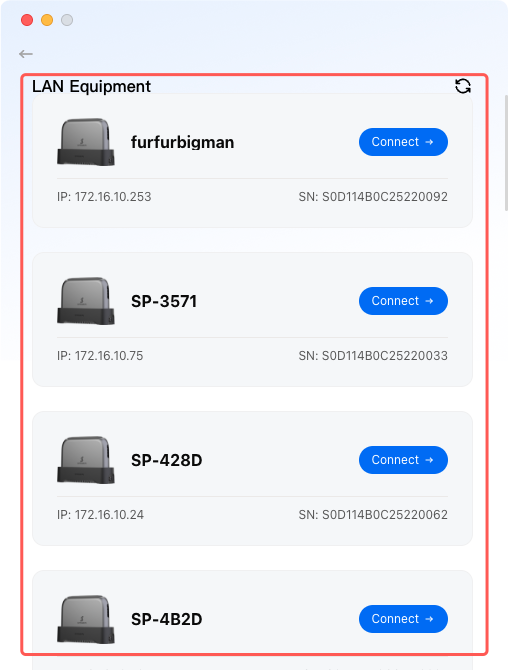
If already connected, click Scan Local Devices in the client. Your device should appear in the list.
If the device is not found, it means the device and computer are not on the same LAN. Please check your network settings and try again.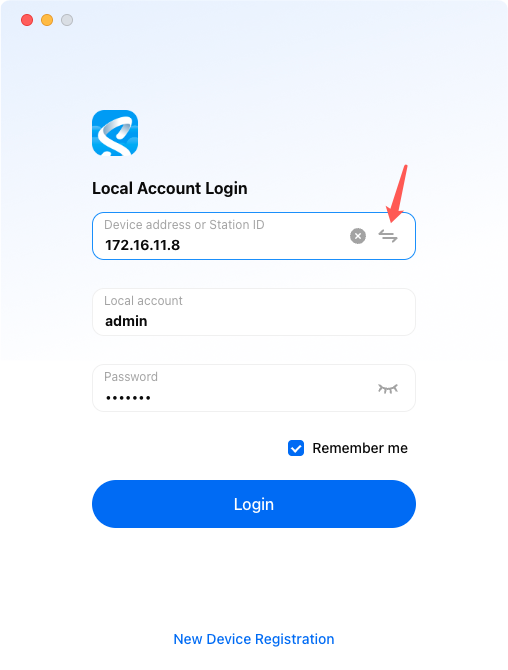
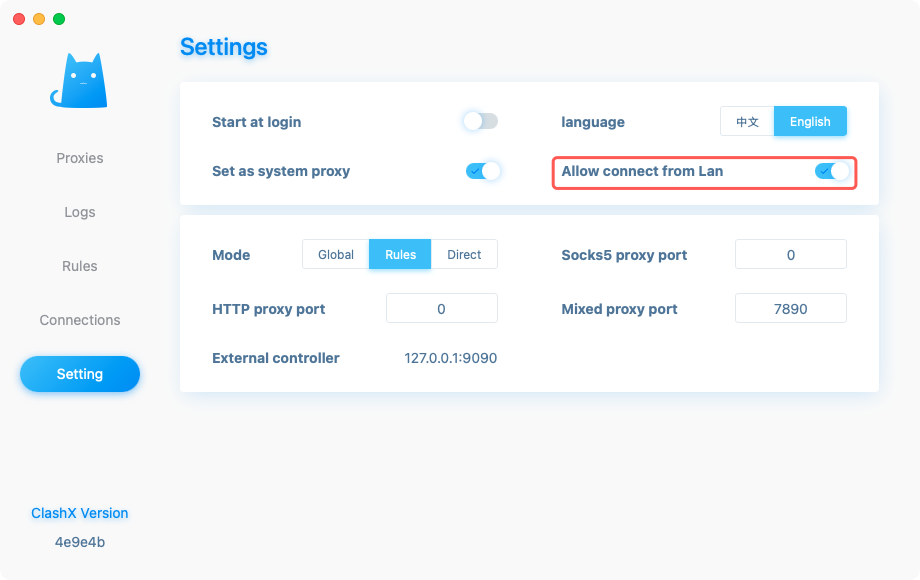
Ensure no VPN is running on your computer, or set your VPN software to Allow LAN access.
¶ Remote Login via StationID
Please verify the following items one by one:
- PocketCloud is powered on and connected to the Internet. You can check the device indicator: a blue light means Internet access is available.
- Remote access is enabled on PocketCloud.
- The entered StationID is correct, with no extra spaces or wrong characters.
- Your computer has stable Internet access. If both Ethernet and WiFi are connected, make sure the Ethernet connection has Internet access; otherwise, you cannot connect to the device via StationID.
¶ 4. If the Issue Persists
If you still cannot log in after following the above steps, please upload logs from the client and contact customer support. We will help further diagnose the problem.