
Station Cloud HelpHelp Center
PocketCloud
  • English
  • 简体中文
PocketCloud
Old Version
PocketCloud
  • Video Tutorial

  • Hardware Installation

  • Quick Start

  • Remote Access

  • Photos

  • Cinema

  • File

  • File Service

    • How to Access PocketCloud Files via NFS?
    • How to Access PocketCloud Files via Samba?
    • How to Access PocketCloud Files via WebDAV?
    • When accessing a WebDAV service in Windows, an error message appears for files larger than 50MB (error code: 0x800700DF)
    • Window failed to mount WebDAV to local computer
    • File Manager freezes after a failed WebDAV connection in Windows
    • Mounting WebDAV on a Local Computer in Windows
  • Backup

  • Docker

  • Settings

  • Compatible List

  • FAQ

  • Contact Us
  1. PocketCloud
  2. /
  3. File Service

  4. /
  5. Mounting WebDAV on a Local Computer in Windows

¶ Mounting WebDAV on a Local Computer in Windows

  1. Click the Star button in the bottom left-hand corner of your screen.
  1. Type "This PC" and you will see the following screen.
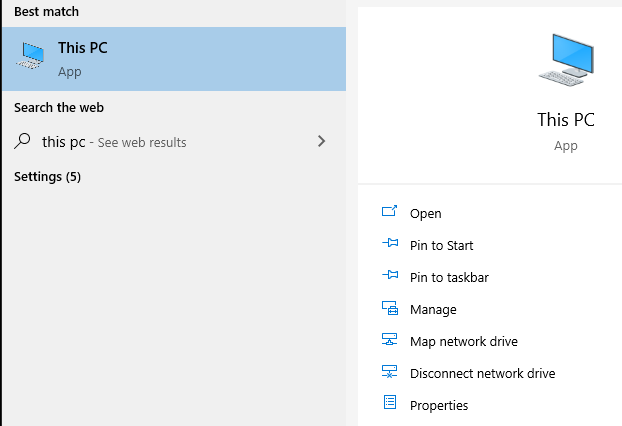
  1. Choose "Map Network Drive" from the quick menu on the right of the screen.
  1. In the pop-up window, enter the WebDAV address, which is http://<IP address>:5005, and then click Finish
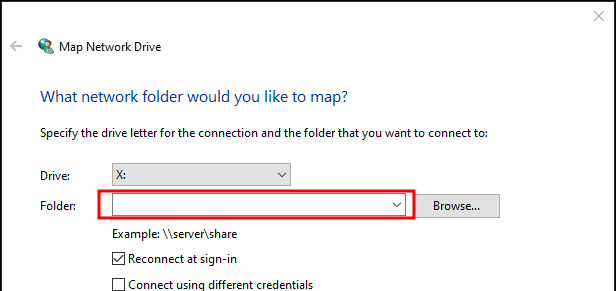
  1. When prompted, enter your WebDAV username and password and press OK.
  2. Verify that the process is complete by going back to 'This PC'. The mapped letter drive should appear in the menu under the "Network Location" section.
Prev: File Manager freezes after a failed WebDAV connection in Windows Next: How to Create a Cloud Drive Backup?