
¶ How to Access PocketCloud Files via FTP?
FTP (File Transfer Protocol) is a widely used standard protocol for transferring files over a network. With FTP, users can connect to PocketCloud remotely to browse, upload, download, and manage files from different client devices.
FTP provides the following main features:
- File Upload and Download - Transfer files between local devices and PocketCloud over the network.
- Remote File Management - Create, rename, move, and delete files or folders on PocketCloud.
- User Access Authentication - Use account credentials to control access and improve security.
- Cross-Platform Access - Connect from Windows and macOS with FTP-supported clients.
¶ Enable FTP
By default, FTP is disabled. You need to manually enable it by following these steps:
- Open the File Services section in the app.
- Tap FTP Service.
- Toggle the switch to turn on the FTP service.
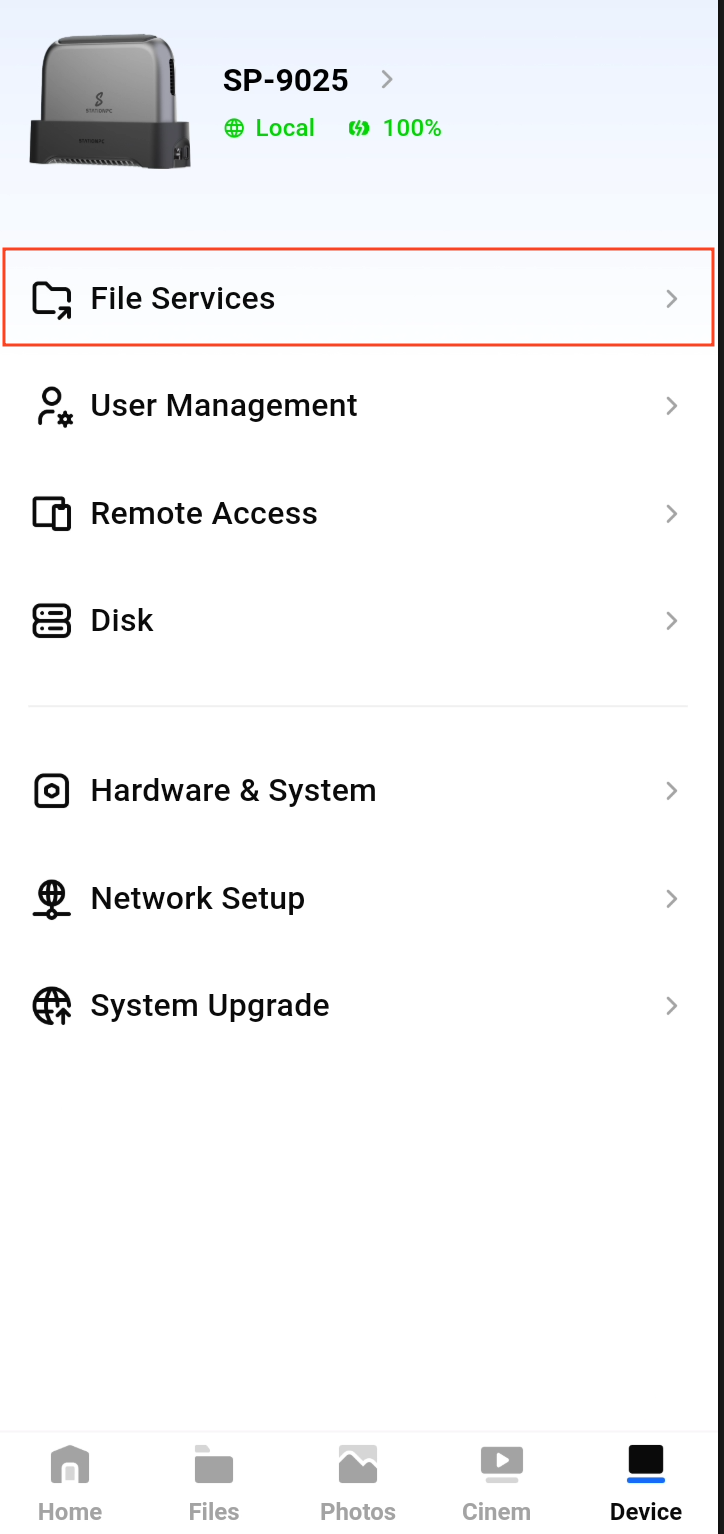
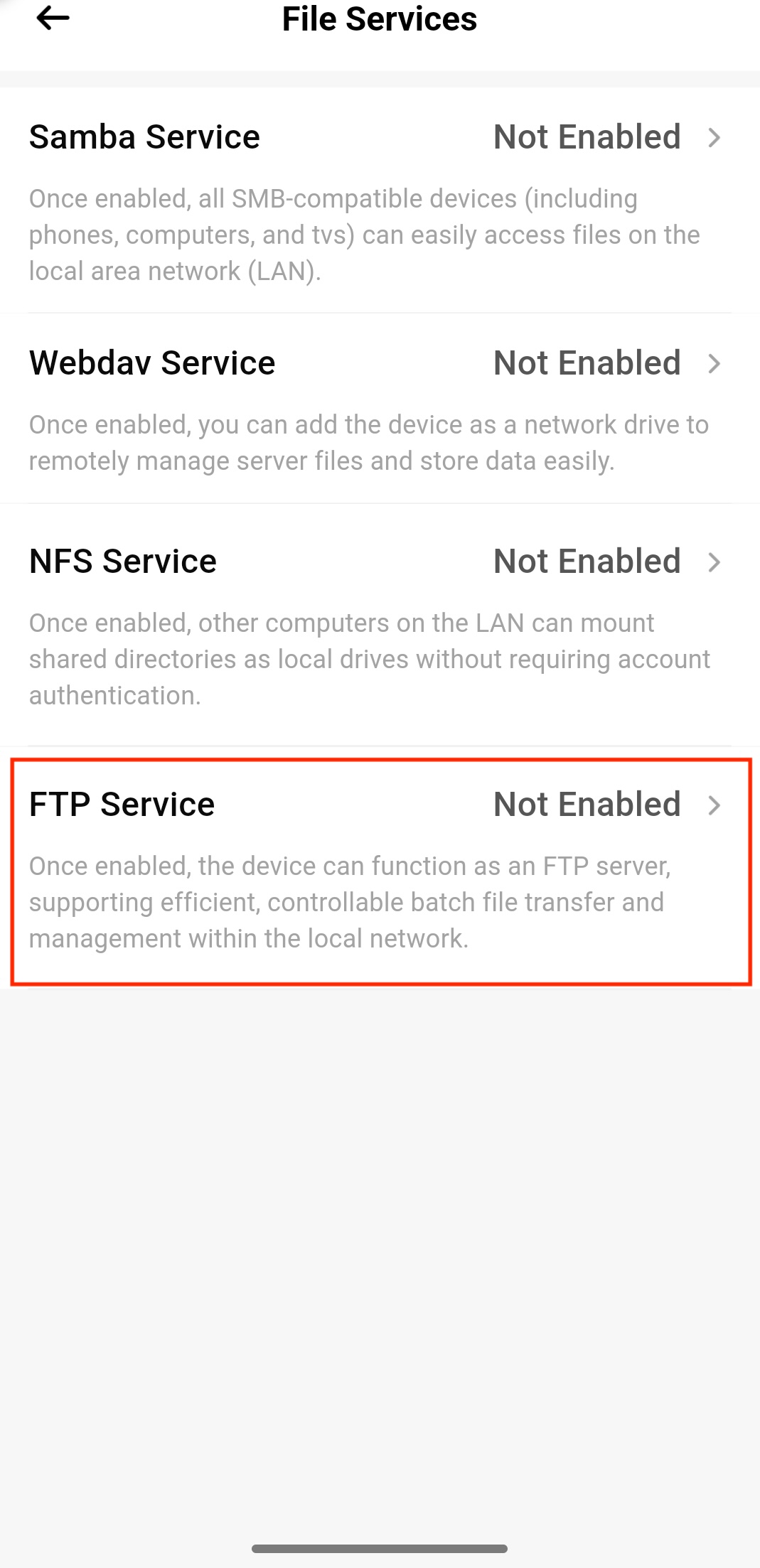
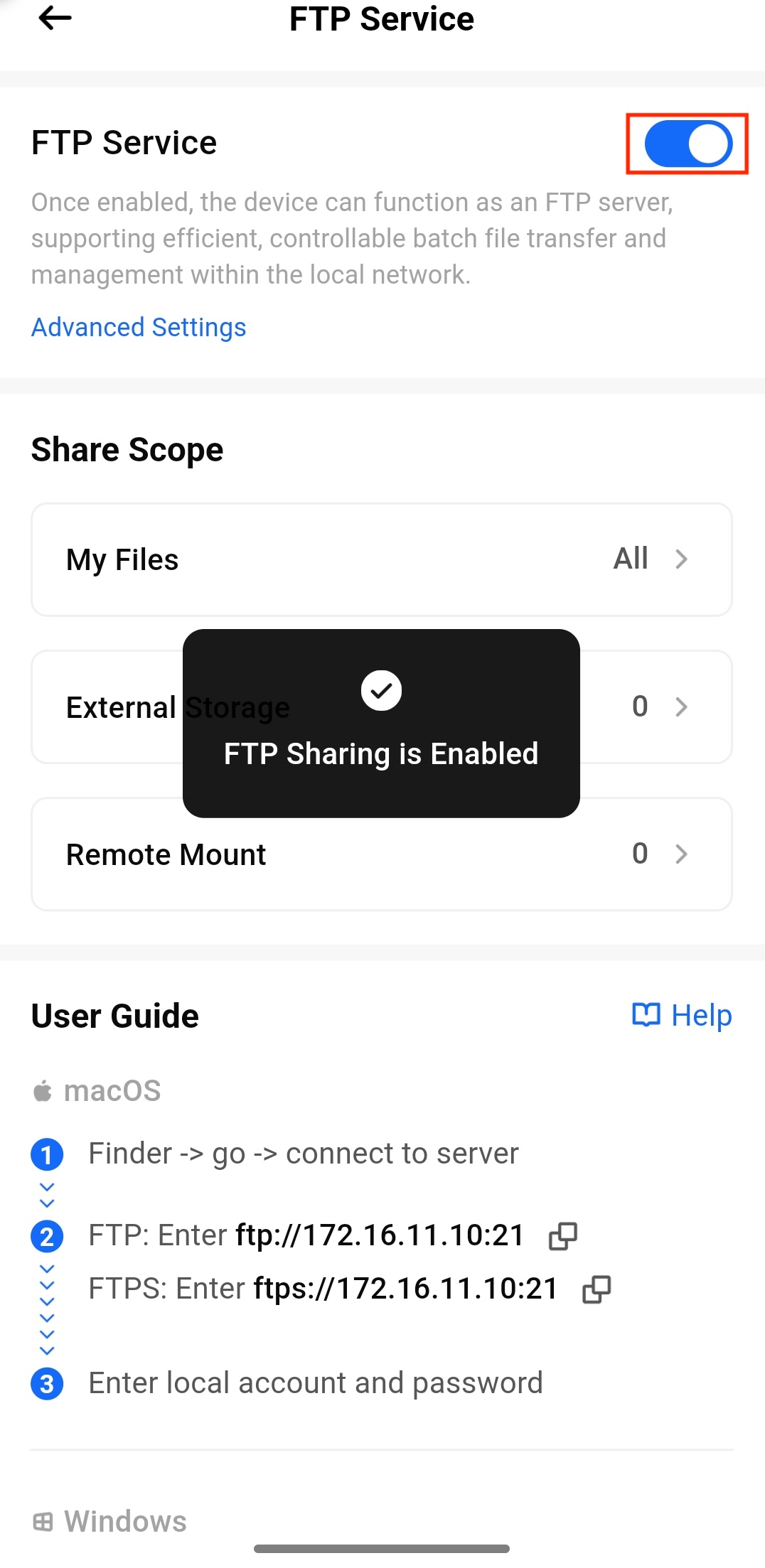
·
¶ Accessing on Windows
- Press Win + E to open File Explorer.
- Enter
ftp://NAS_IP_Address:21orftps://NAS_IP_Address:21in the address bar, then press Enter.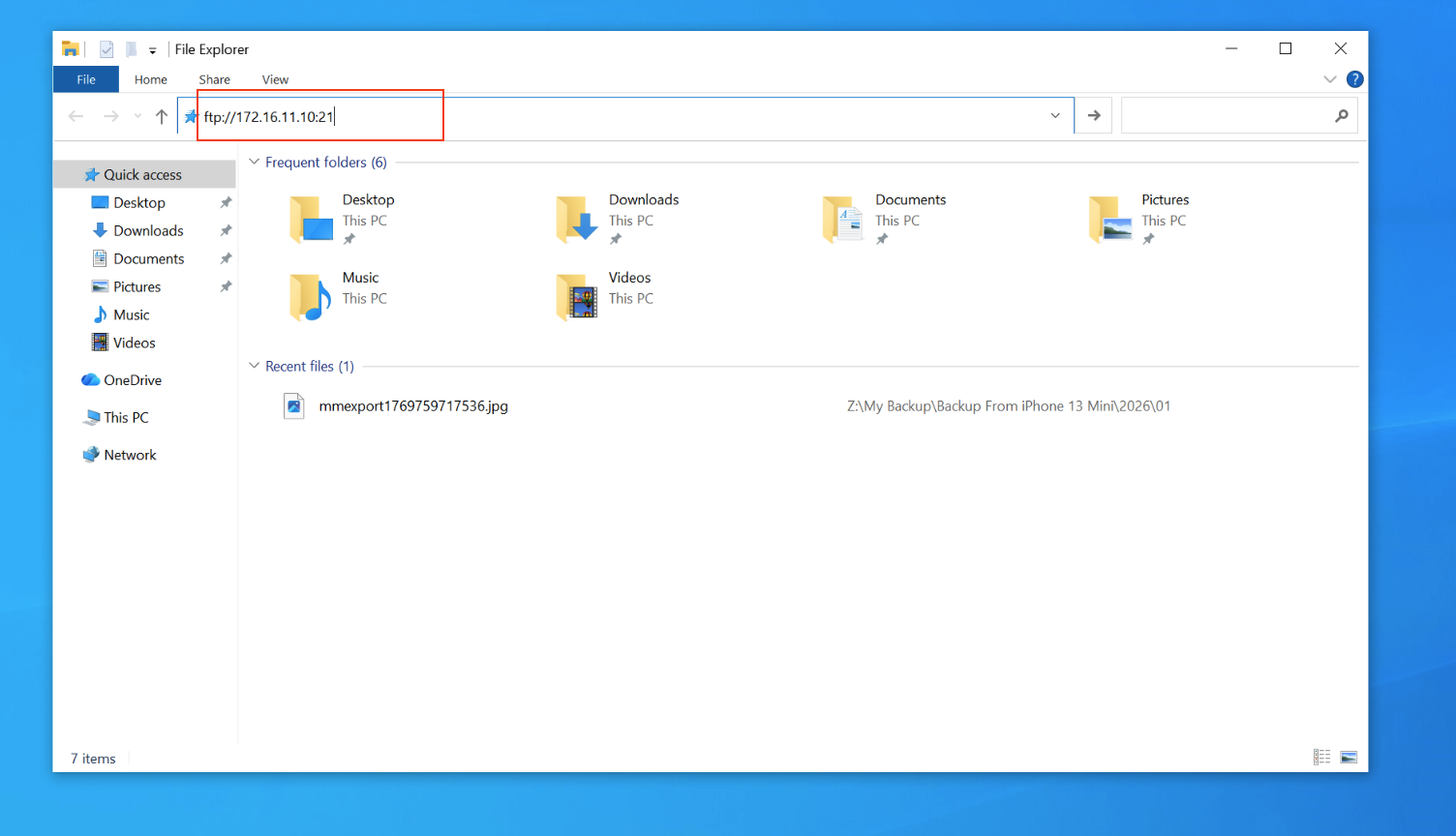
- Enter your User name and Password when prompted, and click Log On.
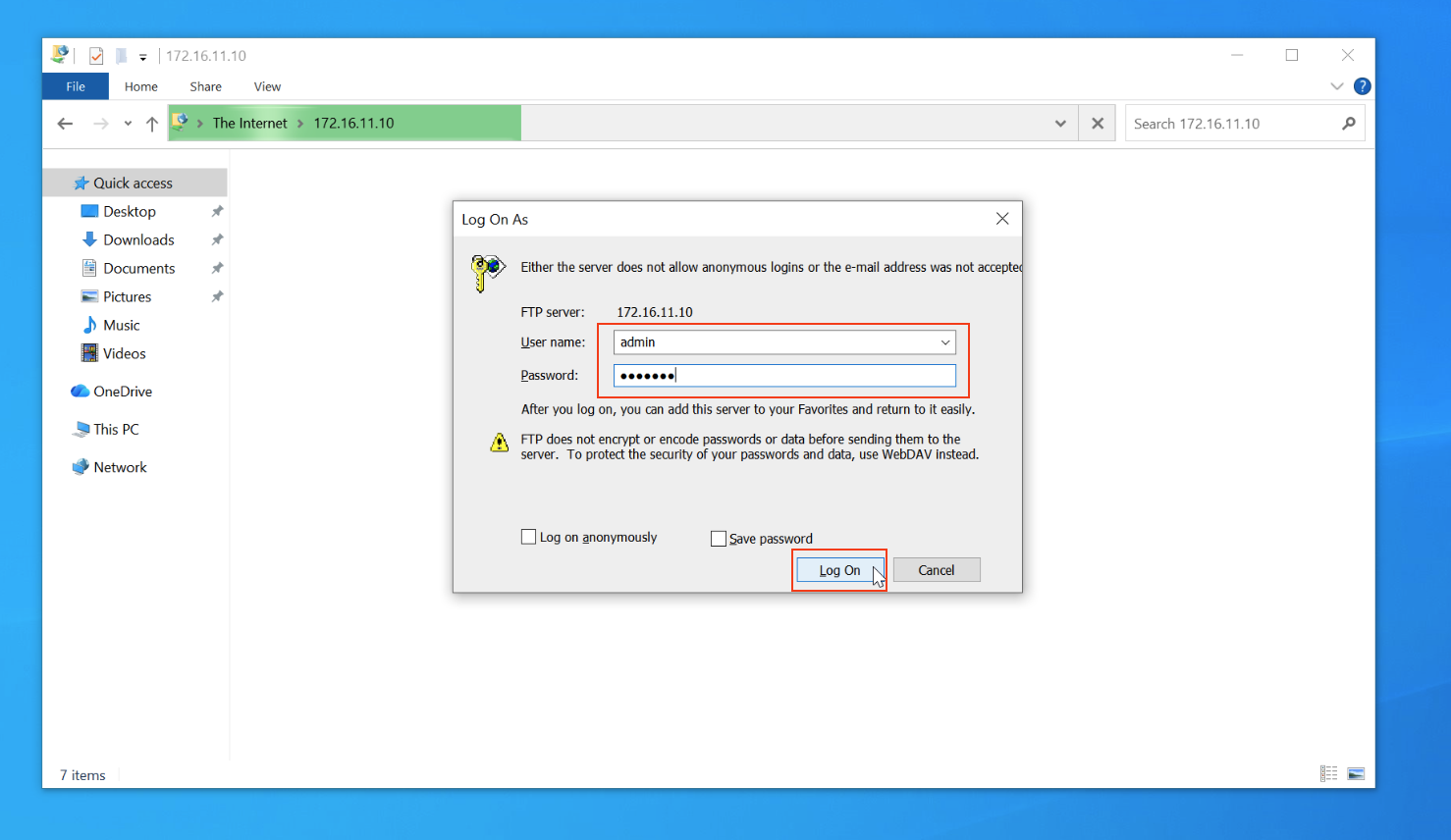
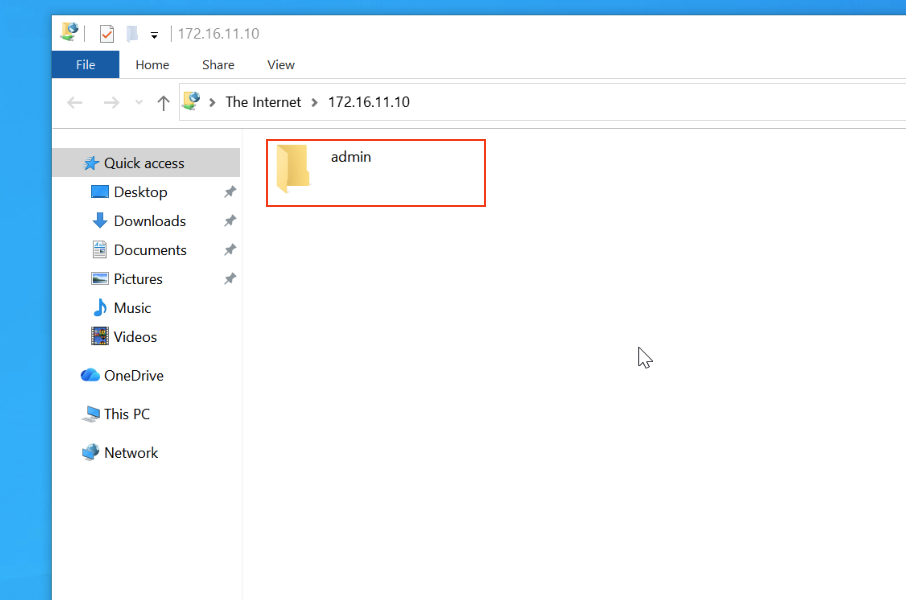
- You can now browse and manage PocketCloud files in File Explorer.
¶ Accessing on macOS
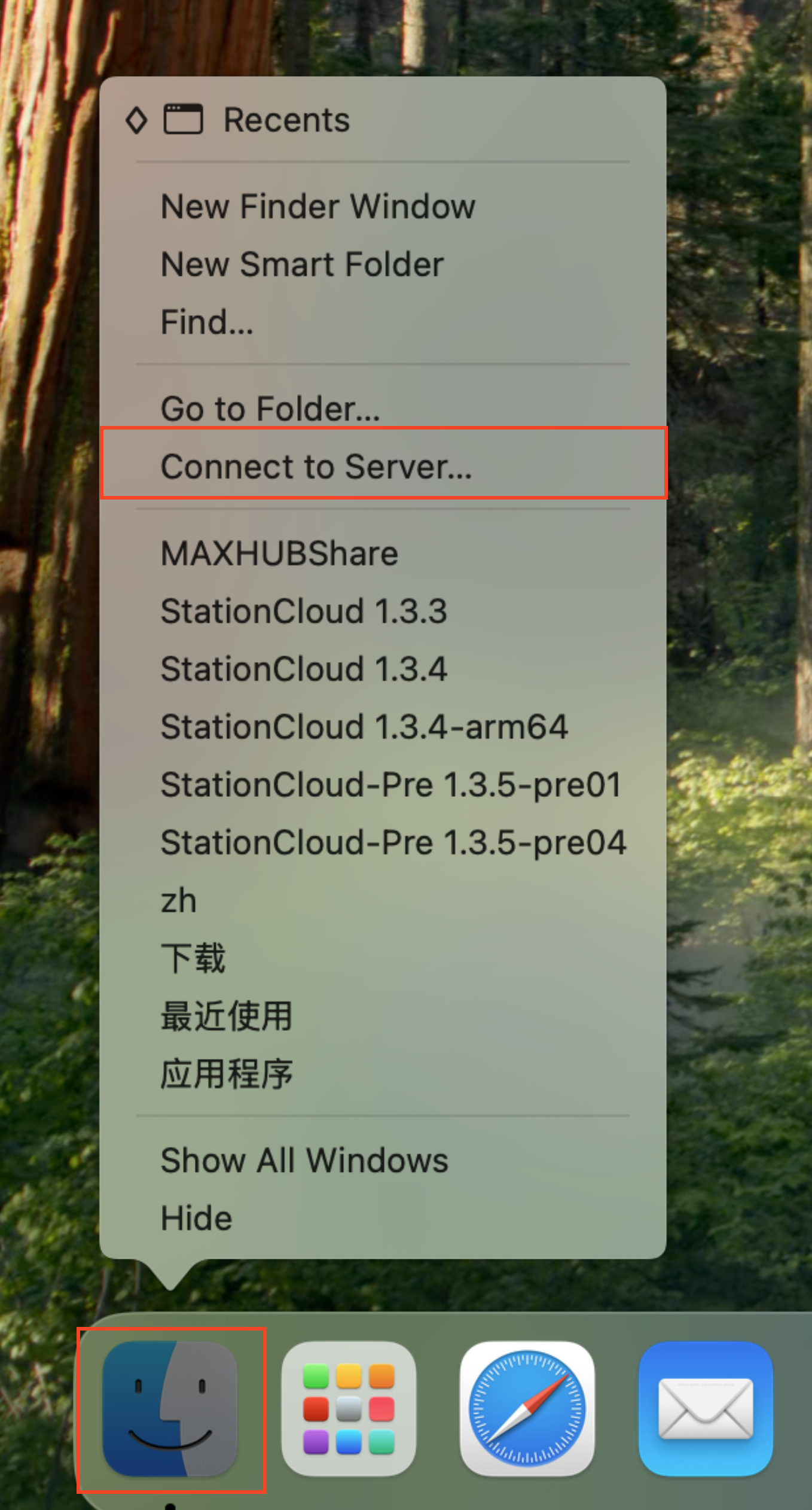
- Open Finder, select Connect to Server
- Enter
ftp://NAS_IP_Address:21orftps://NAS_IP_Address:21, then click Connect.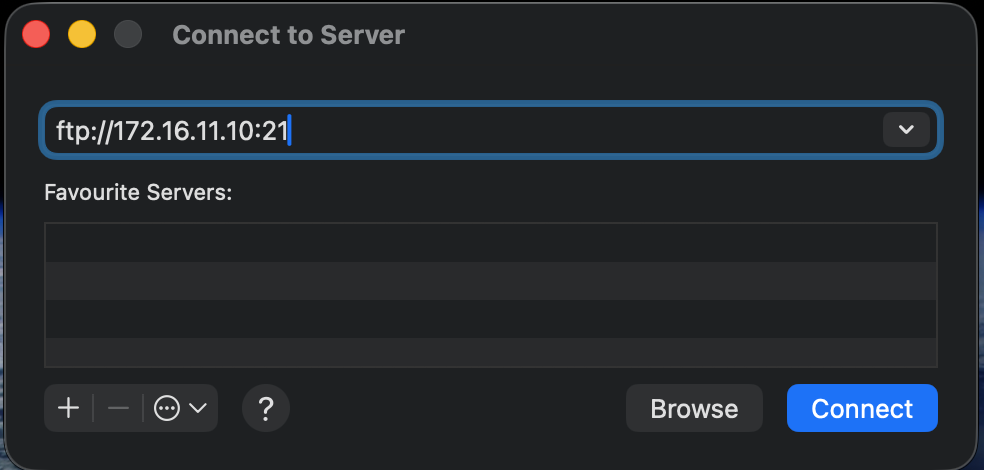
- Enter your Name and Password, then click Connect.
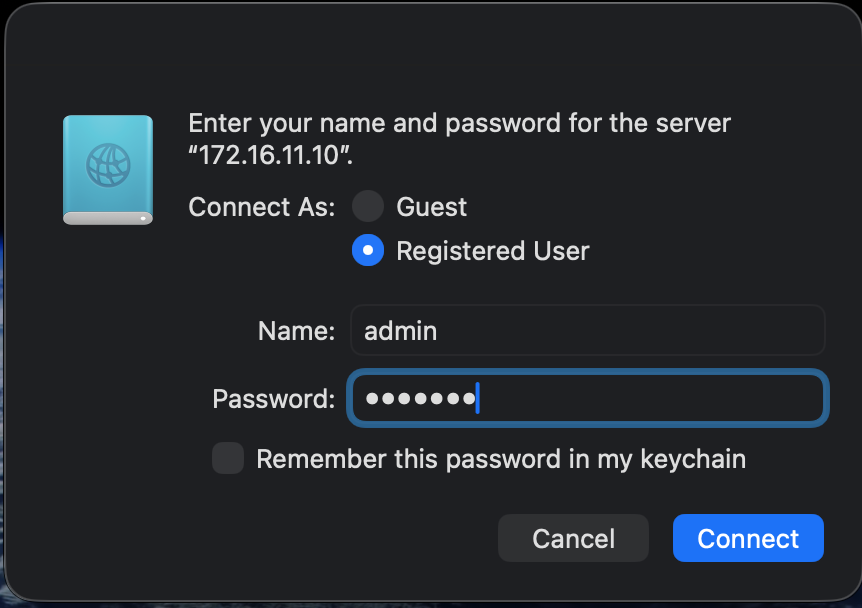
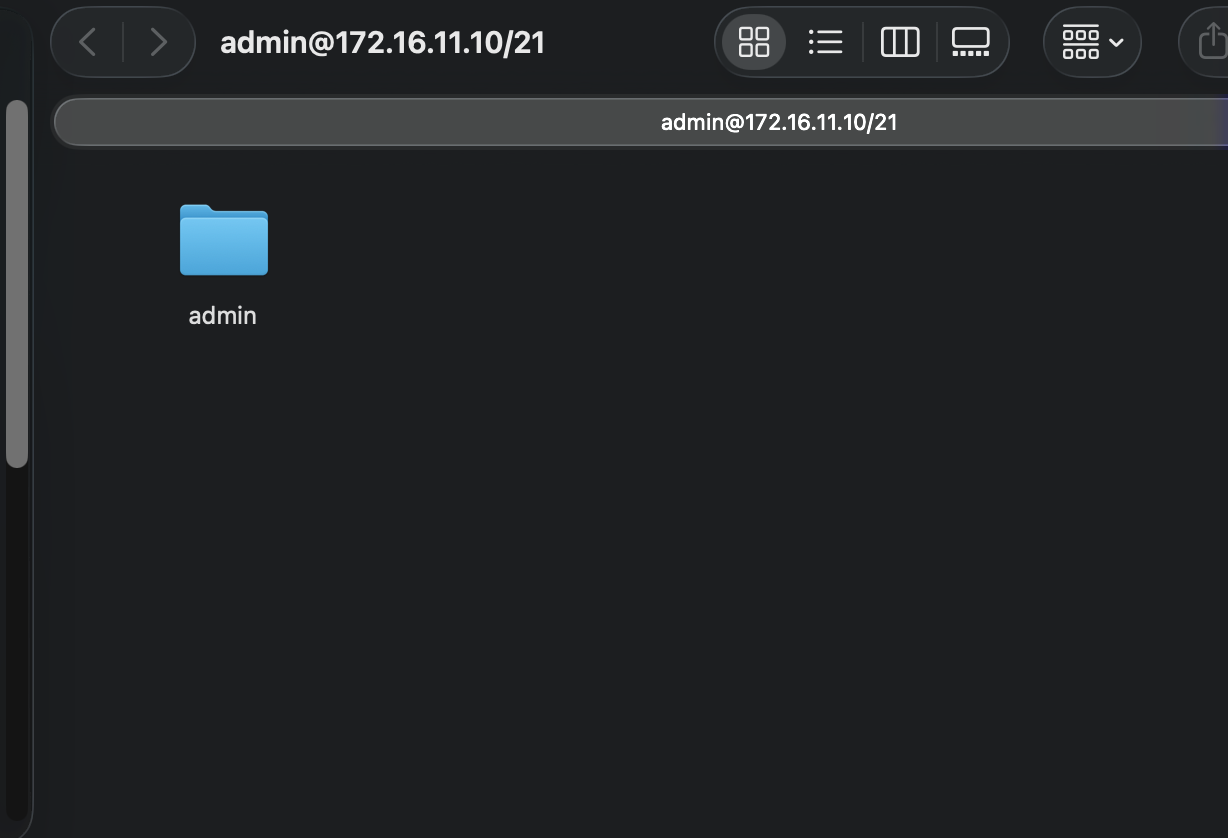
- You can now access PocketCloud files from Finder.
¶ Accessing on Other Clients
- Connection information
- IP: NAS_IP_Address
- Port: 21 by default
- Account: NAS device login username
- Password: NAS device login password
- Mount directory description
- Main SSD:
/login_username- Example 1: All directories. If the current user is test, the mount directory is
/test - Example 2: A specified directory. If the current user is test, the mount directory is
/test/Pictures - Other: Multiple users are supported, and each user corresponds to one mount directory
- Example 1: All directories. If the current user is test, the mount directory is
- External storage:
/external_storage_name- Example 1: All directories. If the external SD card name is SD 60GB BA26, the mount directory is
/SD_60GB_BA26 - Example 2: A specified directory. If the external SD card name is SD 60GB BA26, the mount directory is
/SD_60GB_BA26/Pictures
- Example 1: All directories. If the external SD card name is SD 60GB BA26, the mount directory is
- ⚠️ Note:
- Some clients cannot use only the root directory
/; specify the corresponding mount directory above - After upgrading from firmware <= 3.1.0.16 to the latest firmware, the mount directory is adjusted. Use the mount method for the new version
- Some clients cannot use only the root directory
- Main SSD: