¶ How to Access PocketCloud Files via FTP?
FTP (File Transfer Protocol) is a widely used standard protocol for transferring files over a network. With FTP, users can connect to PocketCloud remotely to browse, upload, download, and manage files from different client devices.
FTP provides the following main features:
- File Upload and Download - Transfer files between local devices and PocketCloud over the network.
- Remote File Management - Create, rename, move, and delete files or folders on PocketCloud.
- User Access Authentication - Use account credentials to control access and improve security.
- Cross-Platform Access - Connect from Windows and macOS with FTP-supported clients.
¶ Enable FTP
By default, FTP is disabled. You need to manually enable it by following these steps:
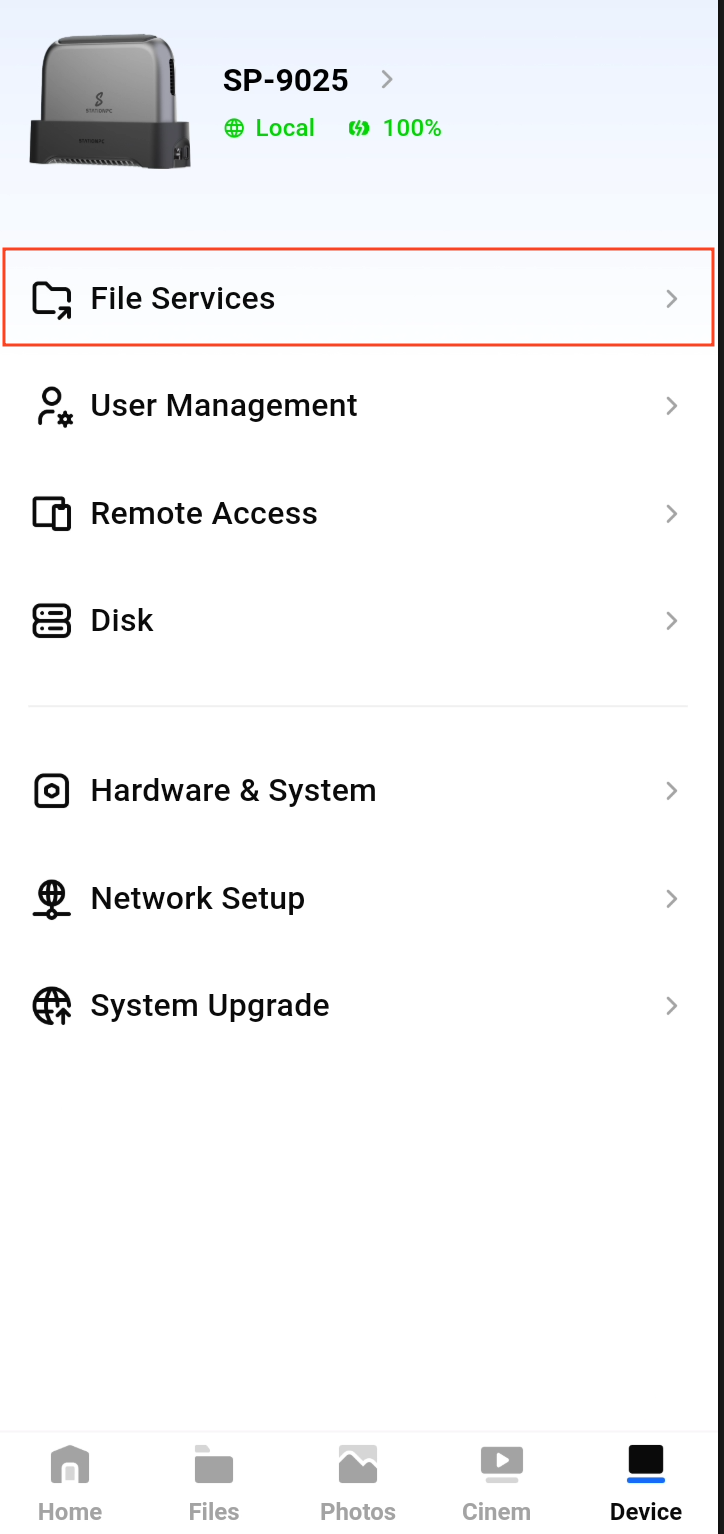
- Open the File Services section in the app.
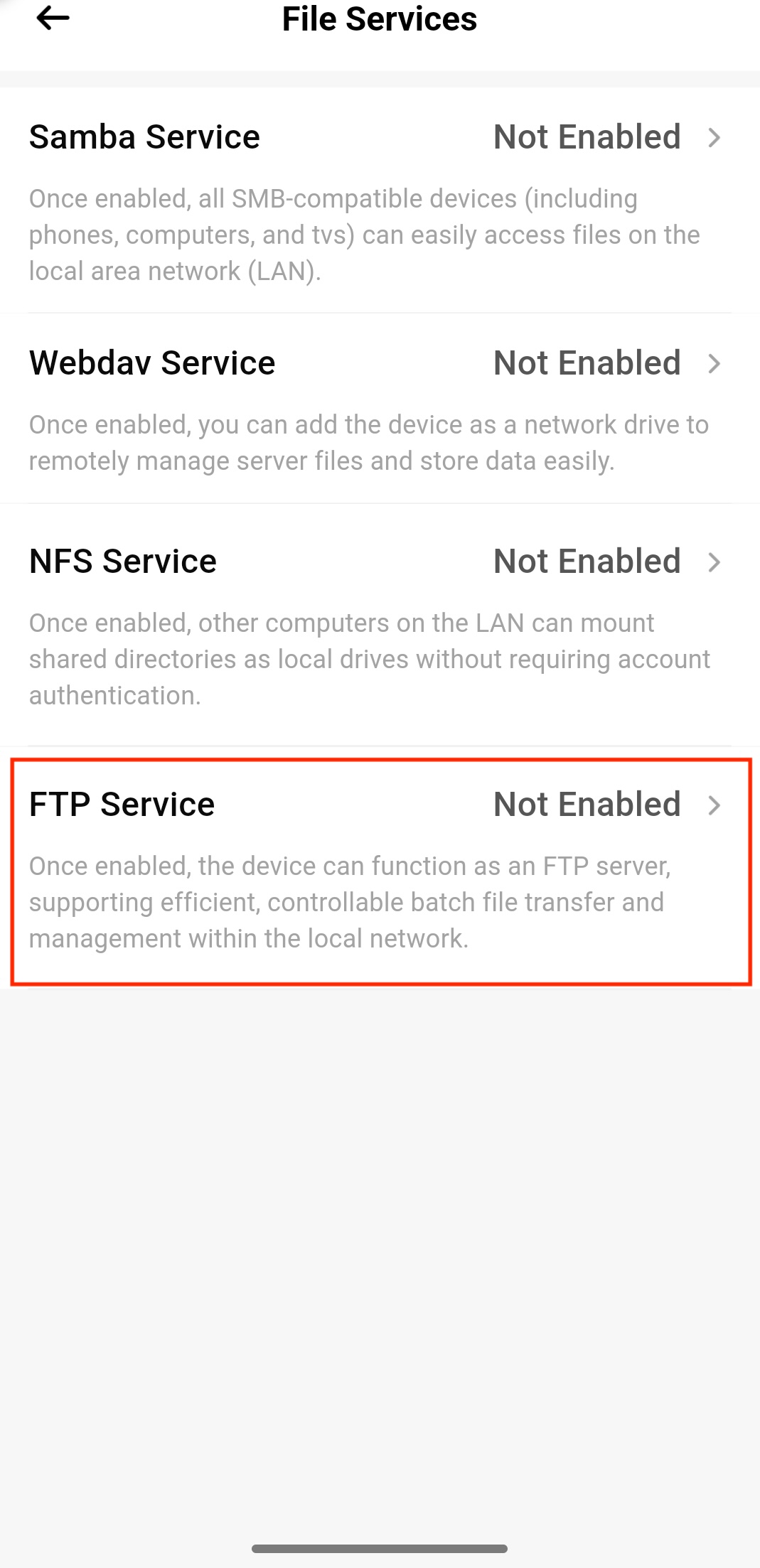
- Tap FTP Service.
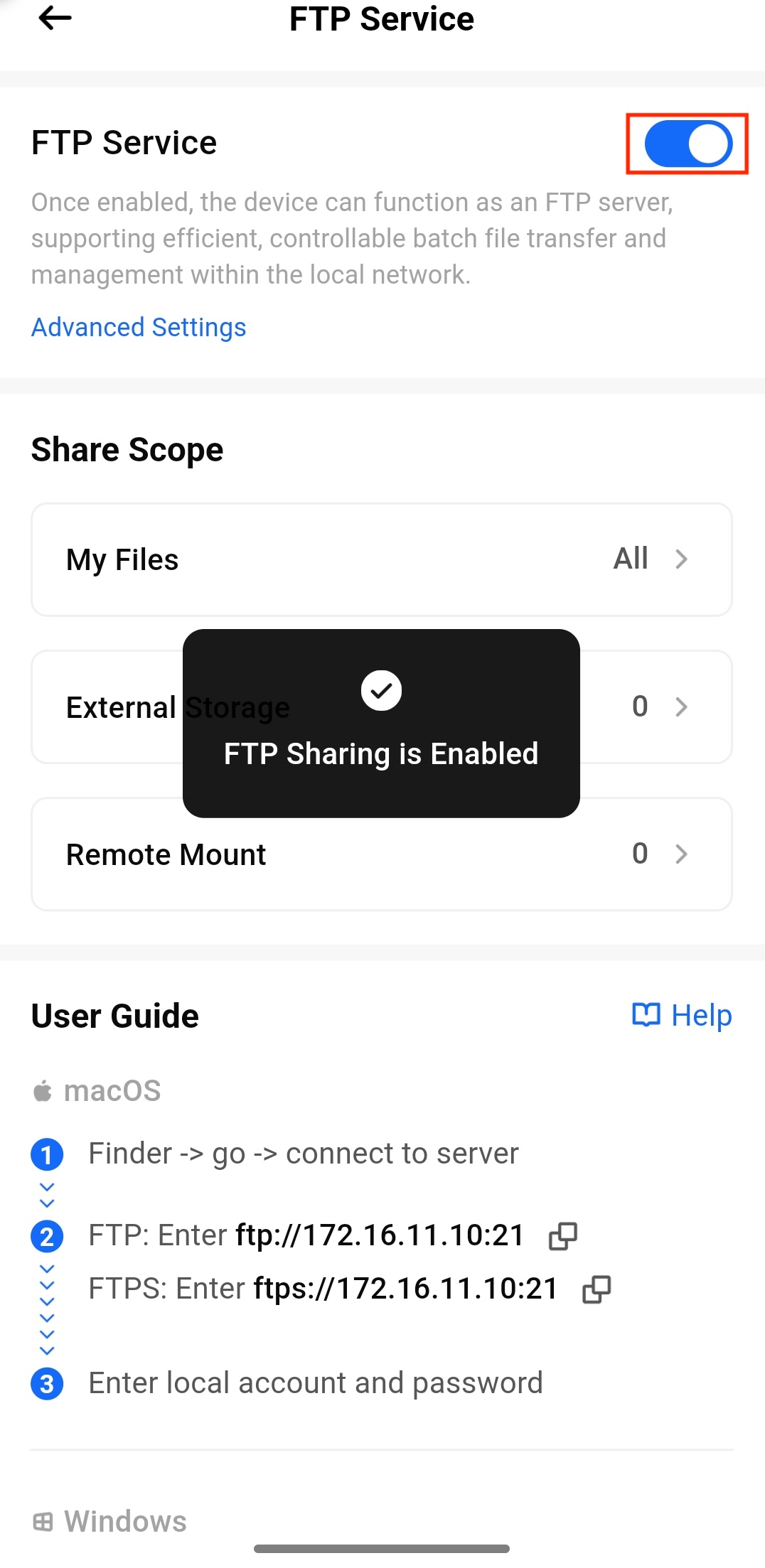
- Toggle the switch to turn on the FTP service.
·
¶ Accessing on Windows
- Press Win + E to open File Explorer.
- Enter
ftp://NAS_IP_Address:21orftps://NAS_IP_Address:21in the address bar, then press Enter.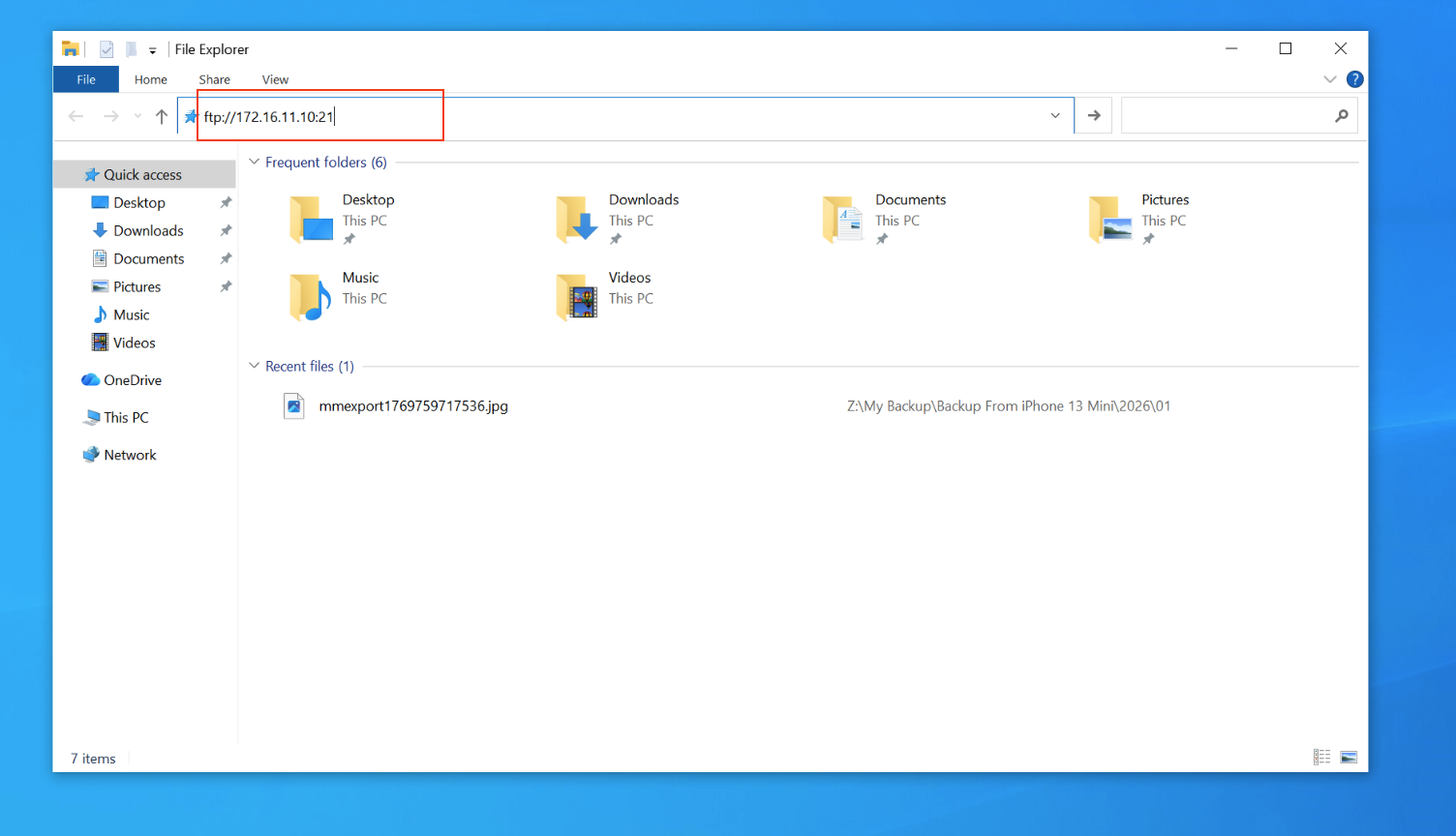
- Enter your User name and Password when prompted, and click Log On.
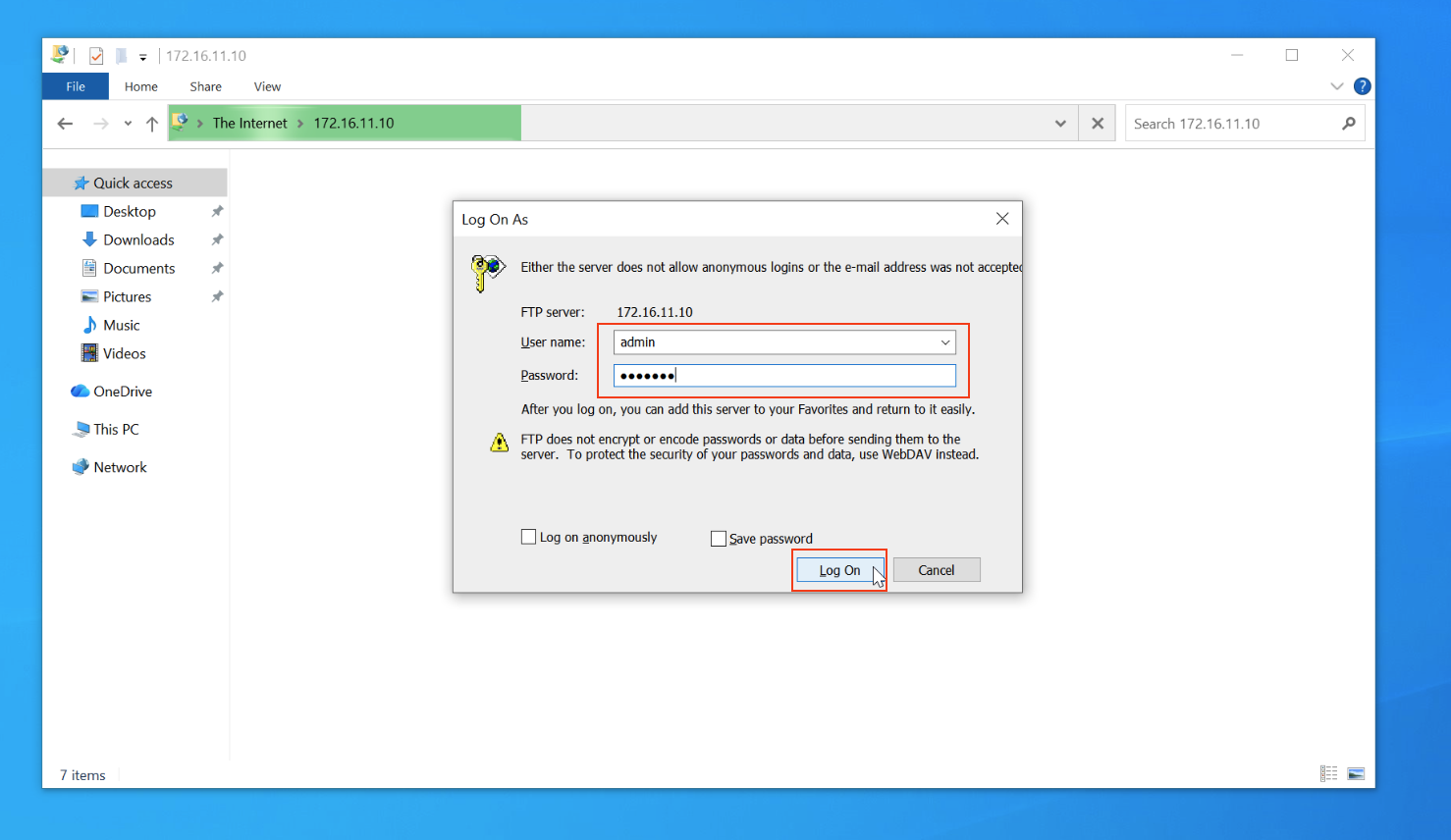
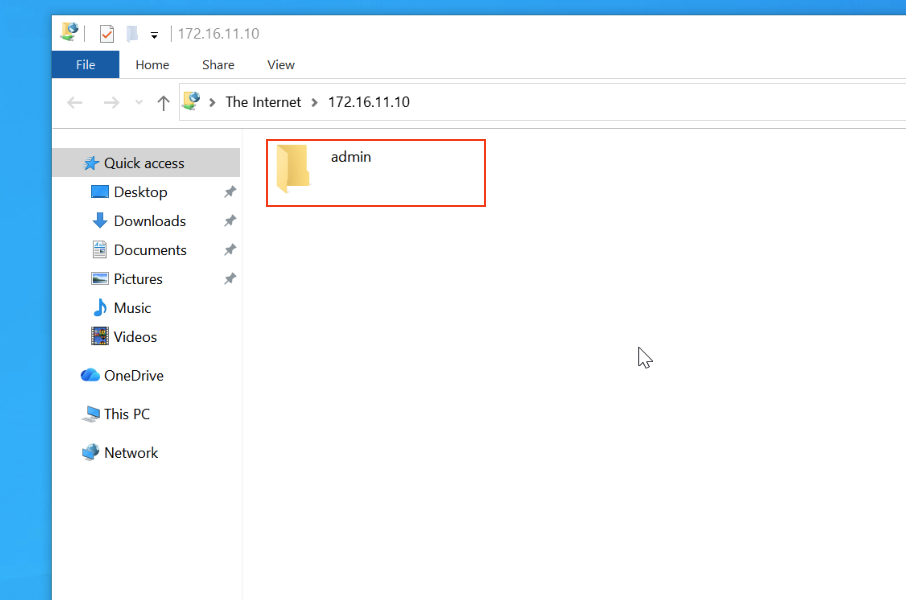
- You can now browse and manage PocketCloud files in File Explorer.
¶ Accessing on macOS
- Open Finder, select Connect to Server
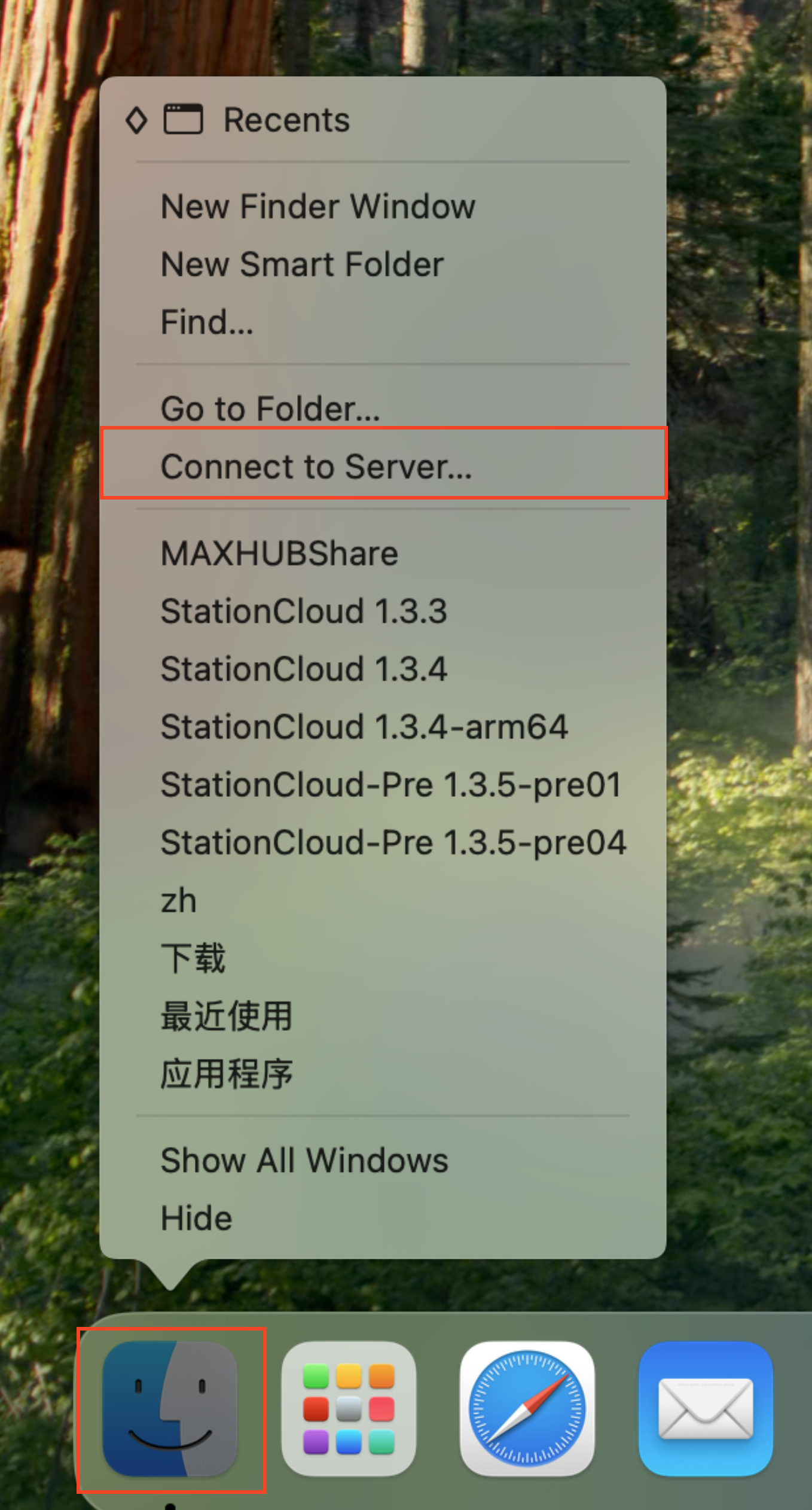
- Enter
ftp://NAS_IP_Address:21orftps://NAS_IP_Address:21, then click Connect.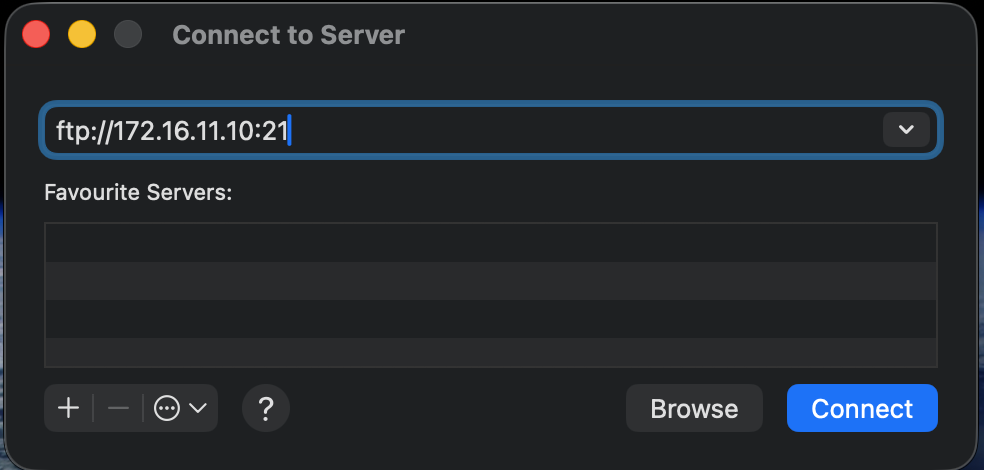
- Enter your Name and Password, then click Connect.
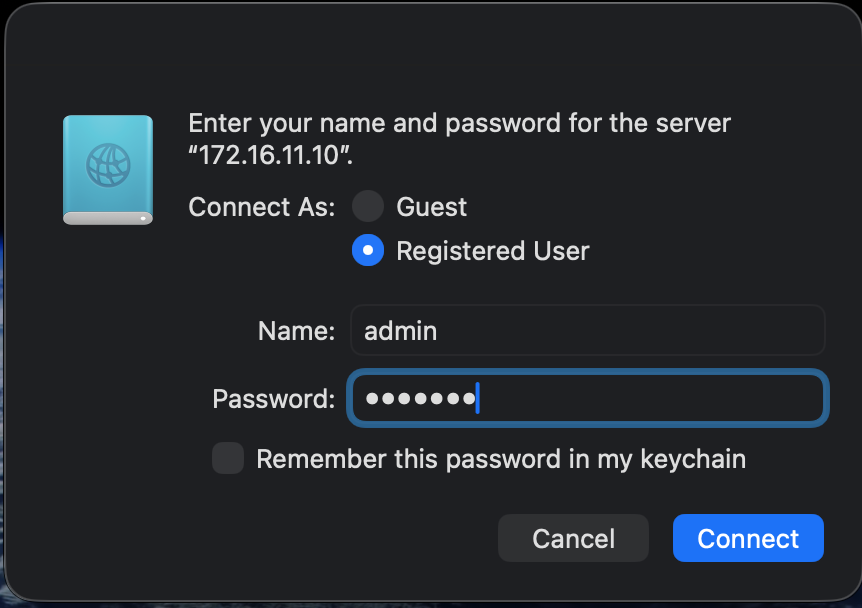
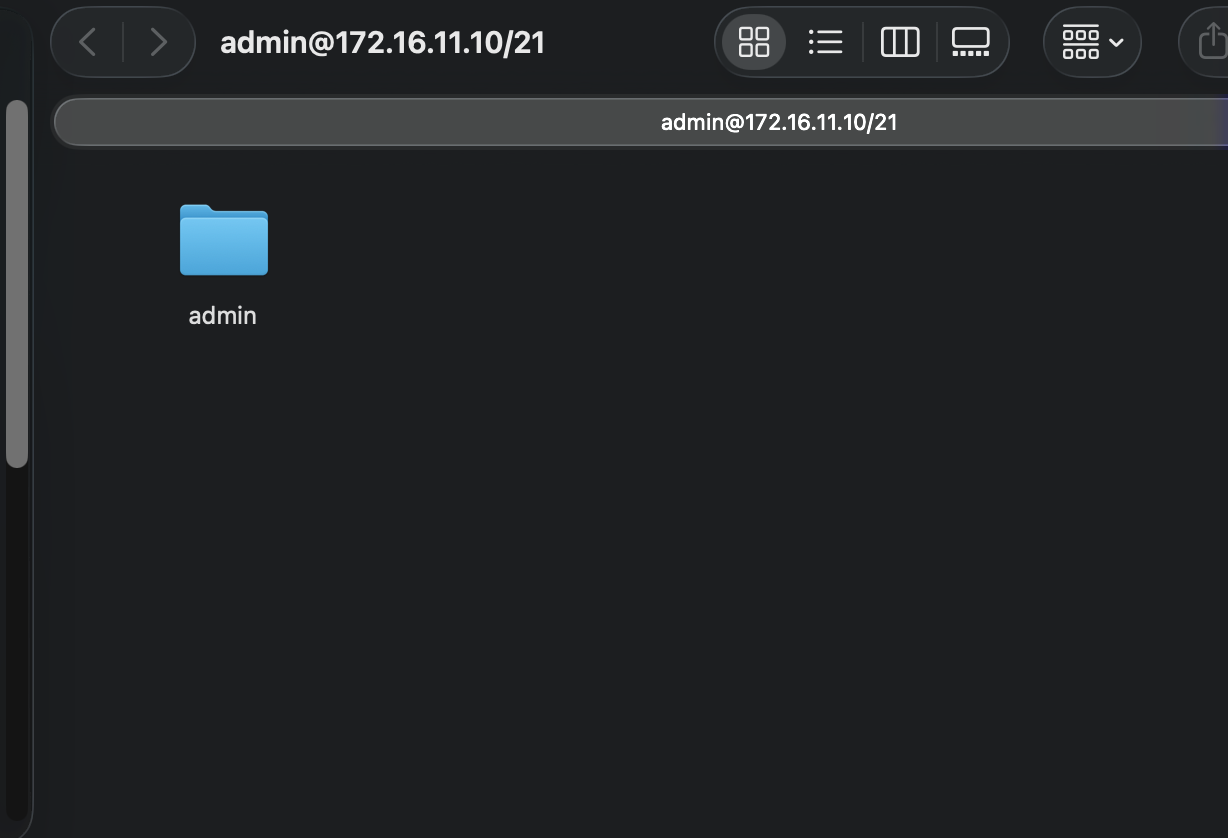
- You can now access PocketCloud files from Finder.