
- PocketCloud
- /
Quick Start
- /
- USB Drive Mode
¶ USB Drive Mode
¶ Usage
- PA100 Pro supports switching to USB Drive Mode. After connecting to a computer or mobile phone via a Type-C cable, you can access device disk data as either an MTP media device or a UMS virtual external disk.
- Note: PA100 Pro and PocketCloud use USB Drive Mode differently. Please switch tabs to find the correct model documentation.
¶ Enable USB Drive Mode
¶ How to Enable
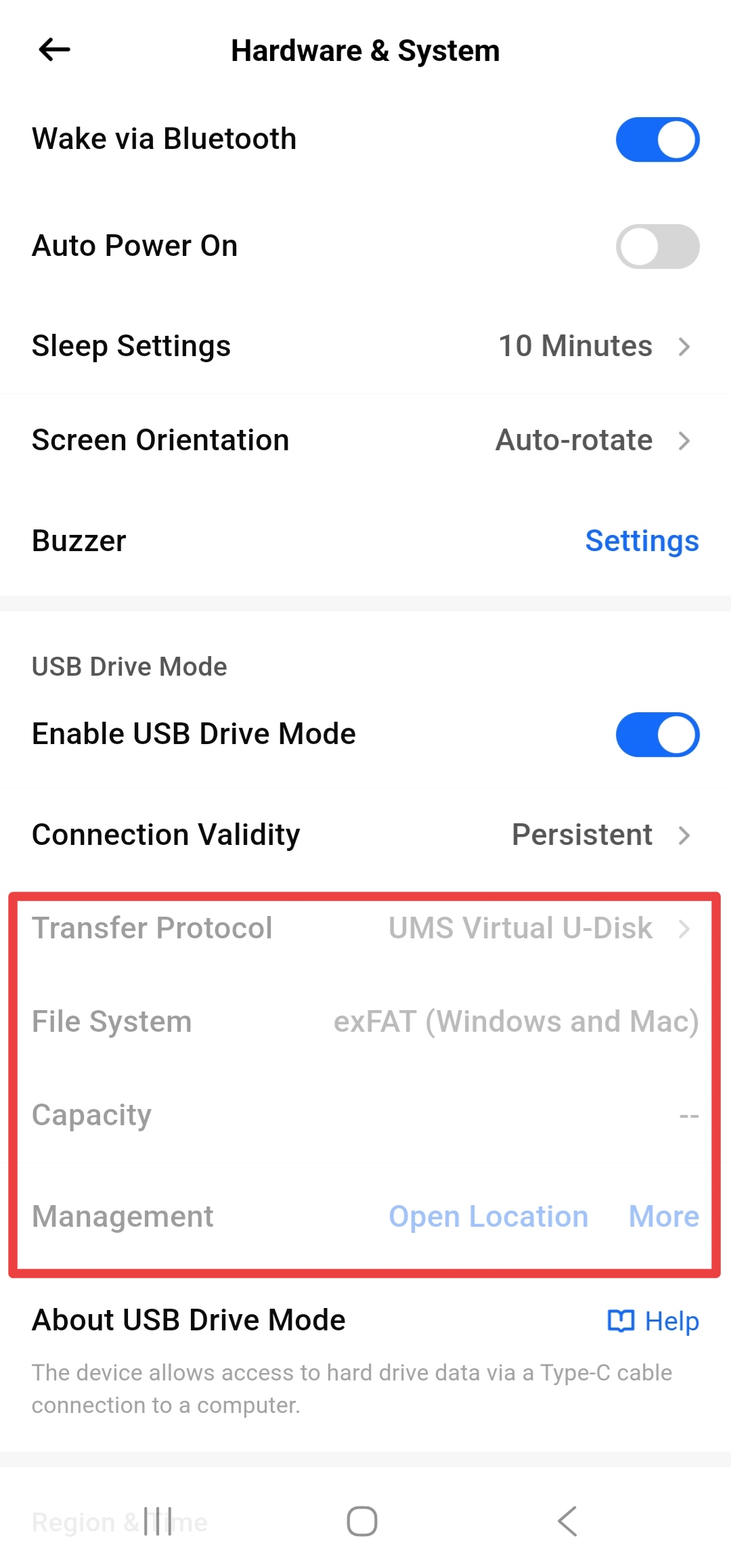
APP/PC client: 【Hardware & System】->【Enable USB Drive Mode】-> On
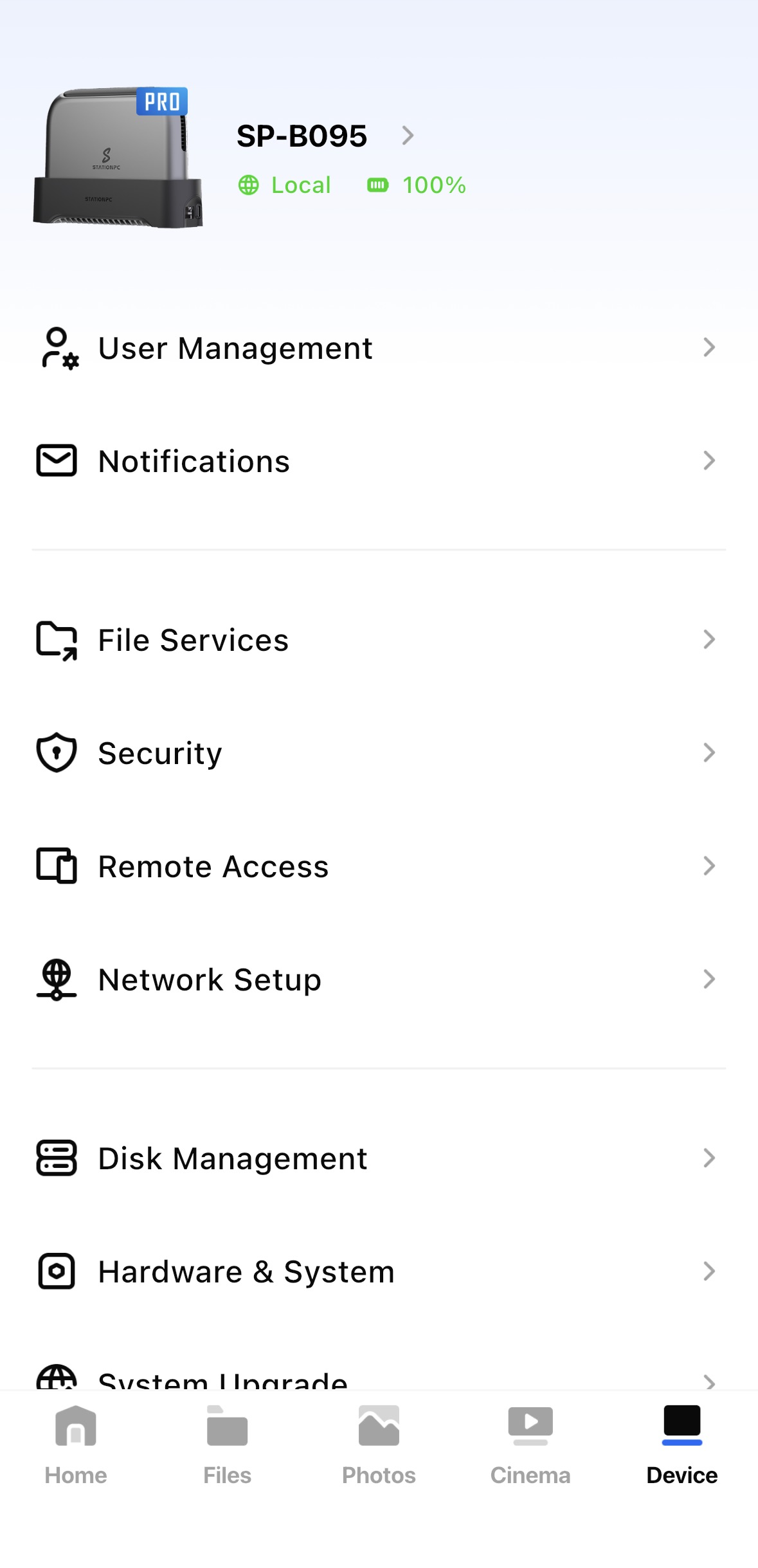
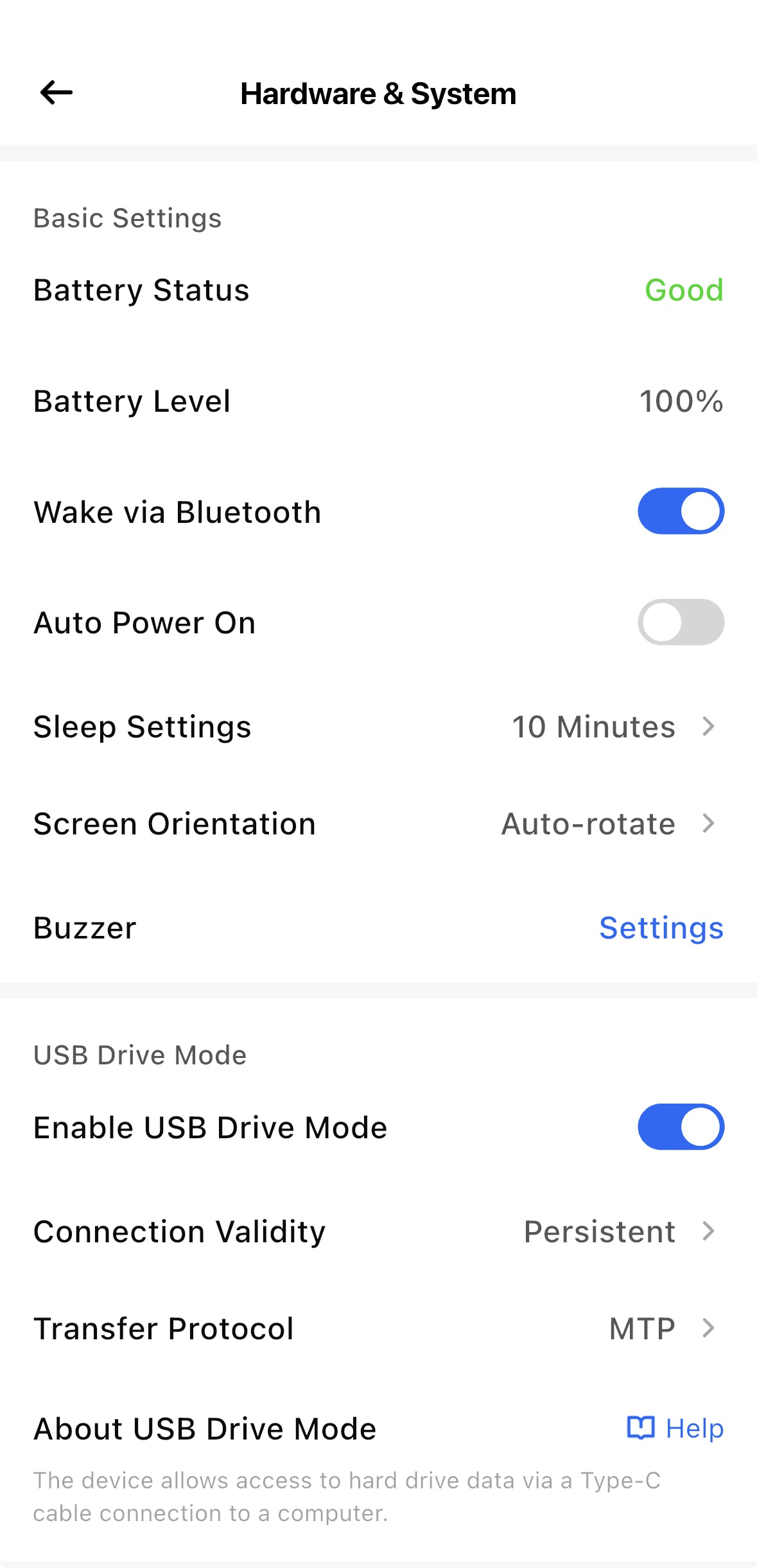
¶ Transfer Protocol
MTP (Media Transfer Protocol): computer/phone ↔ device main disk
UMS (virtual disk): computer/phone ↔ virtual USB ↔ device main disk
Compatibility Windows MacOS Android IOS MTP ✅ ✅
Install OpenMTP✅ ❌ UMS ✅ ✅ ✅ ✅
¶ Connection Duration
- Long-term valid: stays enabled until manually disabled
- One-time valid: automatically disabled after disconnecting
¶ Device Data Access
¶ Connection Method
The device must be powered on, otherwise it cannot be recognized
Cable connection
- Type-C to Type-C: Suitable for mobile phones, tablets, laptops, etc.
- Type-C to Type-A: Suitable for desktop PCs, etc.
- Note: Use the official standard cable or an officially recommended cable

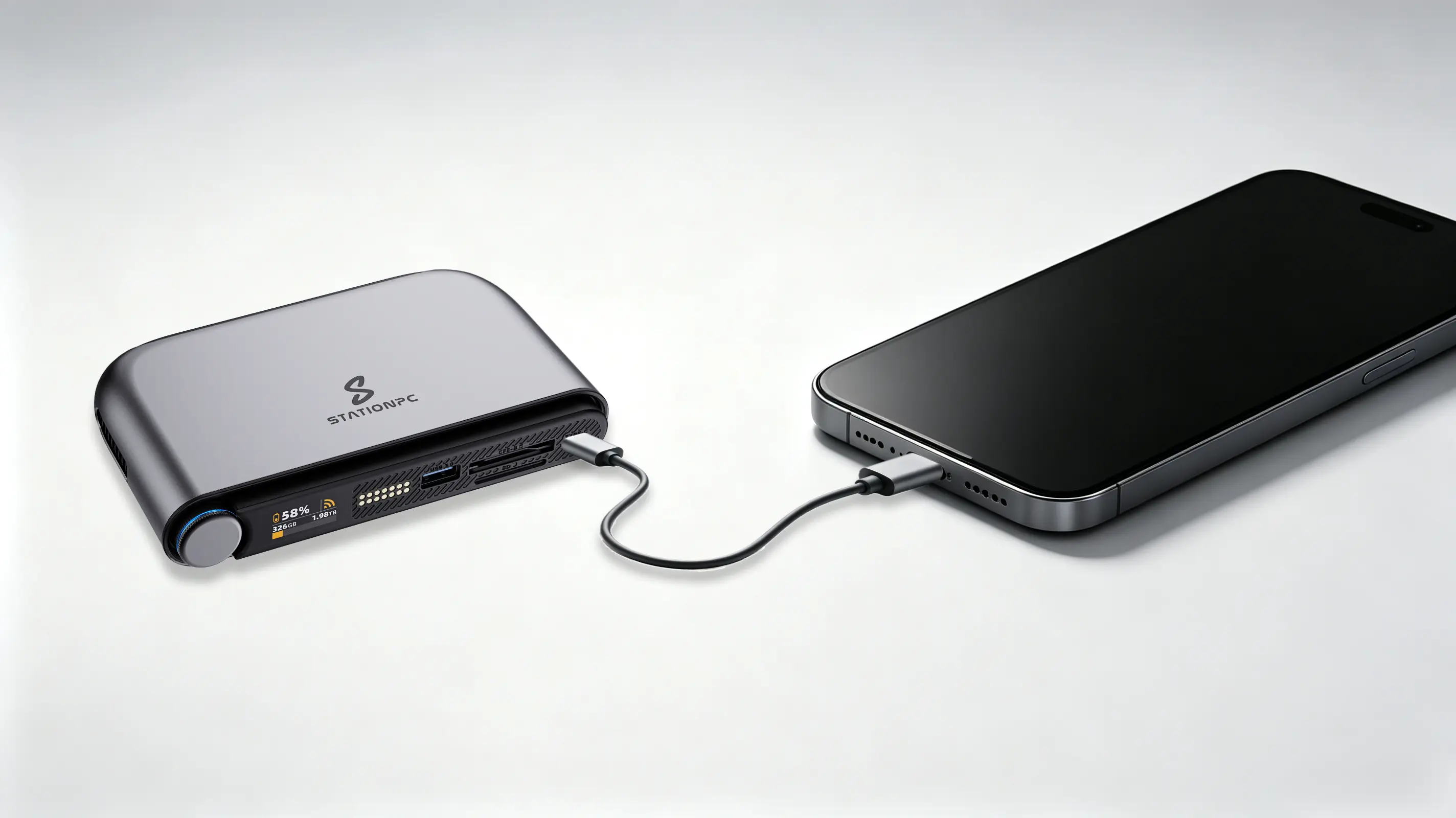
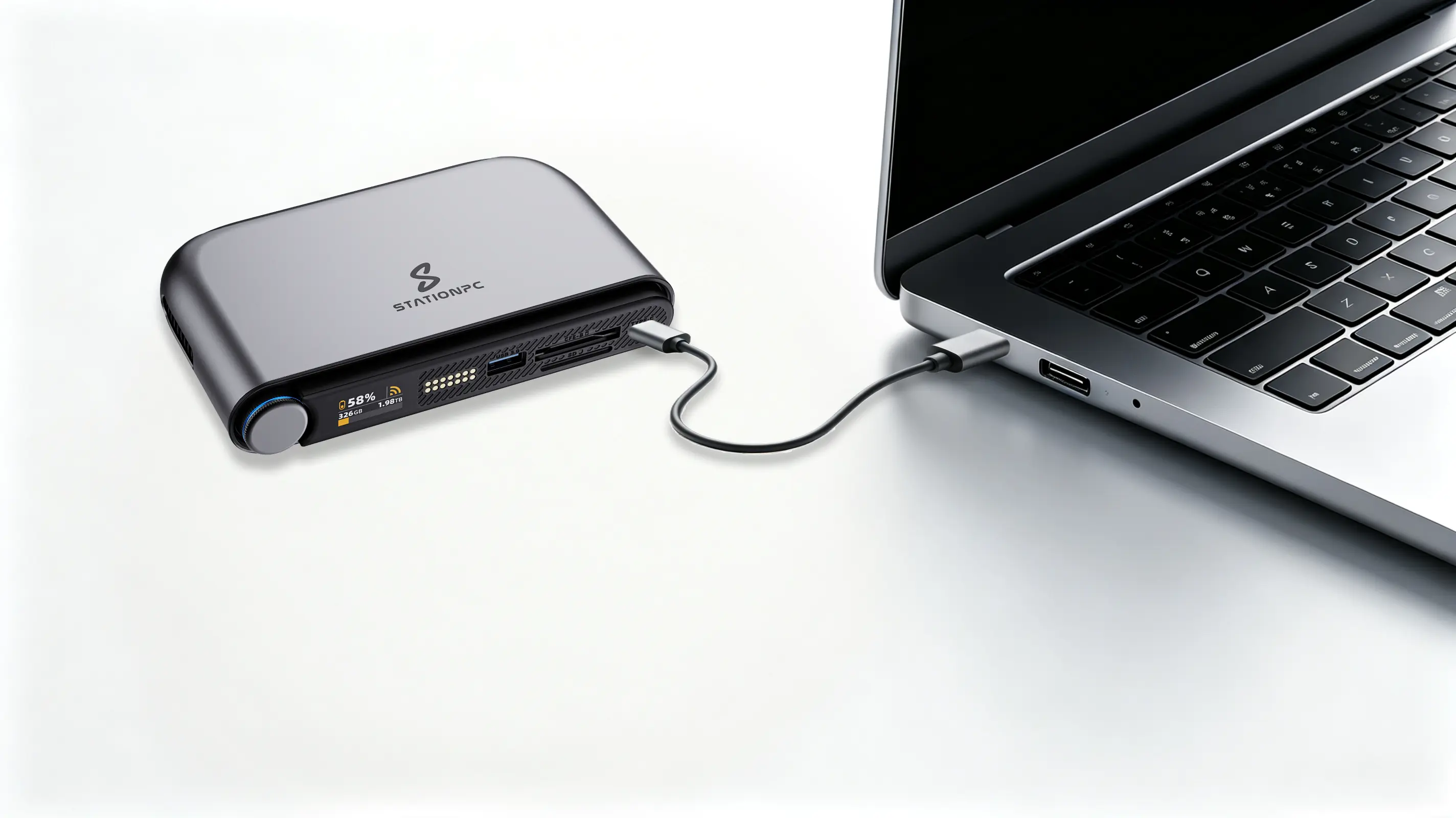
After a successful connection
It is normal that USB Drive Mode is not shown on the device's small screen (slightly different from PocketCloud)
Once the computer or phone recognizes the device, the USB Drive Mode related settings in the APP will be grayed out
¶ MTP && MacOS
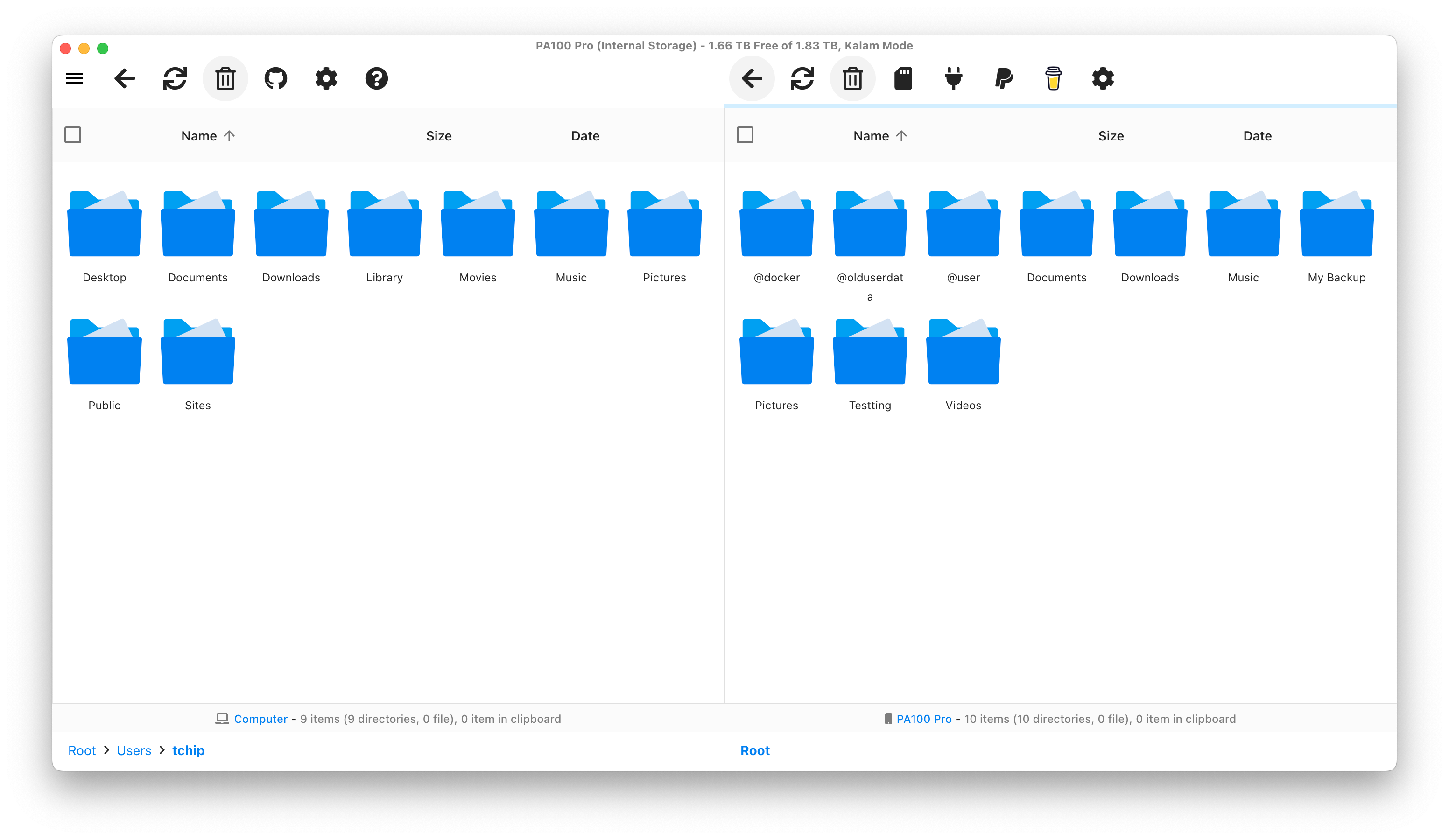
Install OpenMTP on MacOS: OpenMTP (opens new window)
Open OpenMTP on MacOS: to access device data, the left side shows computer files and the right side shows device files
¶ MTP && Windows
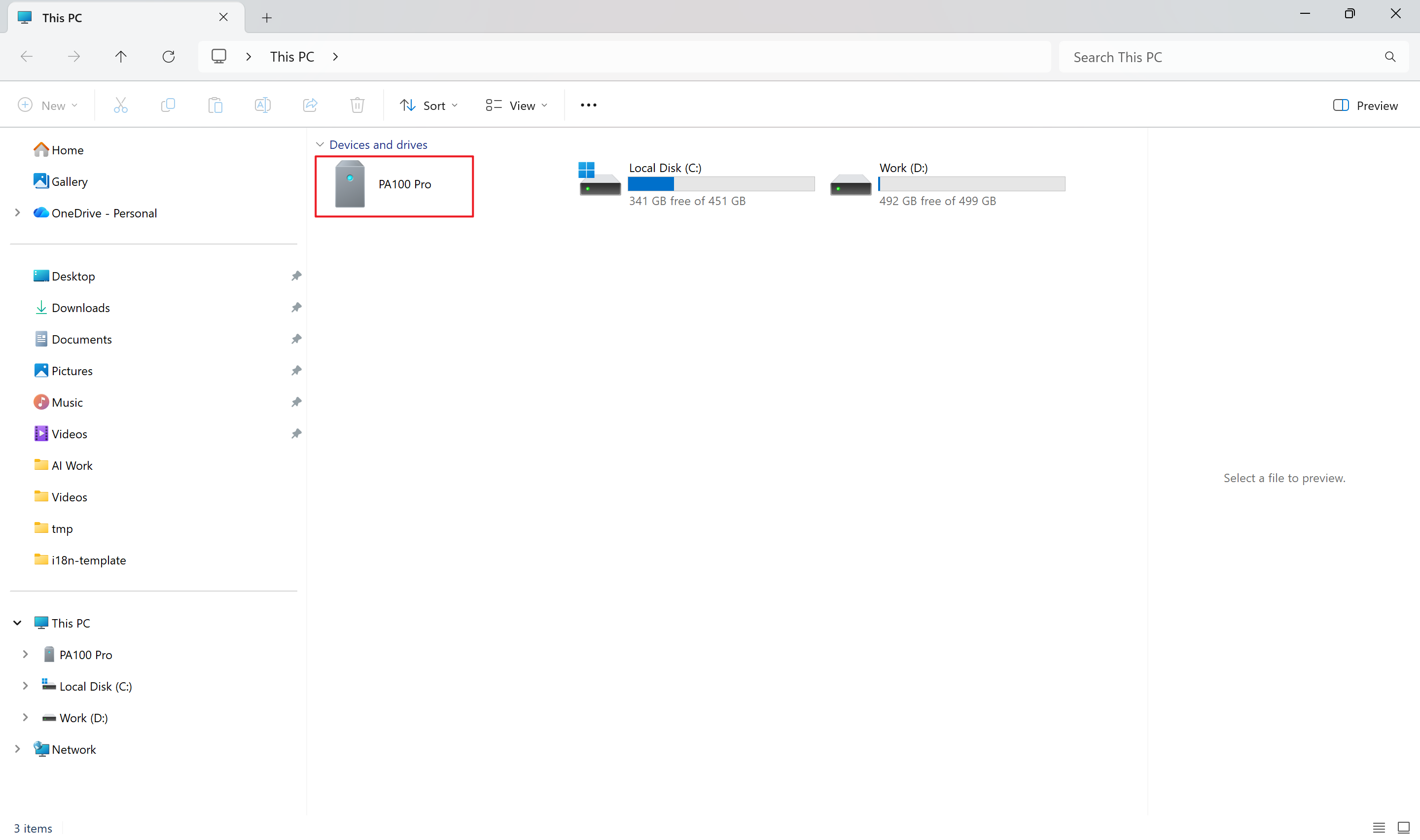
Open 【This PC】 in Windows
¶ MTP && Android
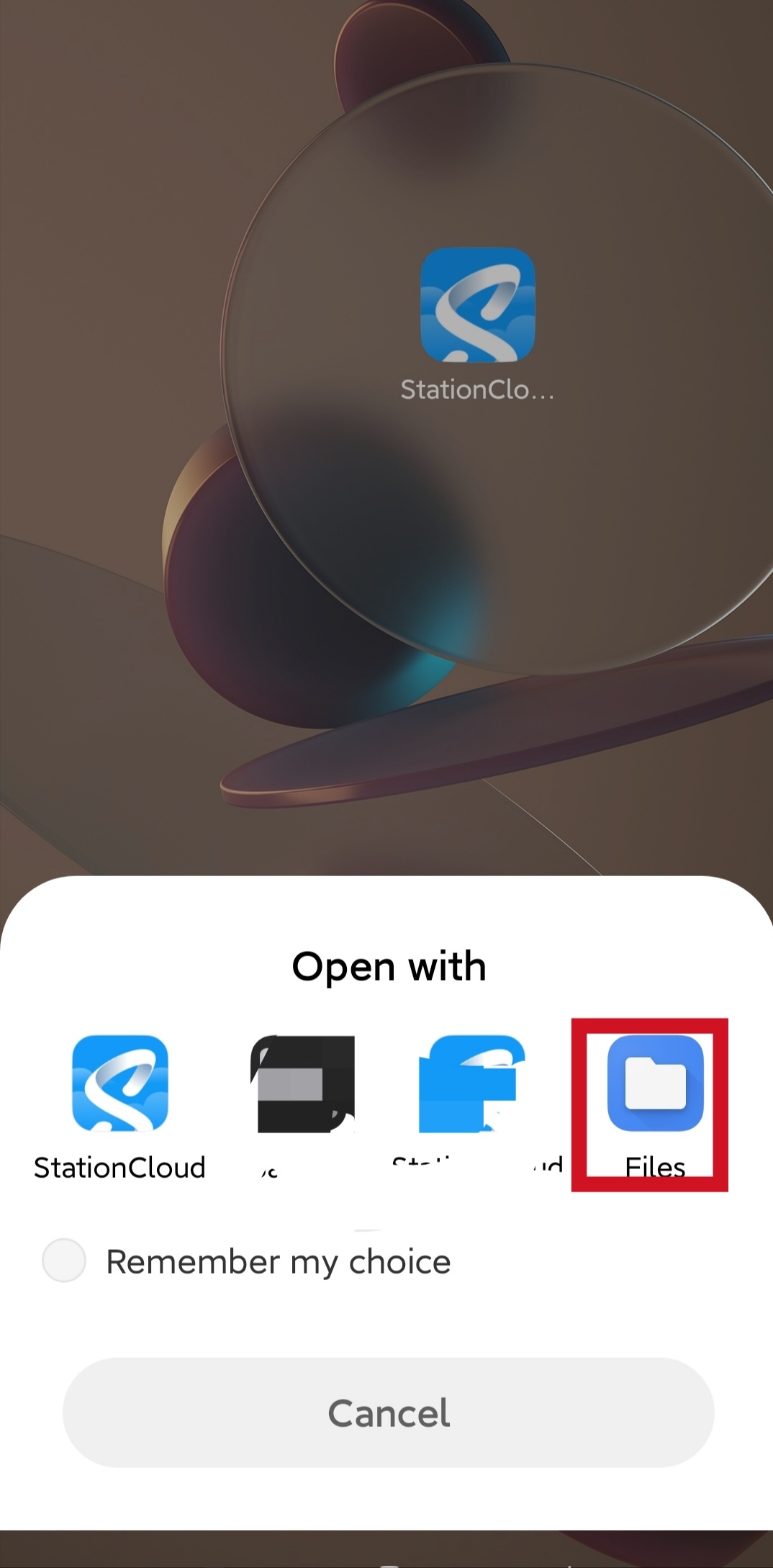
After the phone recognizes the device, the 【Open with】 dialog pops up automatically; select 【Files】
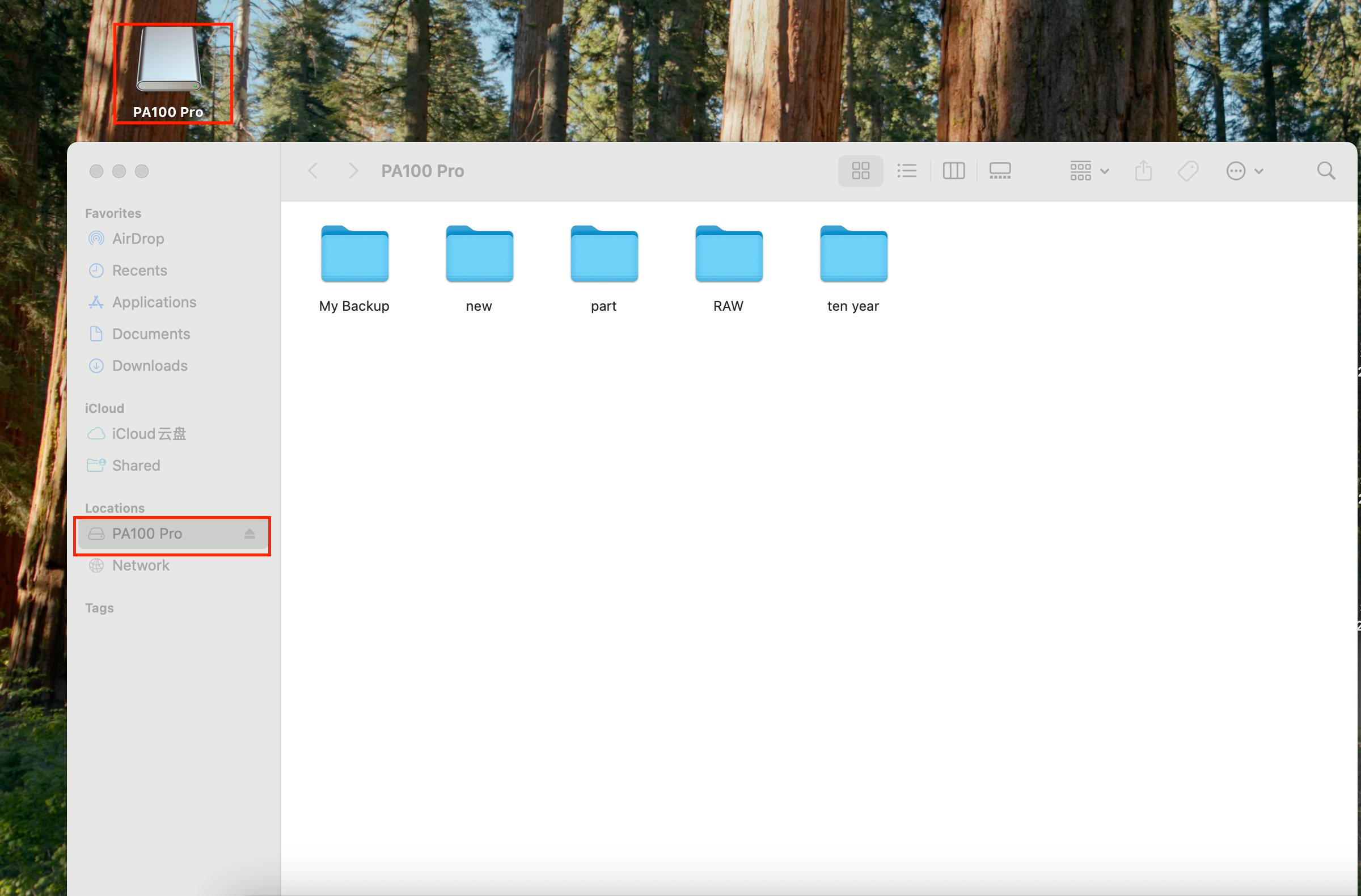
¶ UMS && MacOS
- Open 【Finder】 in MacOS or find the entry on the desktop
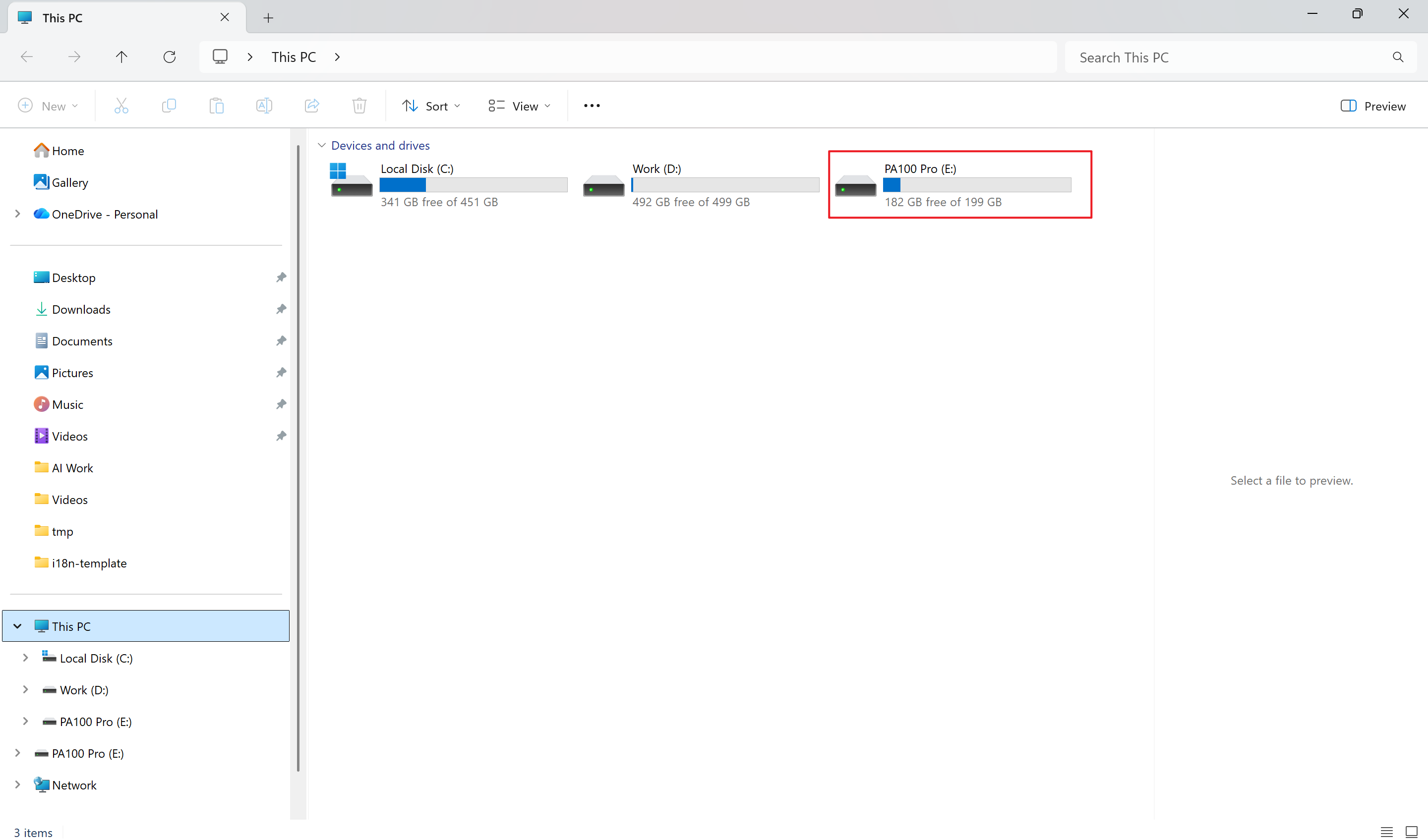
¶ UMS && Windows
Open 【This PC】 in Windows
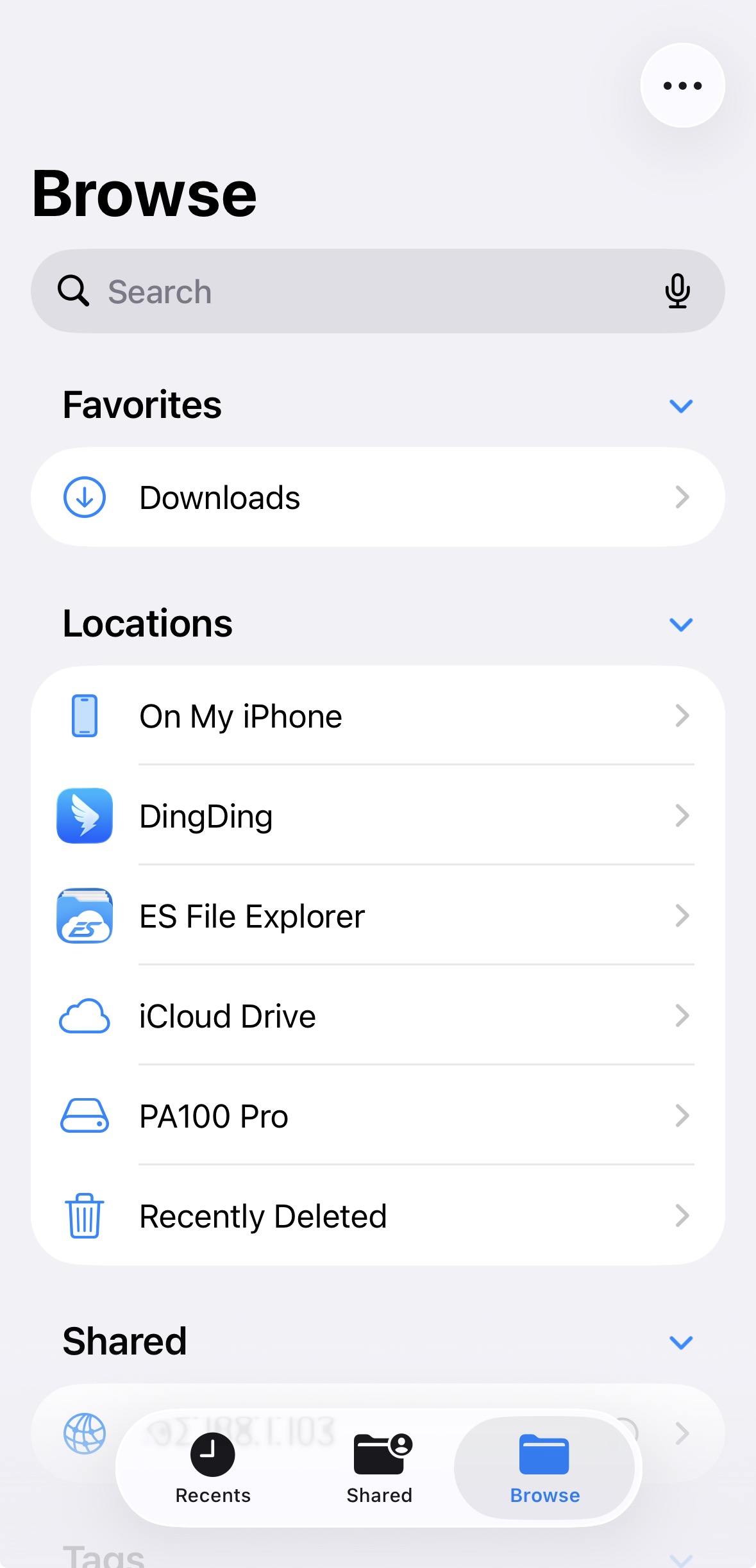
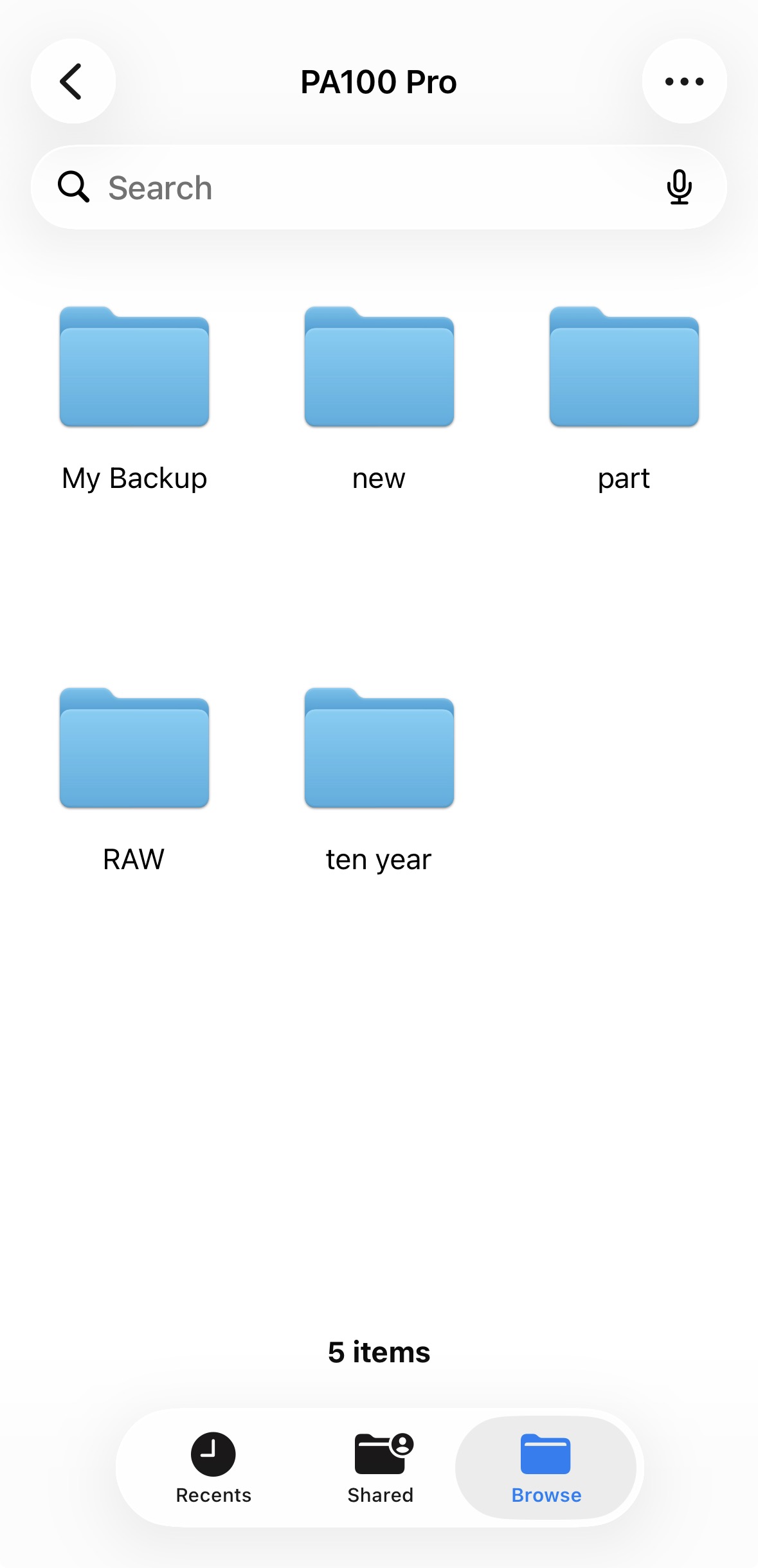
¶ UMS && IOS
Open the 【Files】 app on your phone
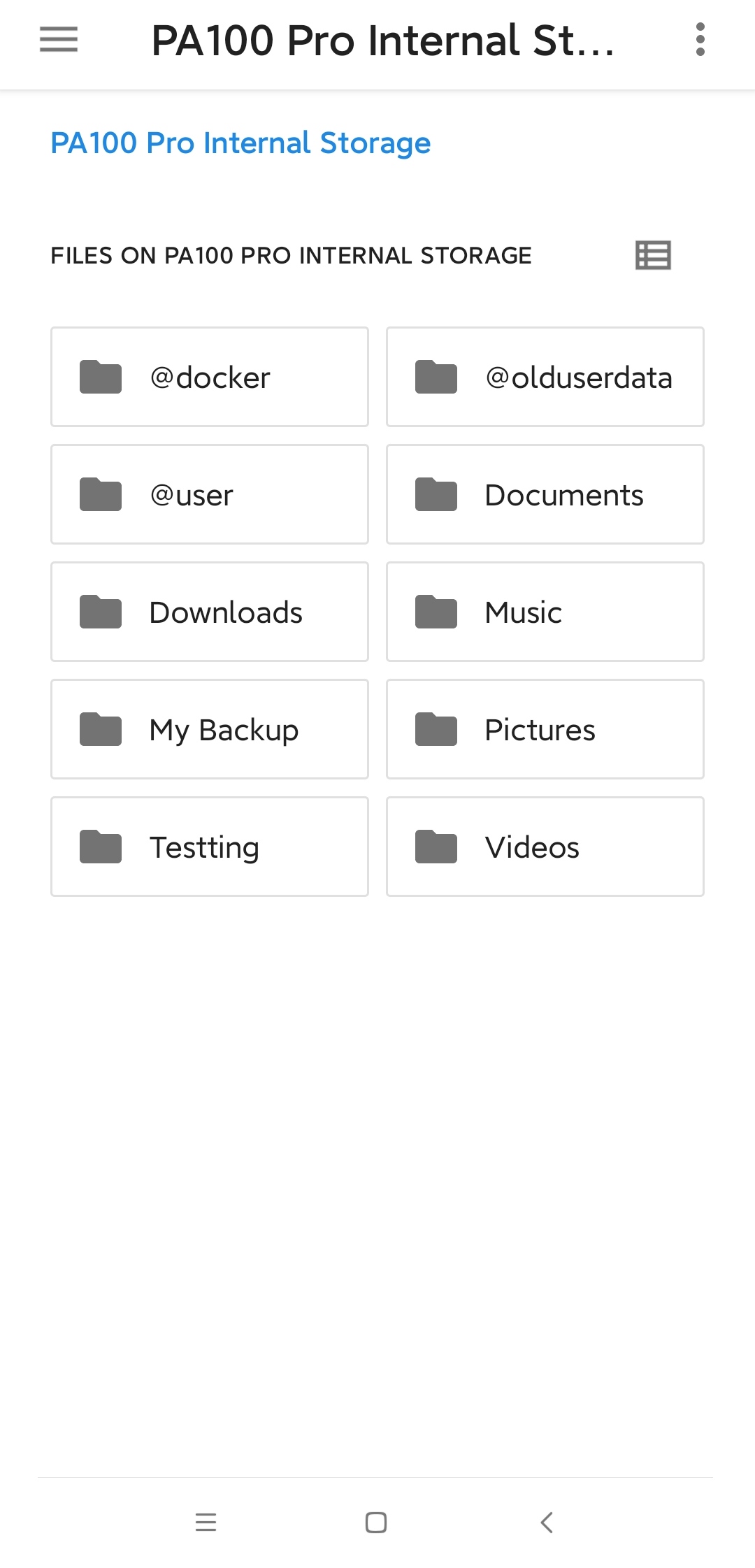
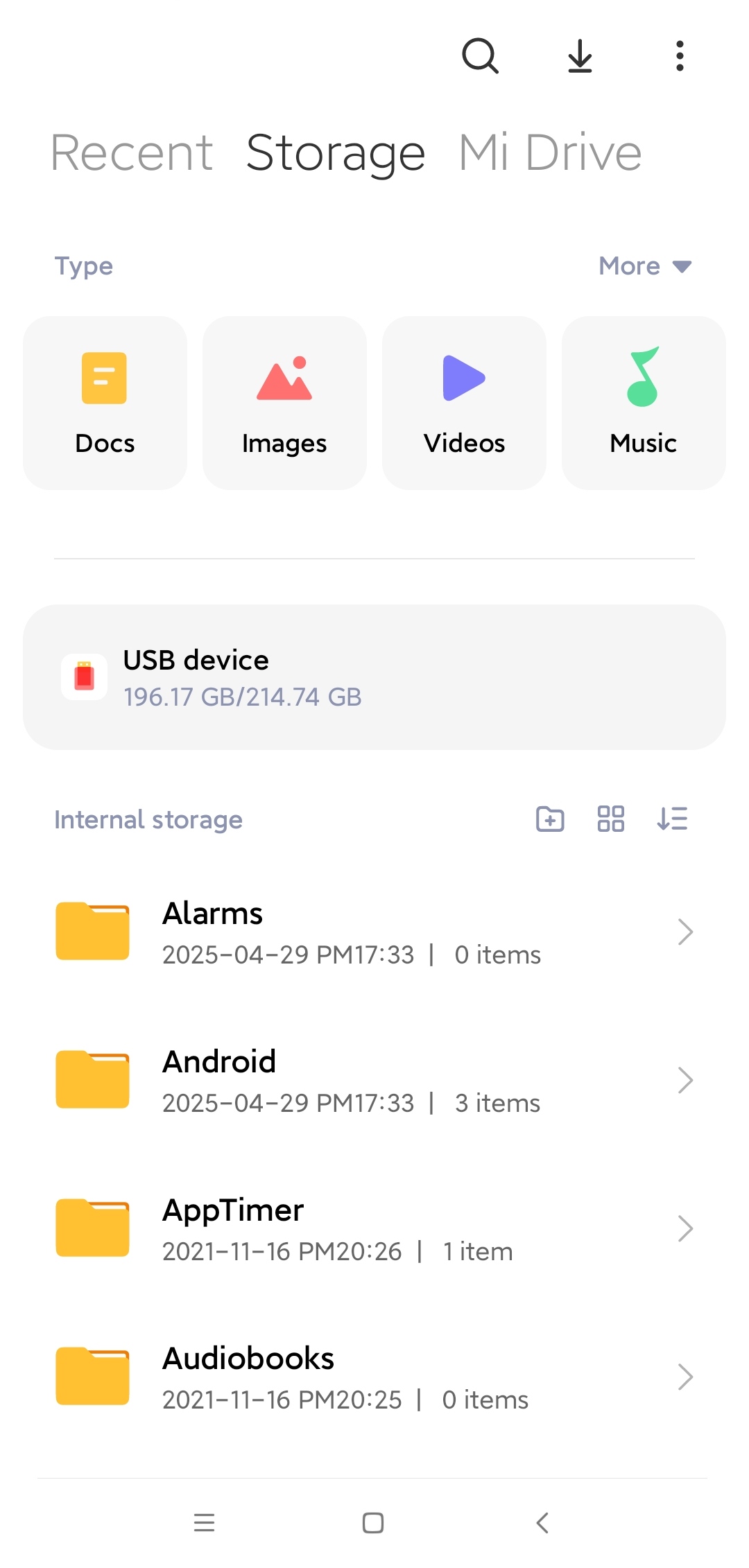
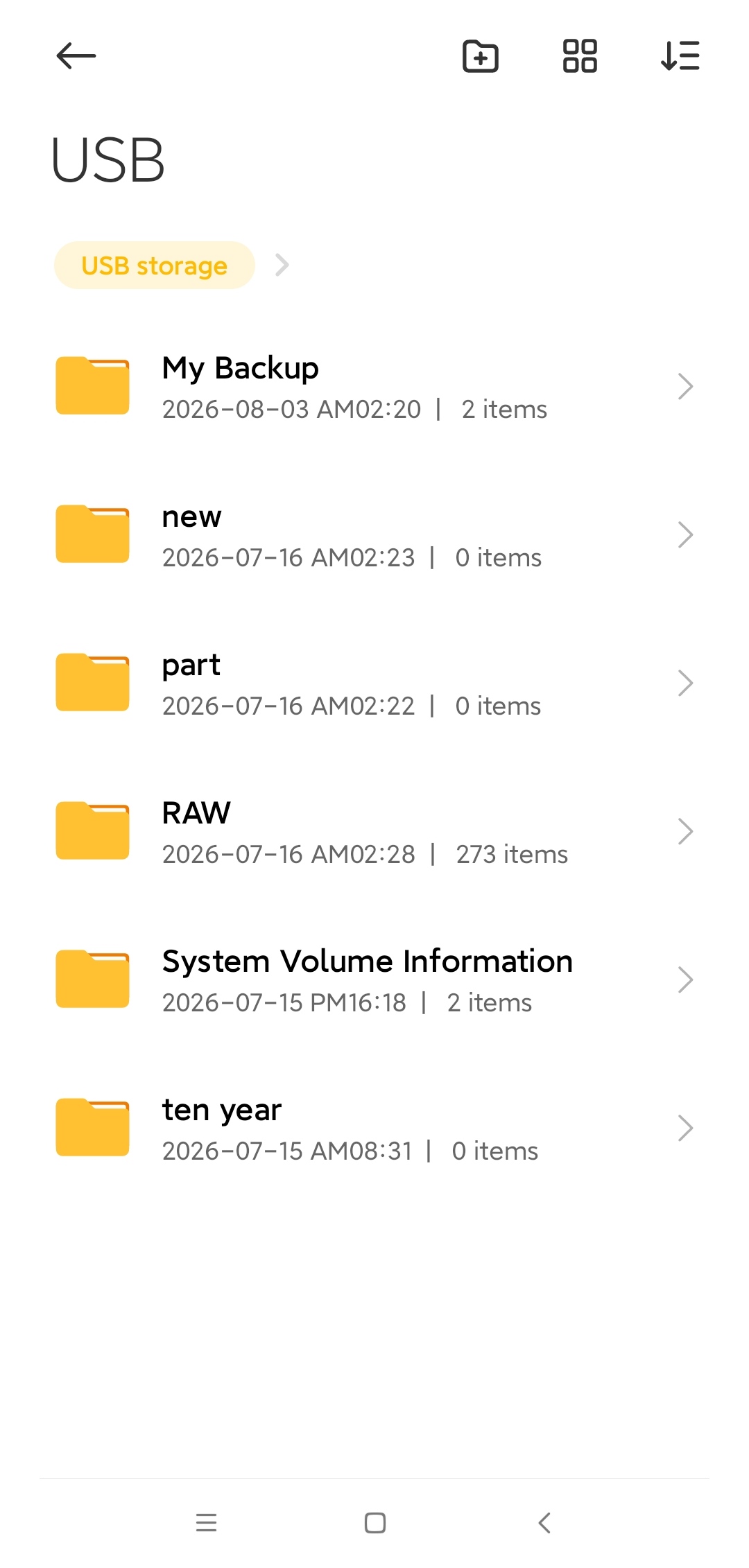
¶ UMS && Android
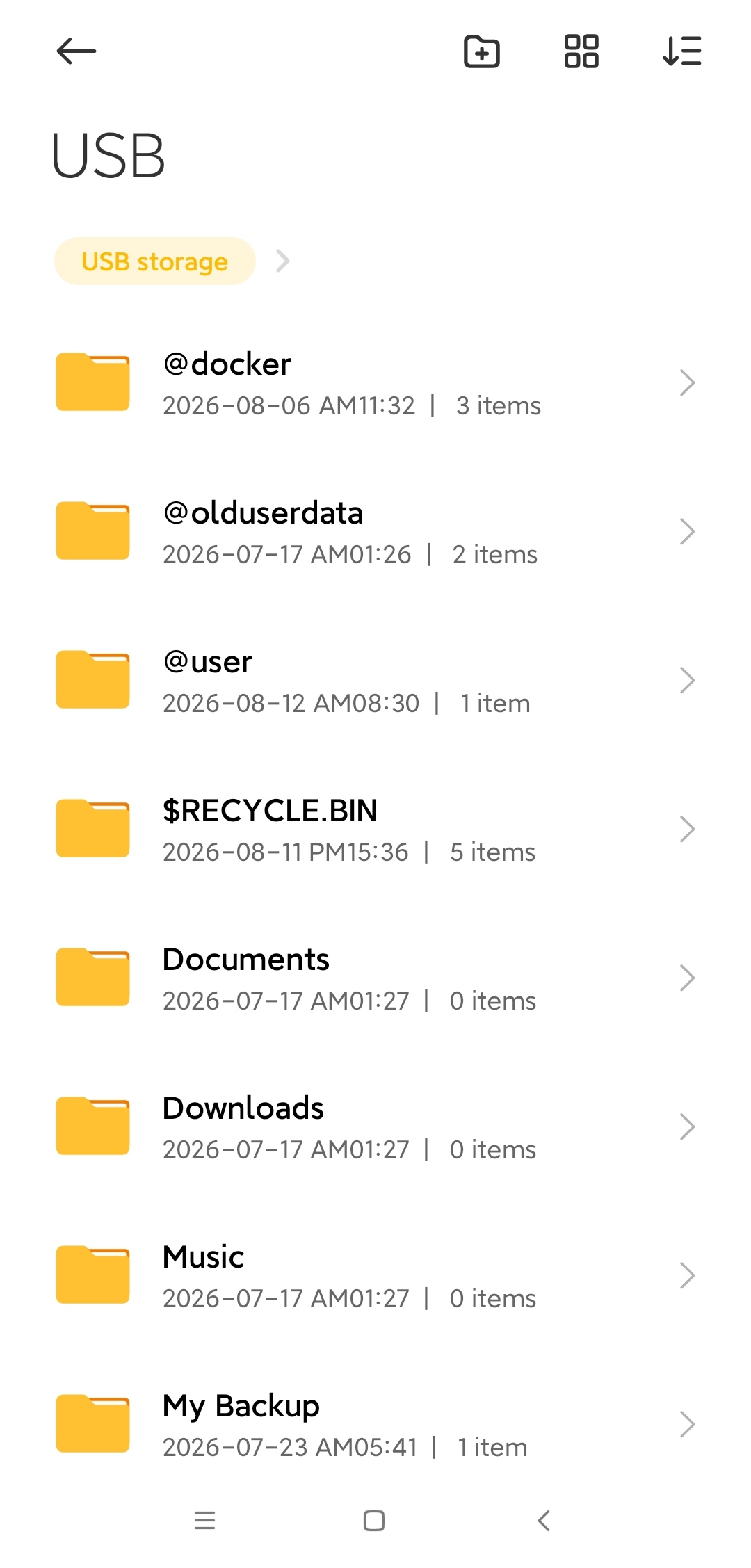
Open the 【File Manager】 app on your phone
¶ Usage
- PocketCloud supports switching to USB Drive Mode. After connecting to a computer or mobile phone via a Type-C cable, the device is recognized as external storage, and you can access disk data directly through the file manager.
- Note: PA100 Pro and PocketCloud use USB Drive Mode differently. Please switch tabs to find the correct model documentation.
¶ Enable USB Drive Mode
¶ How to Enable
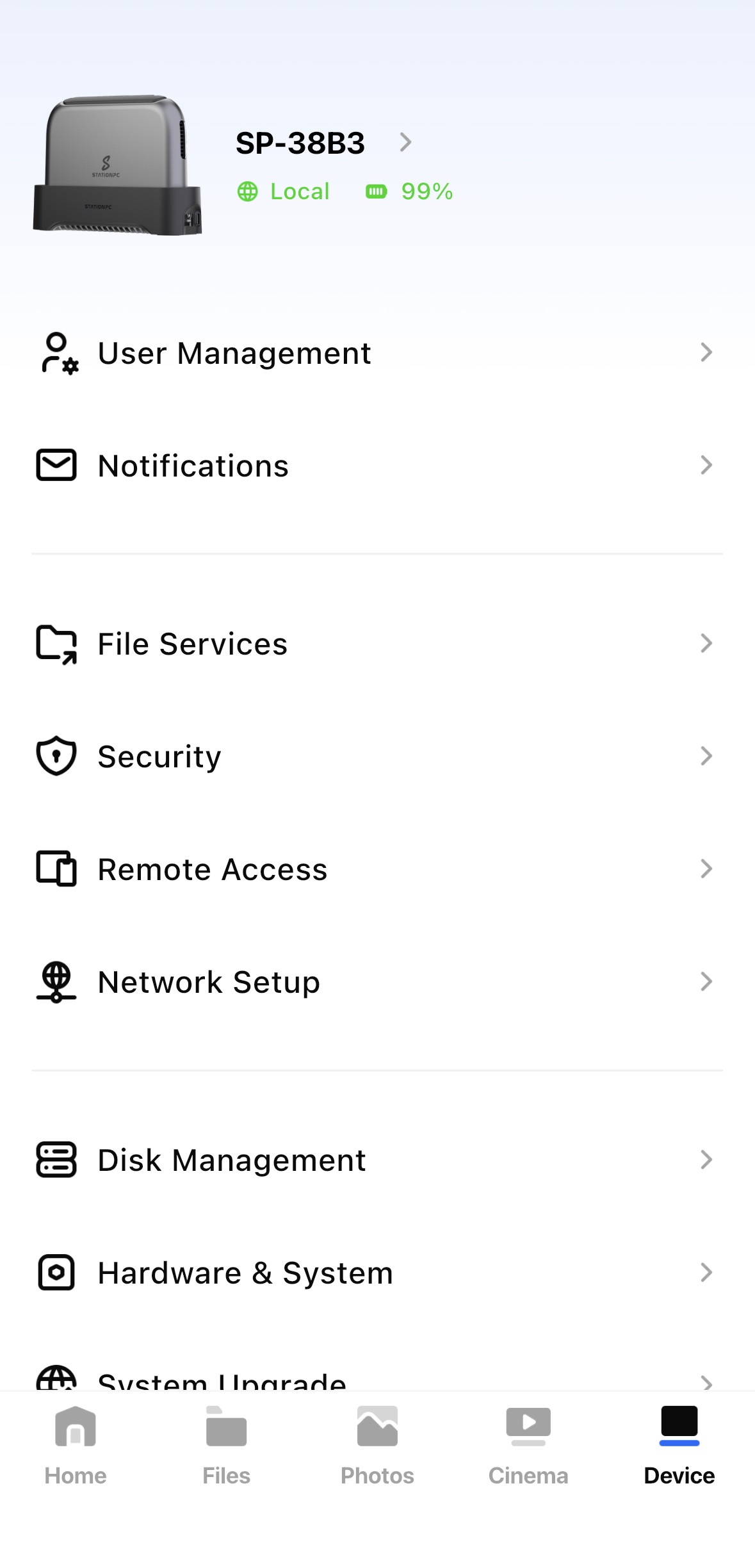
APP/PC client: 【Hardware & System】->【Enable USB Drive Mode】-> On
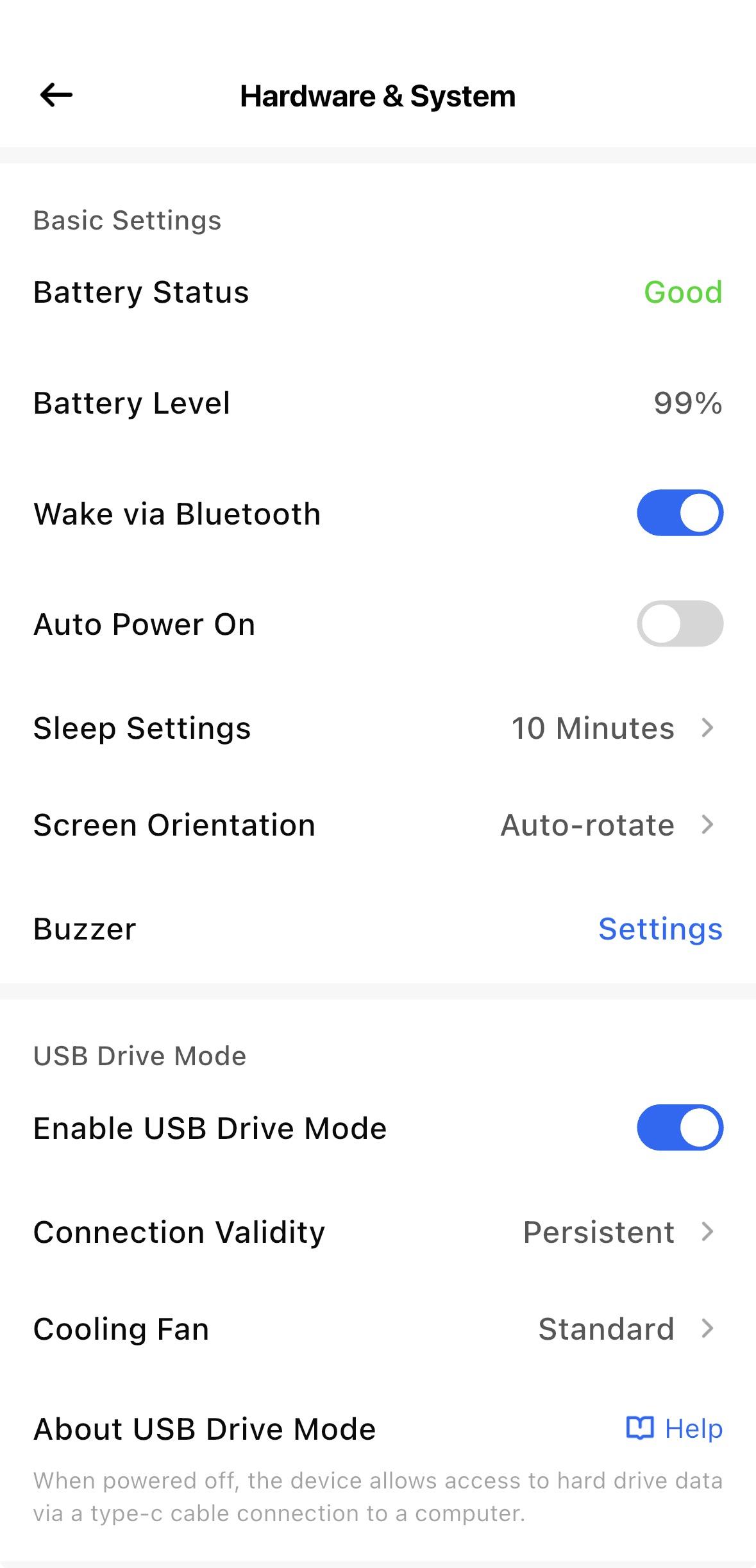
¶ Compatibility
| Compatibility | Windows | MacOS | Android | IOS |
|---|---|---|---|---|
| Supported | ✅ | ✅ | ✅ | ✅ |
¶ Device Data Access
¶ Connection Method
The device must be powered off, otherwise it cannot be recognized
Cable connection
- Type-C to Type-C: Suitable for mobile phones, tablets, laptops, etc.
- Type-C to Type-A: Suitable for desktop PCs, etc.
- Note: Use the official standard cable or an officially recommended cable
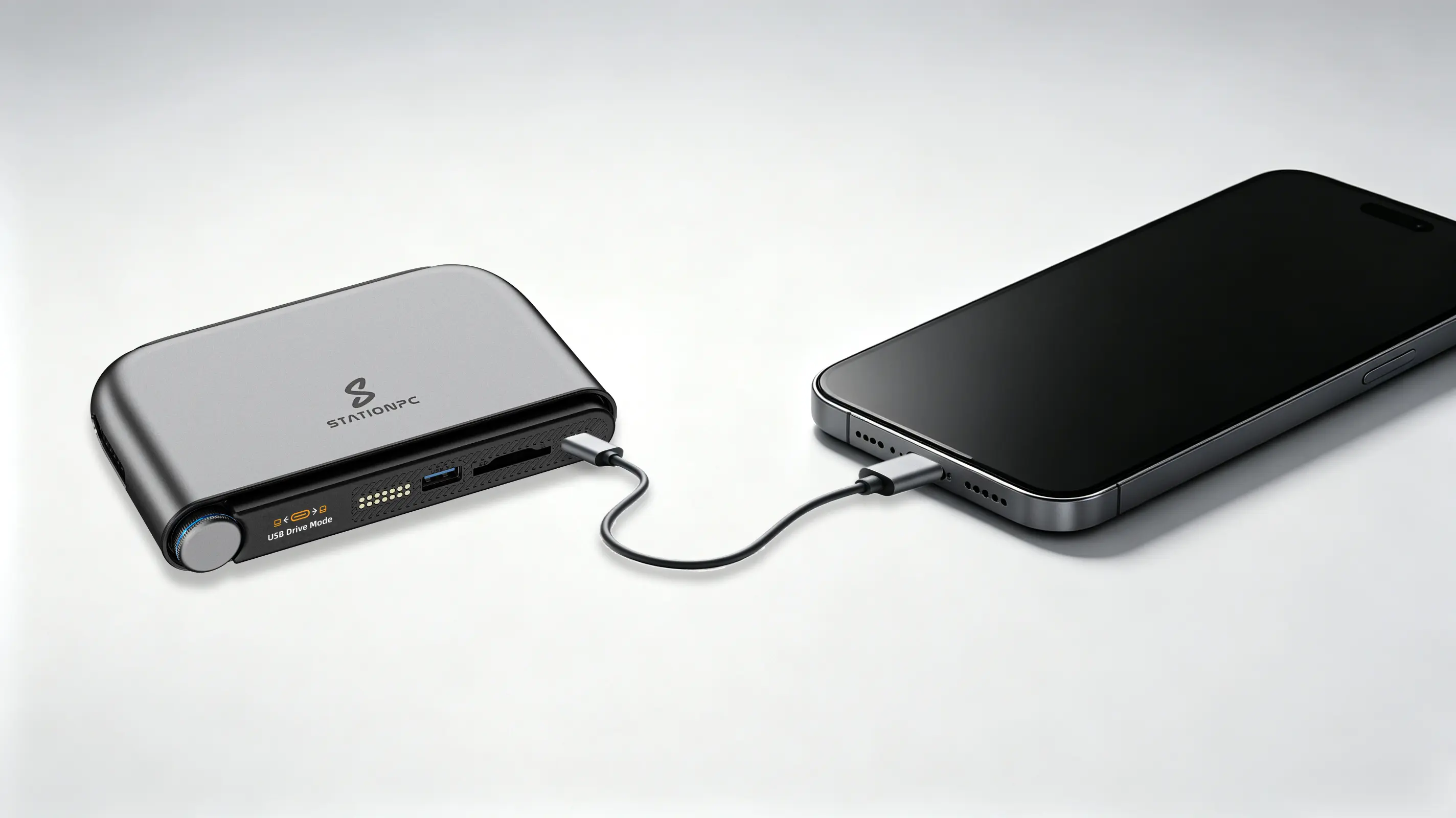
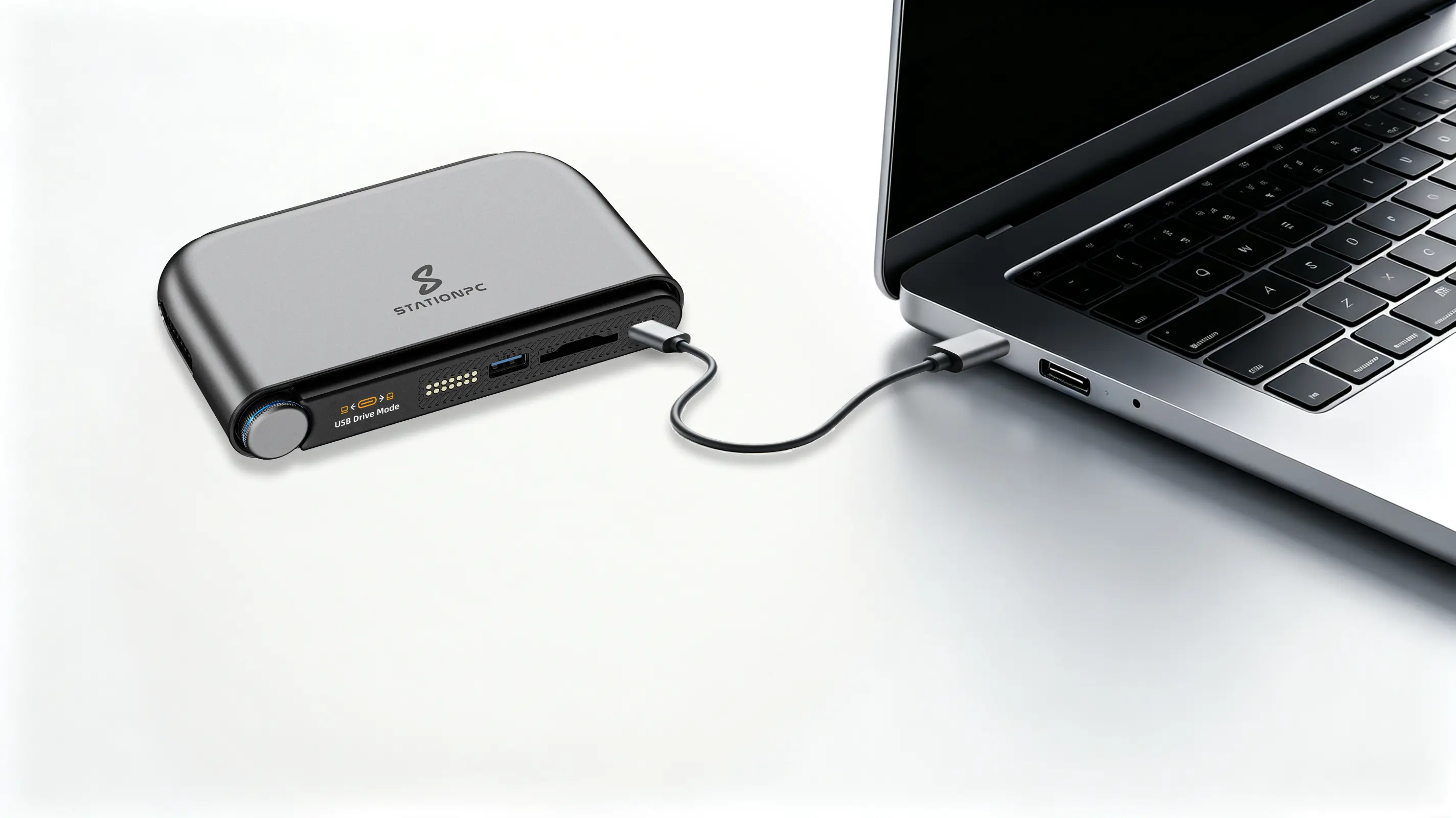
After a successful connection, the device's small screen displays 【USB Drive Mode】

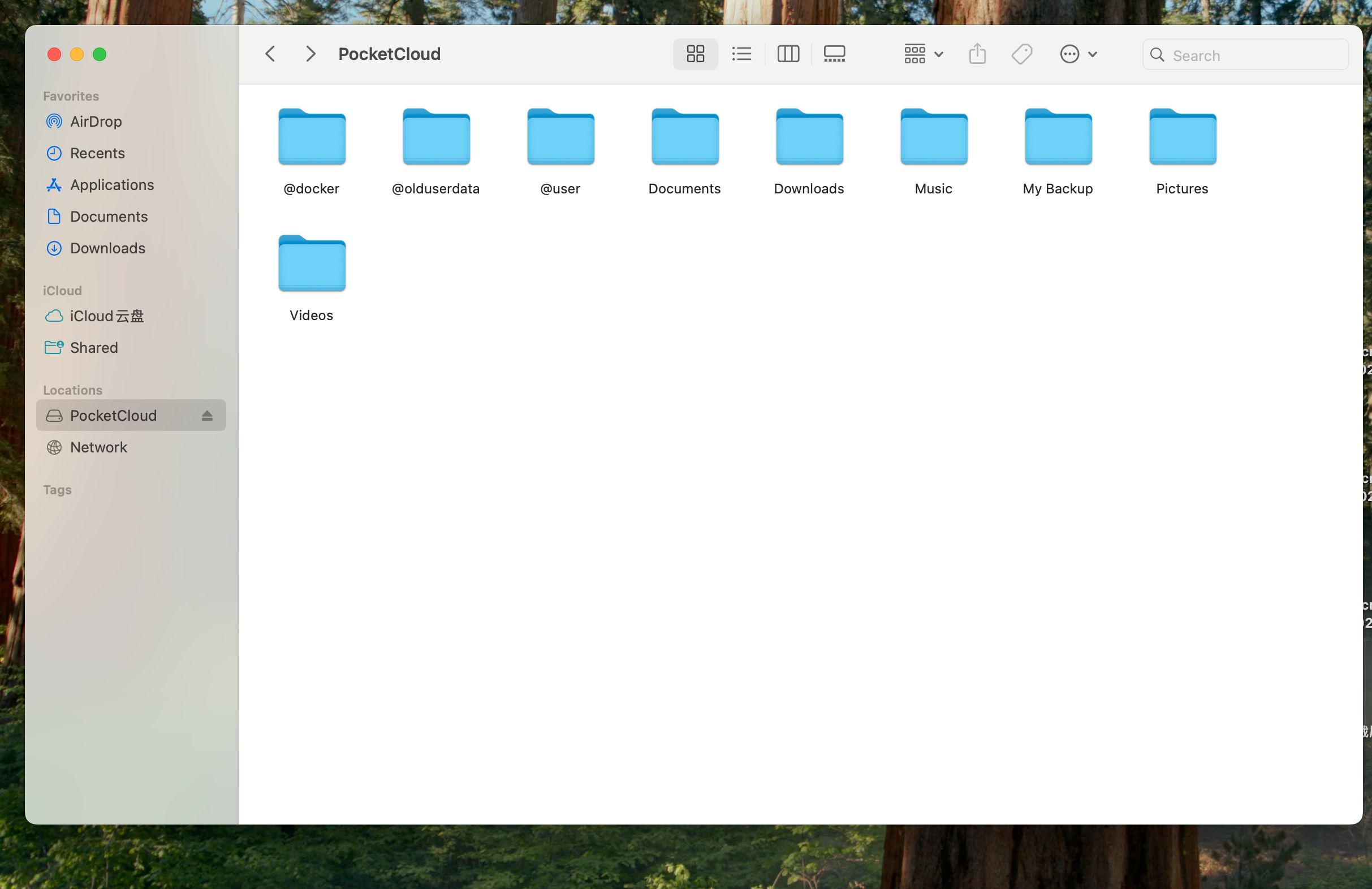
¶ MacOS
Open 【Finder】 in MacOS
¶ Windows
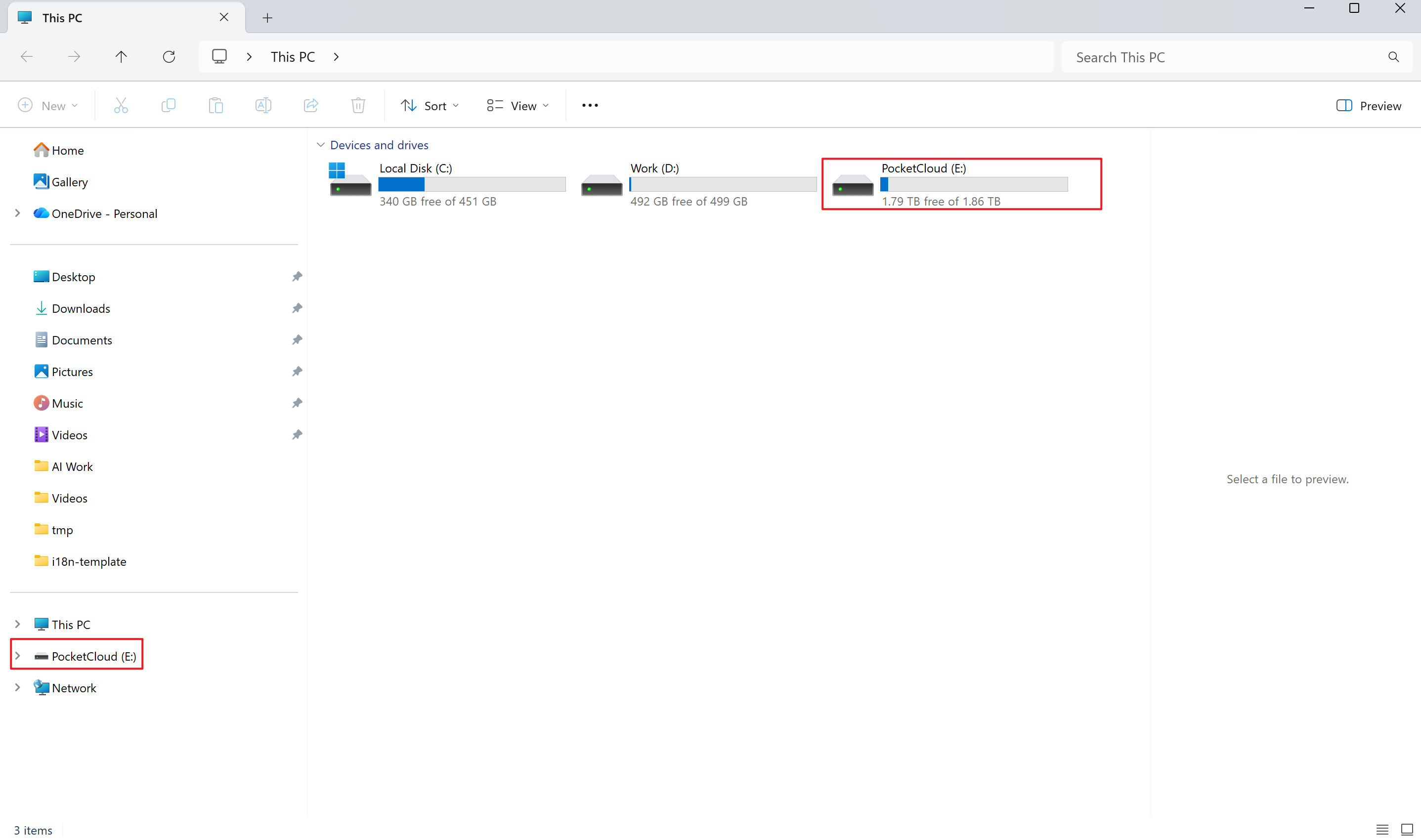
Open 【This PC】 in Windows
¶ IOS
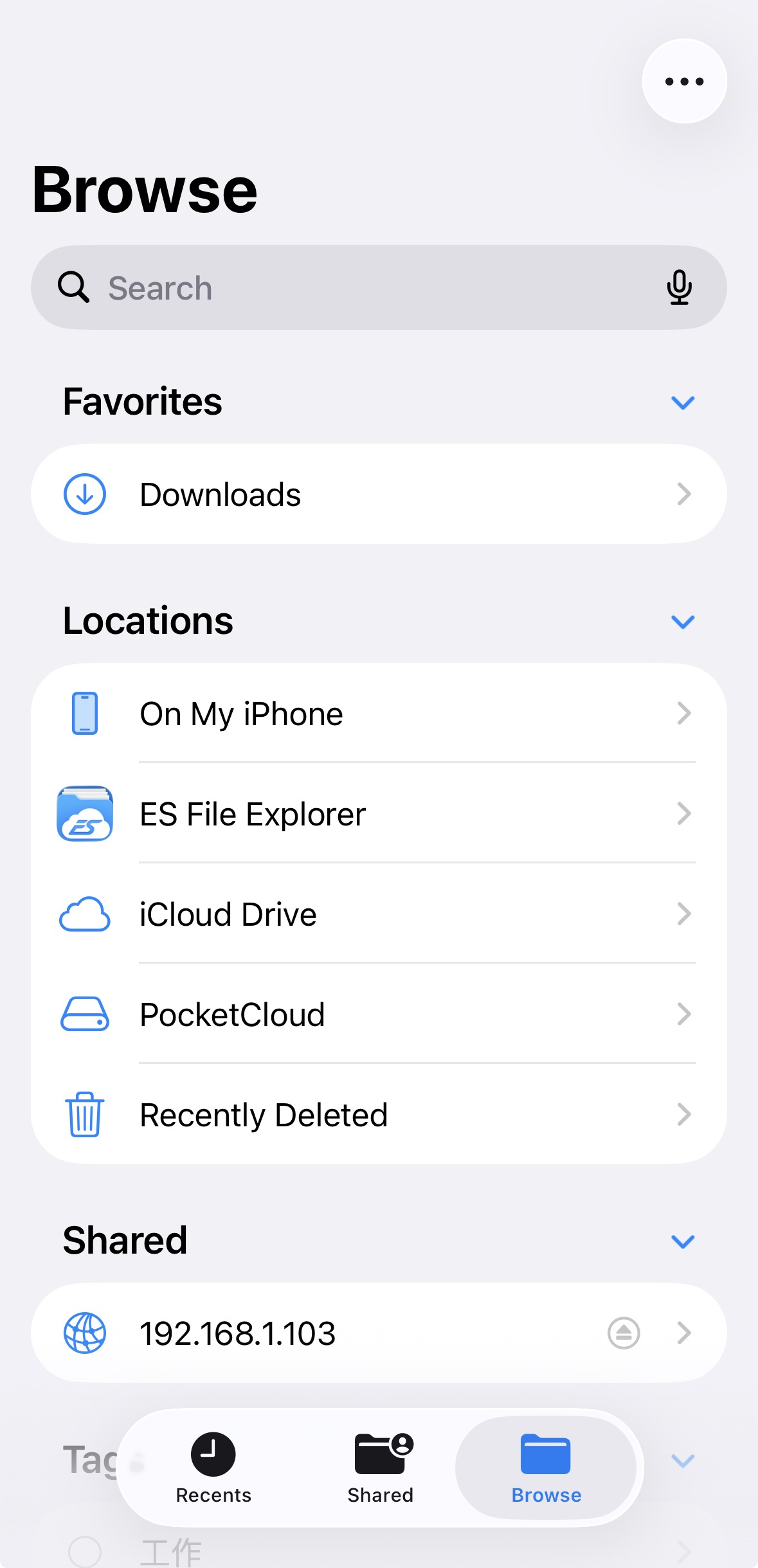
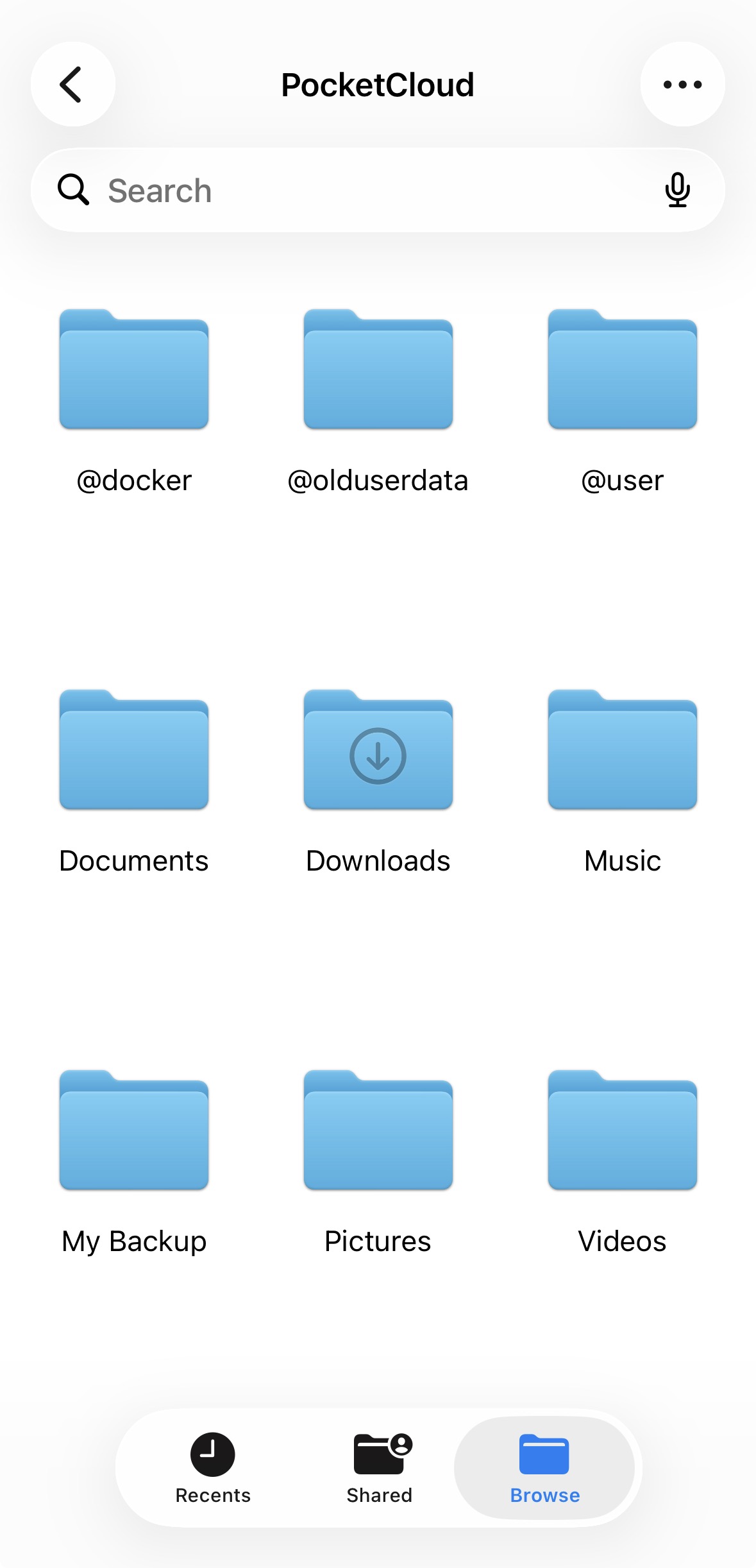
Open the 【Files】 app on your phone
¶ Android
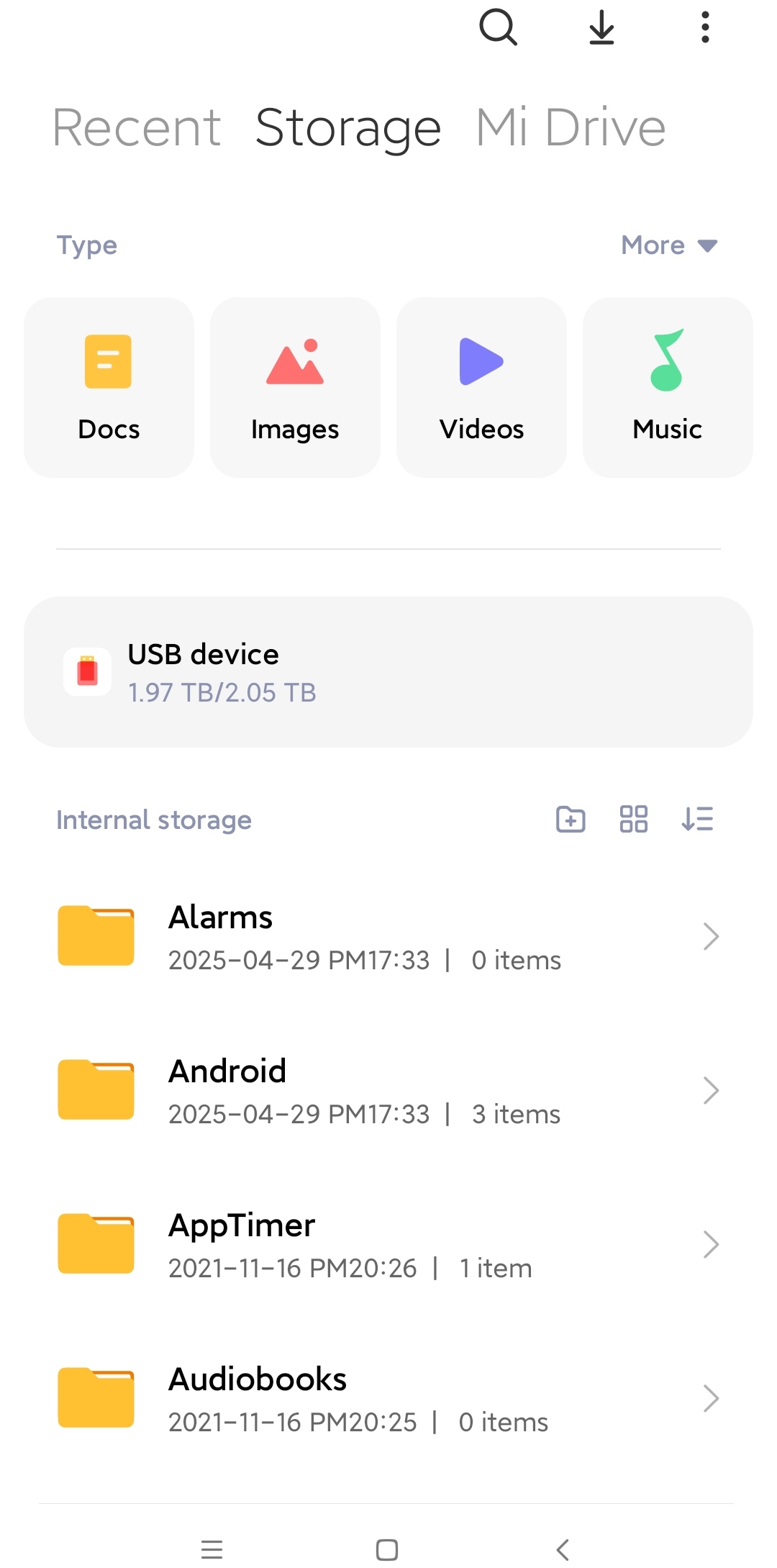
Open the 【File Manager】 app on your phone
::::