
¶ How to Connect to PocketCloud?
You can connect to PocketCloud via multiple ways,select the option that best fits your needs.
¶ Networked Environment
With an active network connection, use these connection methods to connect to PocketCloud.
¶ Method 1: Use IP Address
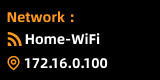
When PocketCloud is successfully connected to the network, you can then find its IP address using these options:
- Find PocketCloud's IP address via your router's management portal.
- View PocketCloud's IP address on its built-in small screen.

¶ Method 2: Use Station ID
If the remote access service is enabled, connect to PocketCloud by entering the Station ID.
¶ Method 3: Discover PocketCloud on the LAN
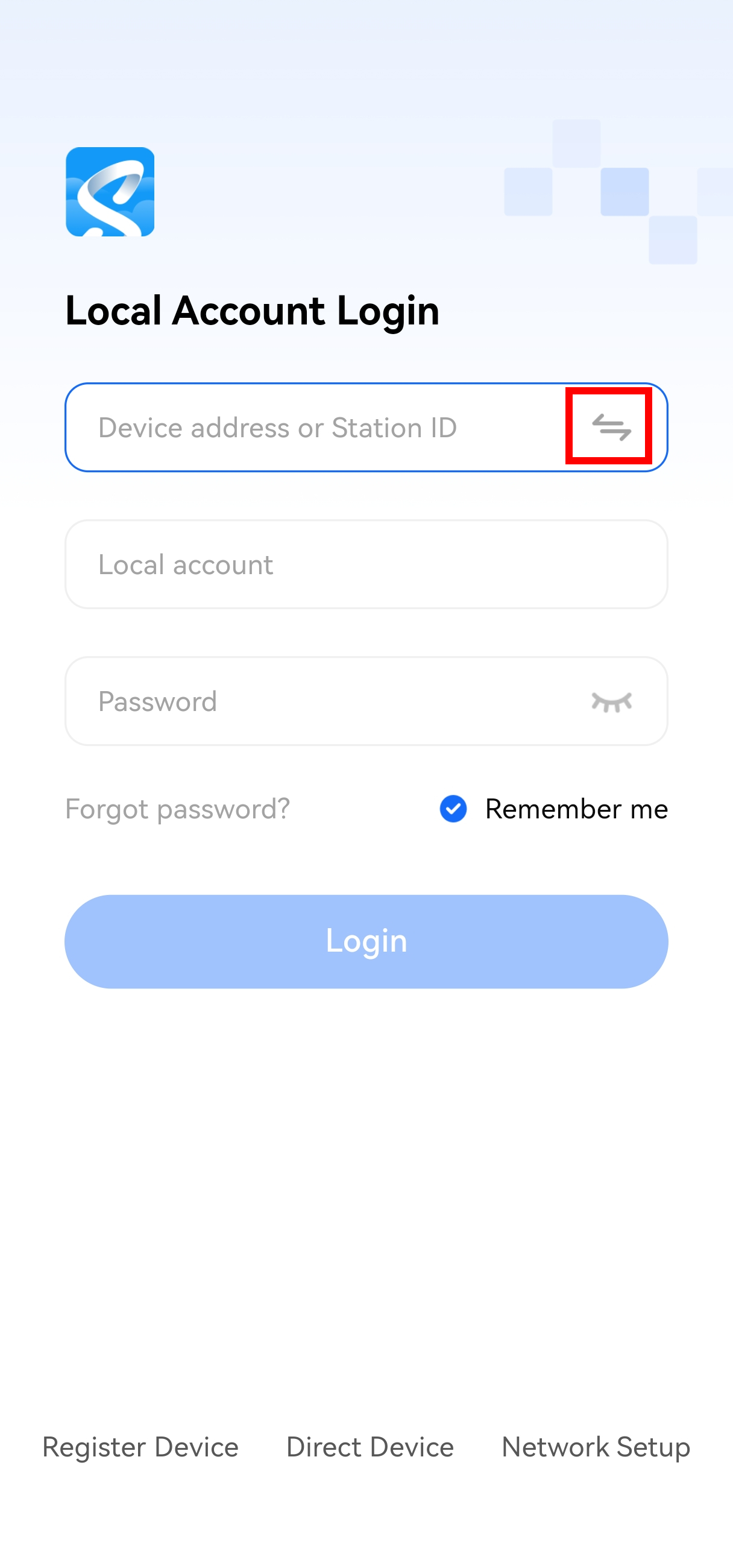
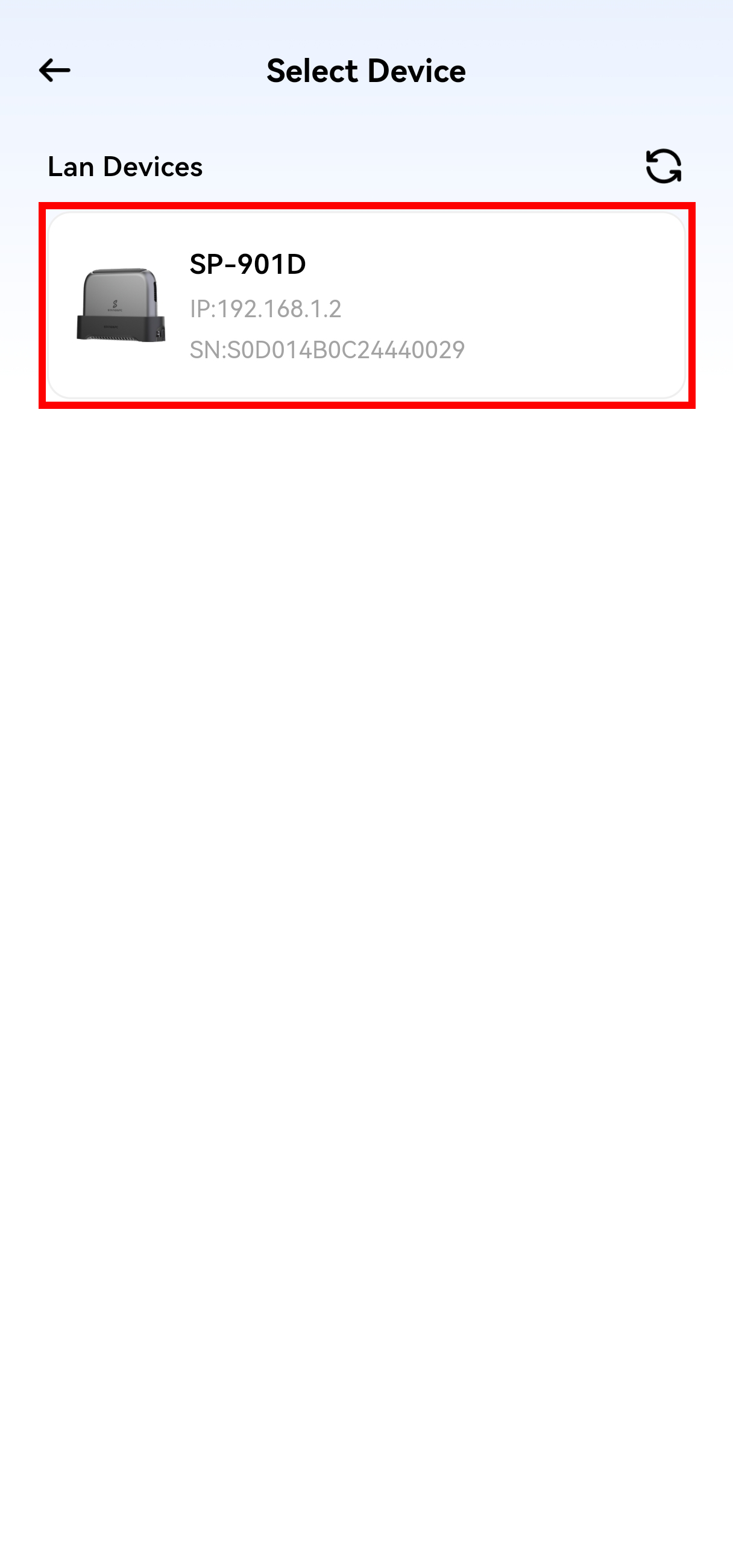
Open the app, then tap Discover Local Network Devices (marked by the red box) to access the search list. It will automatically detect and display all PocketCloud devices on the same LAN,select the one you want to connect to.
¶ Method 4: History Login
Open the app, then tap Discover Local Network Devices (marked by the red box) to access the search list. If the device has a login history, use "History Login" to quickly populate access and account details.
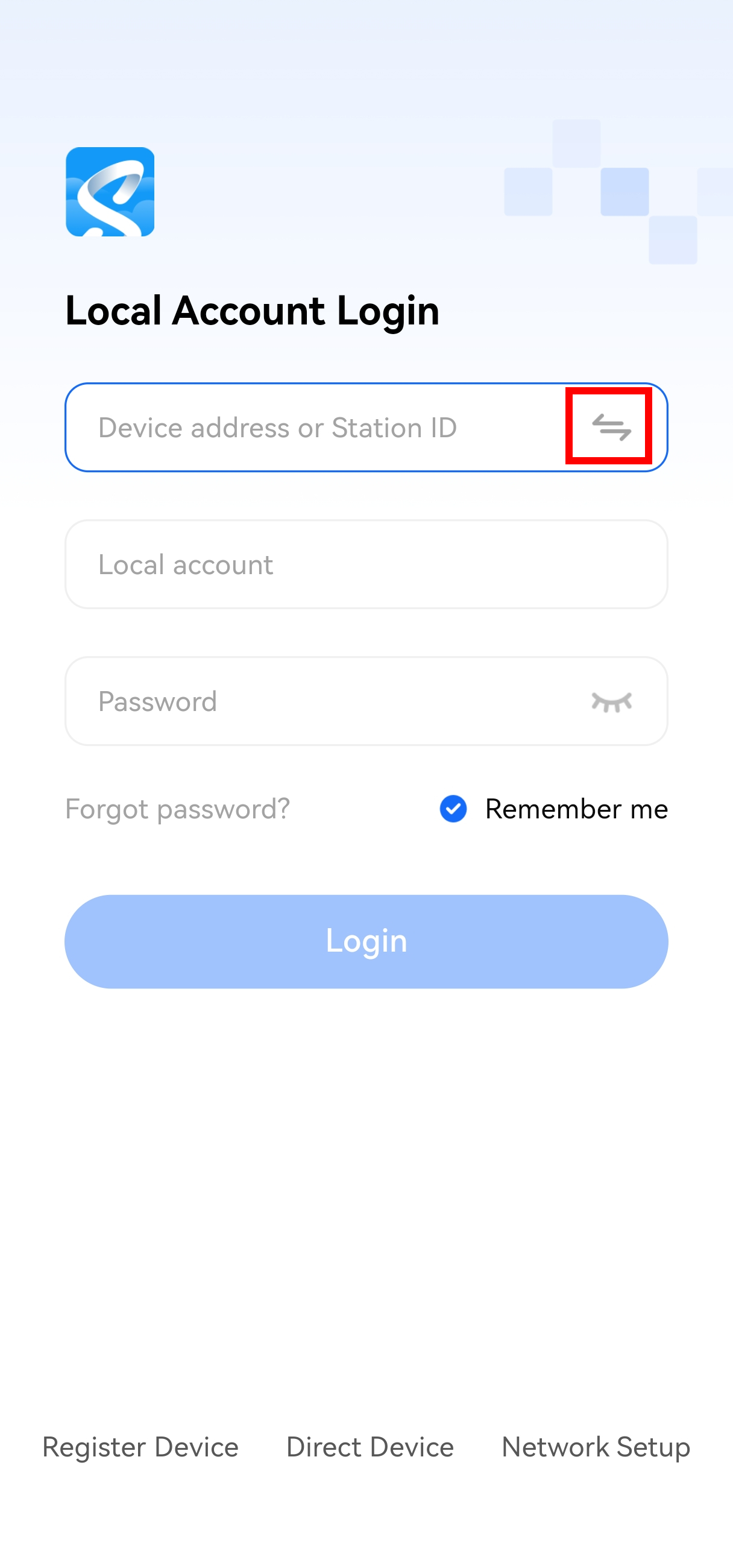
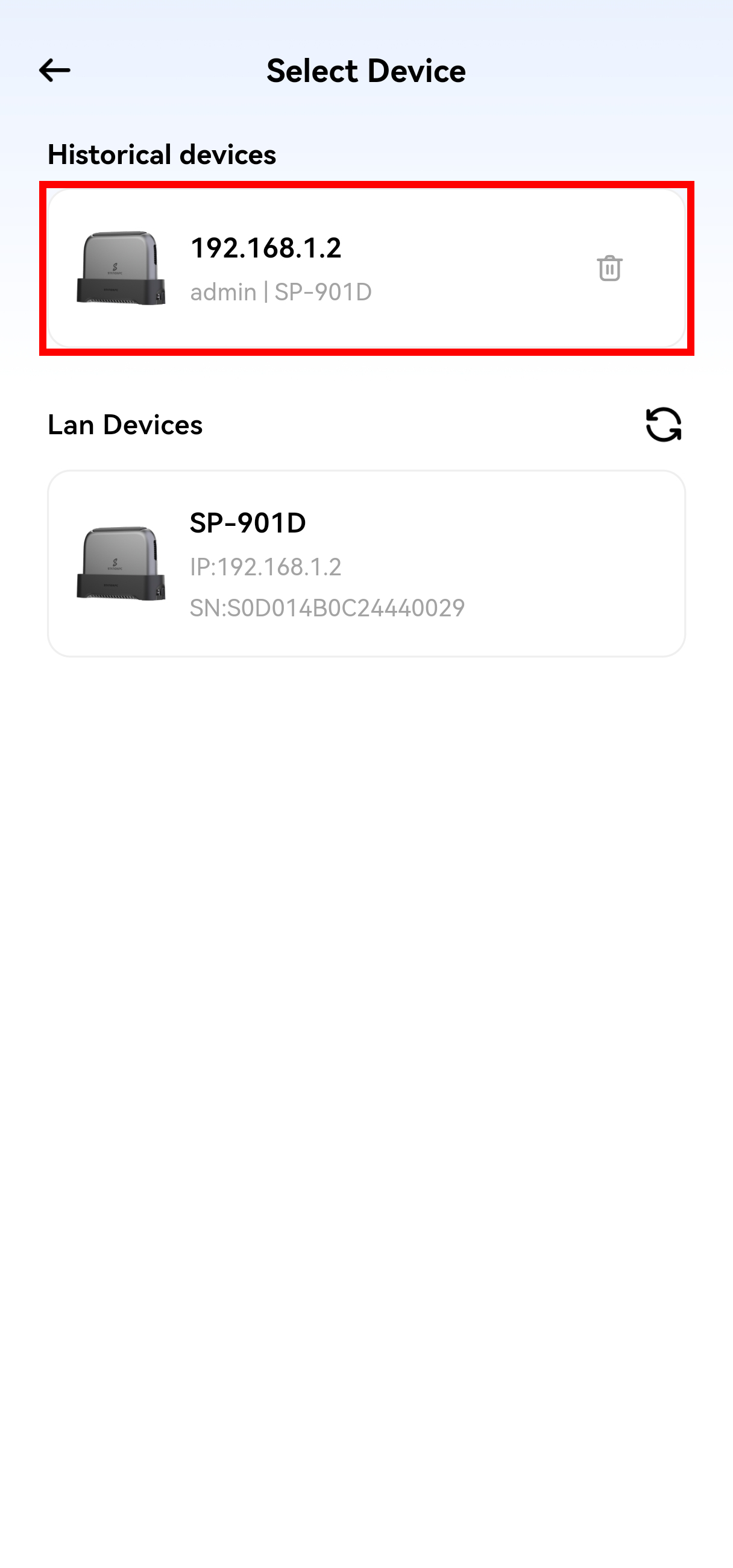
After finding the device, enter your account credentials to log in.
¶ Offline Environment
In an offline environment, you can connect to PocketCloud through the following methods.
¶ Method 1: WiFi Direct
After your phone connects to PocketCloud via WiFi Direct, there’s no need to disconnect this connection. You can simultaneously enable mobile data to access external networks (e.g., browse web pages, receive messages), allowing you to both access device data and use external networks.
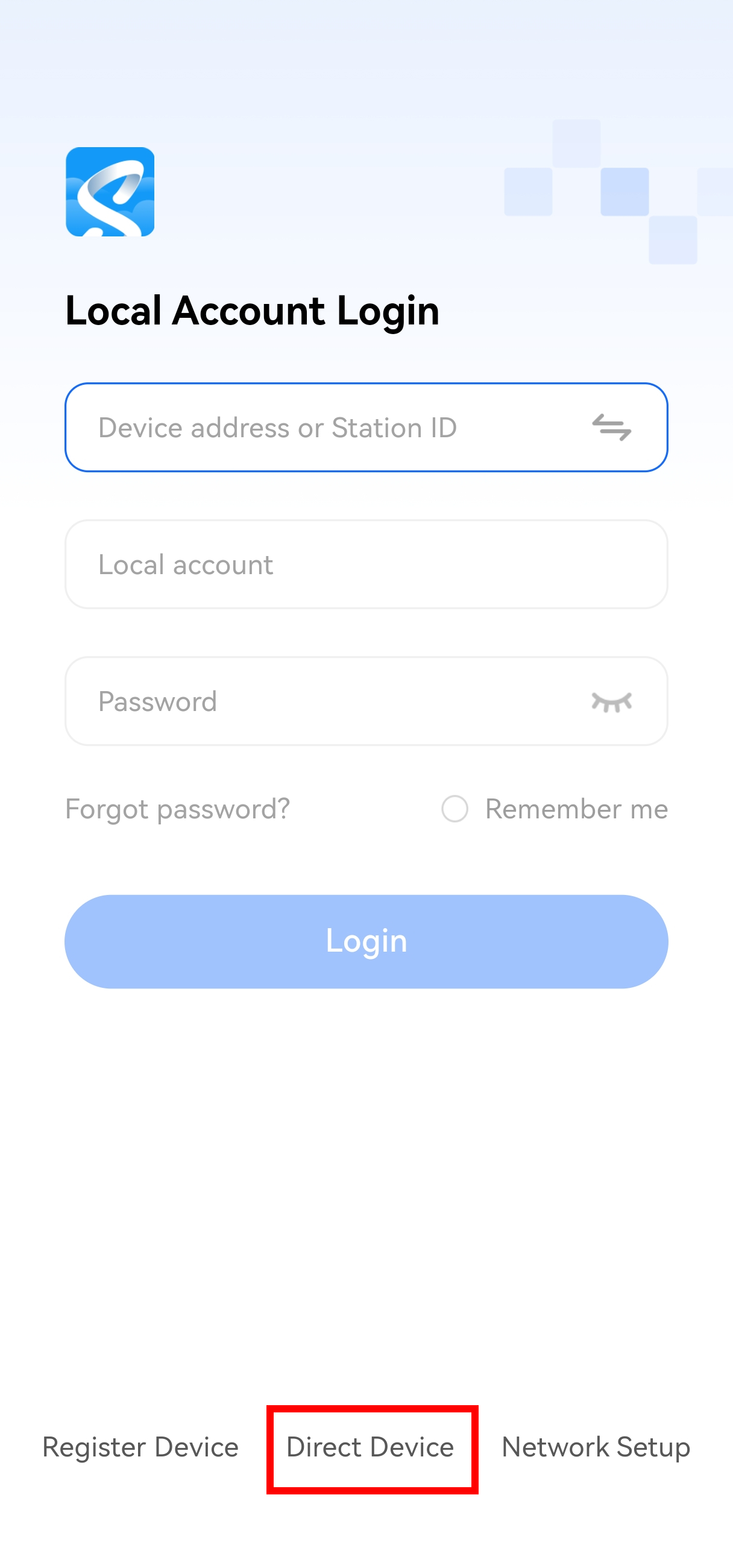
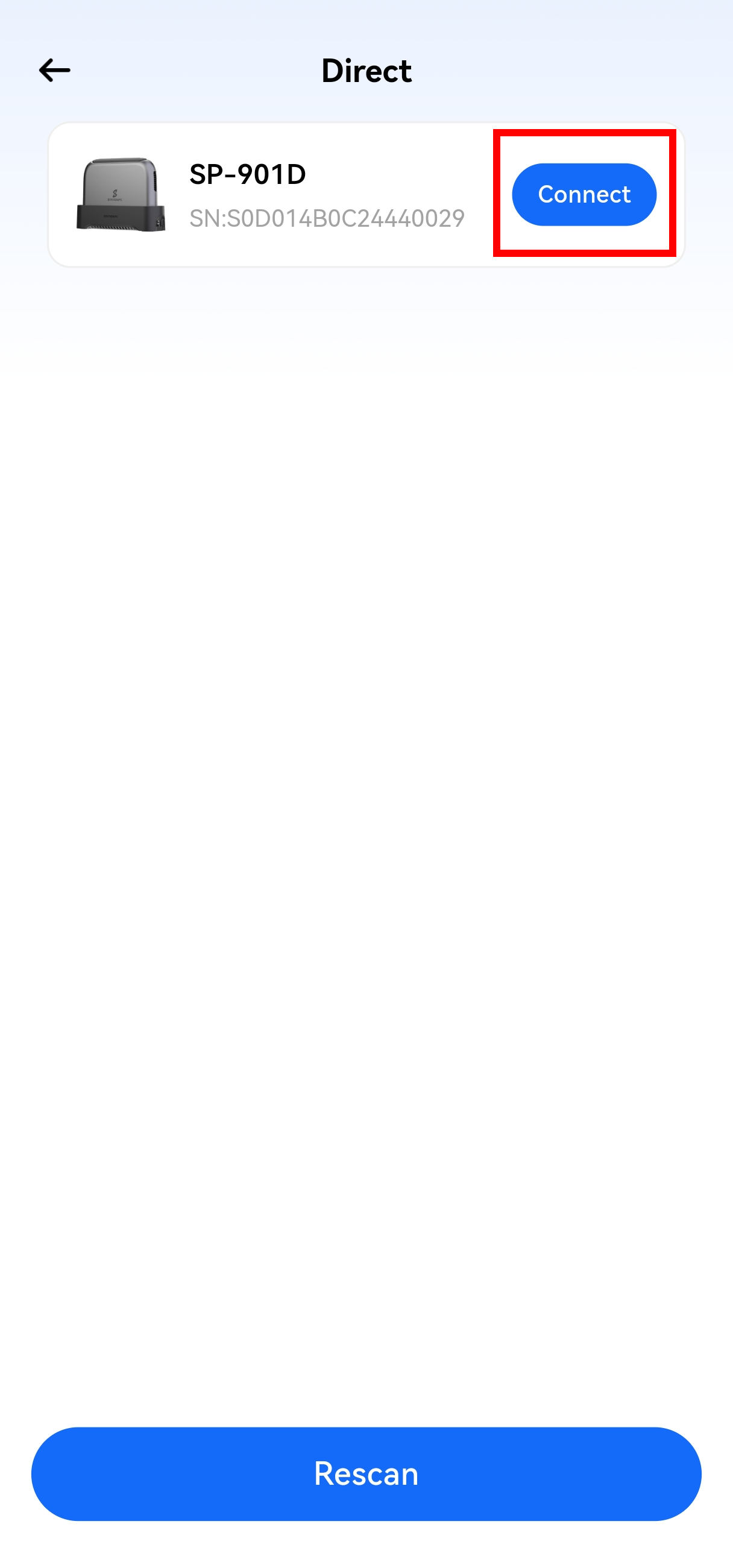
Open the App, tap Device Direct Connection to enter the search list. It will automatically discover and display all nearby PocketCloud devices via Bluetooth. Select the PocketCloud device you want to connect to.
¶ Method 2: Access via Mobile Hotspot
Note: In this method, when accessing external data (e.g., cloud storage access, offline downloads), PocketCloud will connect to the network using data via the mobile hotspot. Please monitor your data usage to avoid exceeding limits and incurring additional charges.
To access via mobile data, you can set up a temporary network environment using a mobile hotspot. Follow these steps:
- Enable the mobile hotspot function and set the hotspot name (SSID) and password;
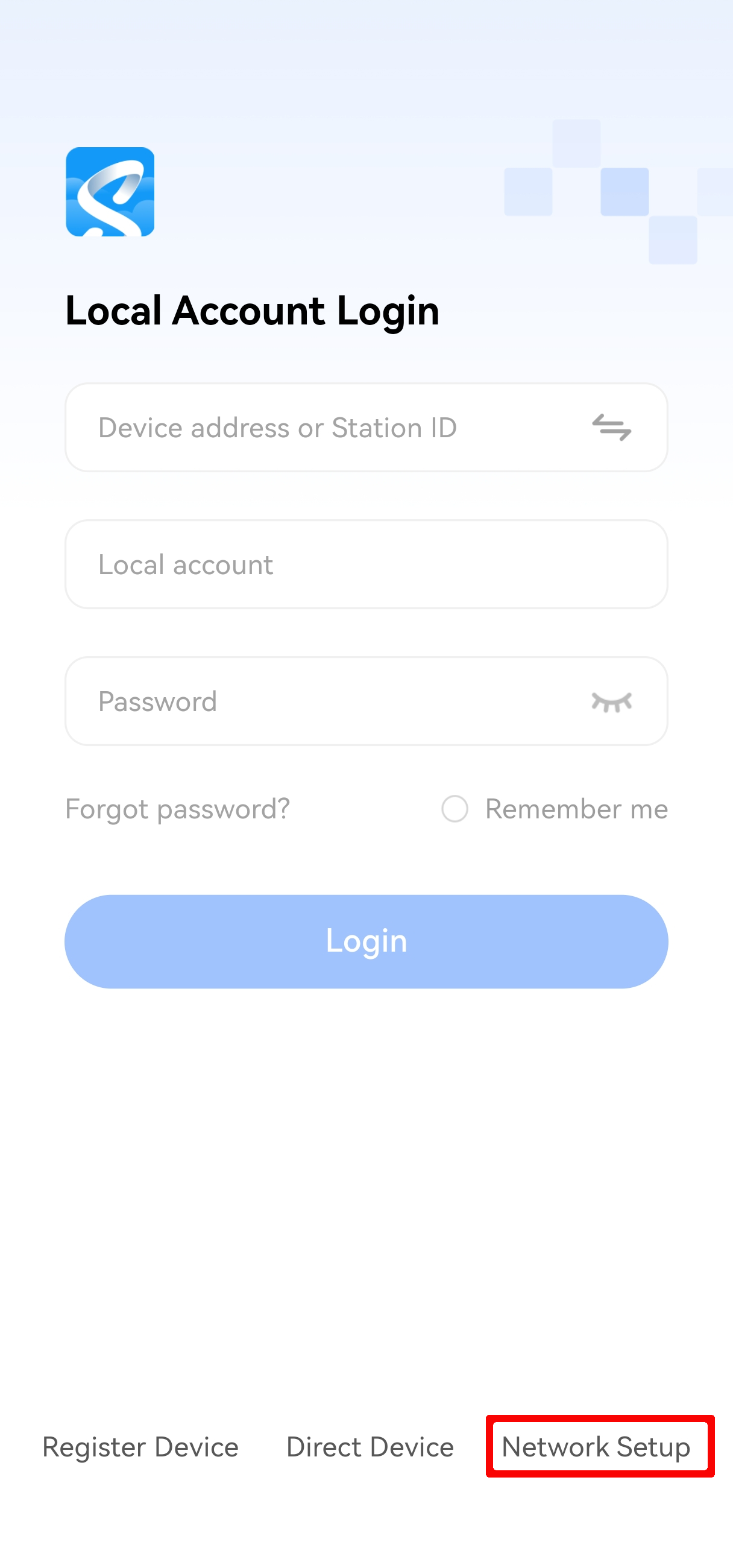
- Open the App, tap "Network Configuration", follow the prompts to enter the network configuration page, manually enter the mobile hotspot name and password, and complete the connection between PocketCloud and the hotspot;
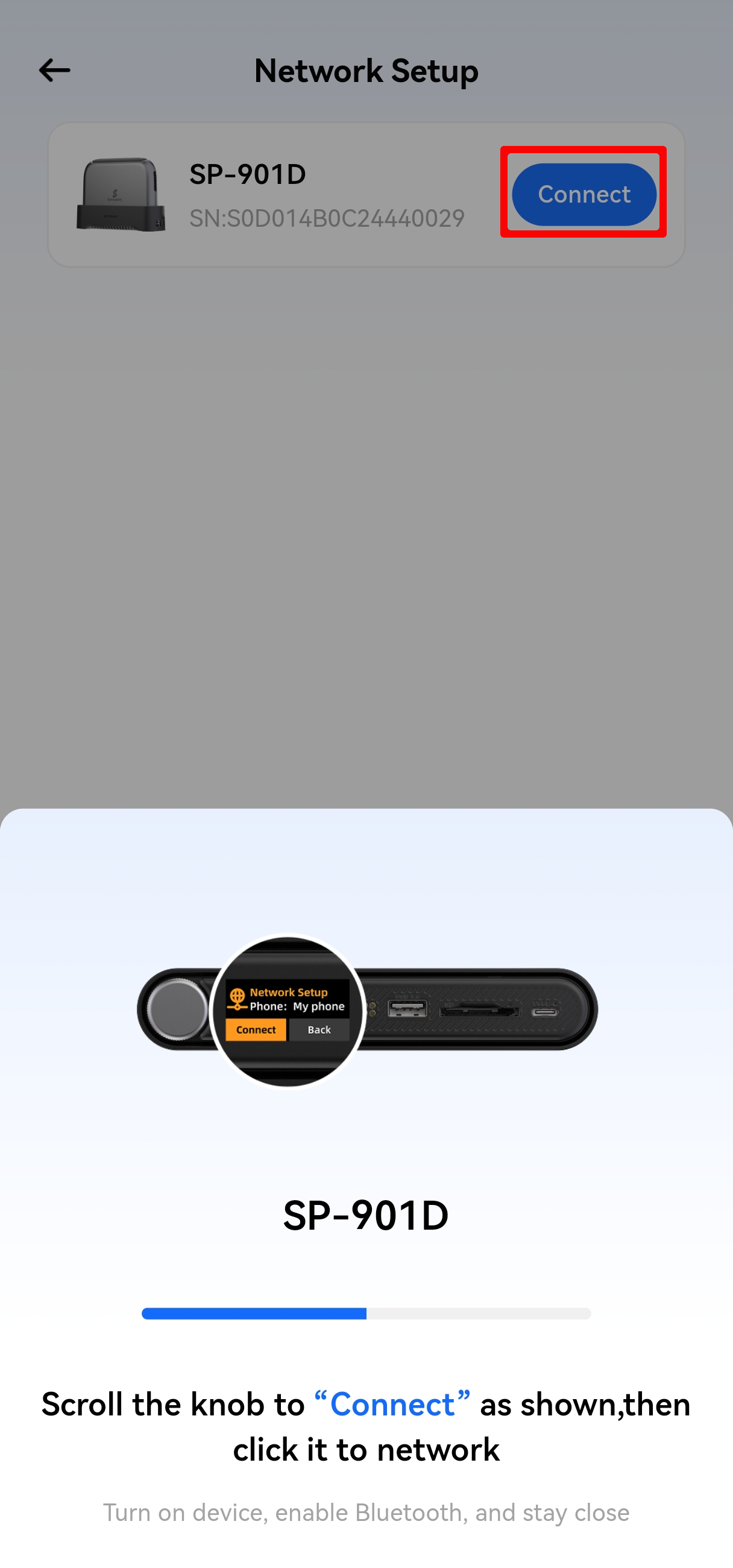
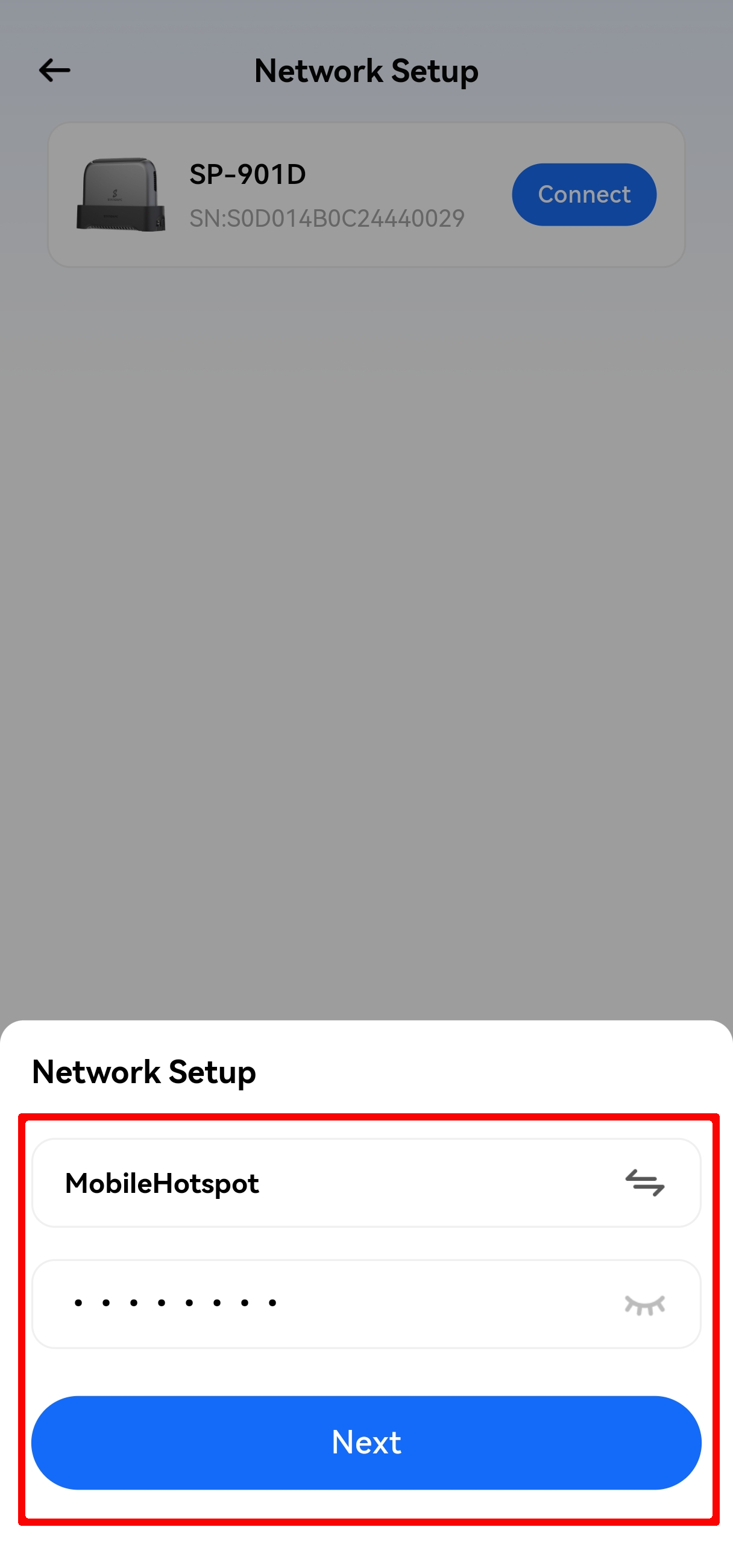
- After a successful connection, open the App and tap Discover Devices in Local Network. It will automatically identify PocketCloud devices on the same hotspot network. Select the corresponding device and enter your account and password to log in.