¶ Beta Version Update
¶ Introduction
Beta versions are pre-release versions made available to beta testers before the official launch. They allow users to preview new features of system firmware and client software that have not yet been publicly released. Meanwhile, they help collect user feedback, identify potential issues, and support the optimization and improvement of the official version.
¶ iOS Client Beta Update Steps
¶ 1. Install TestFlight
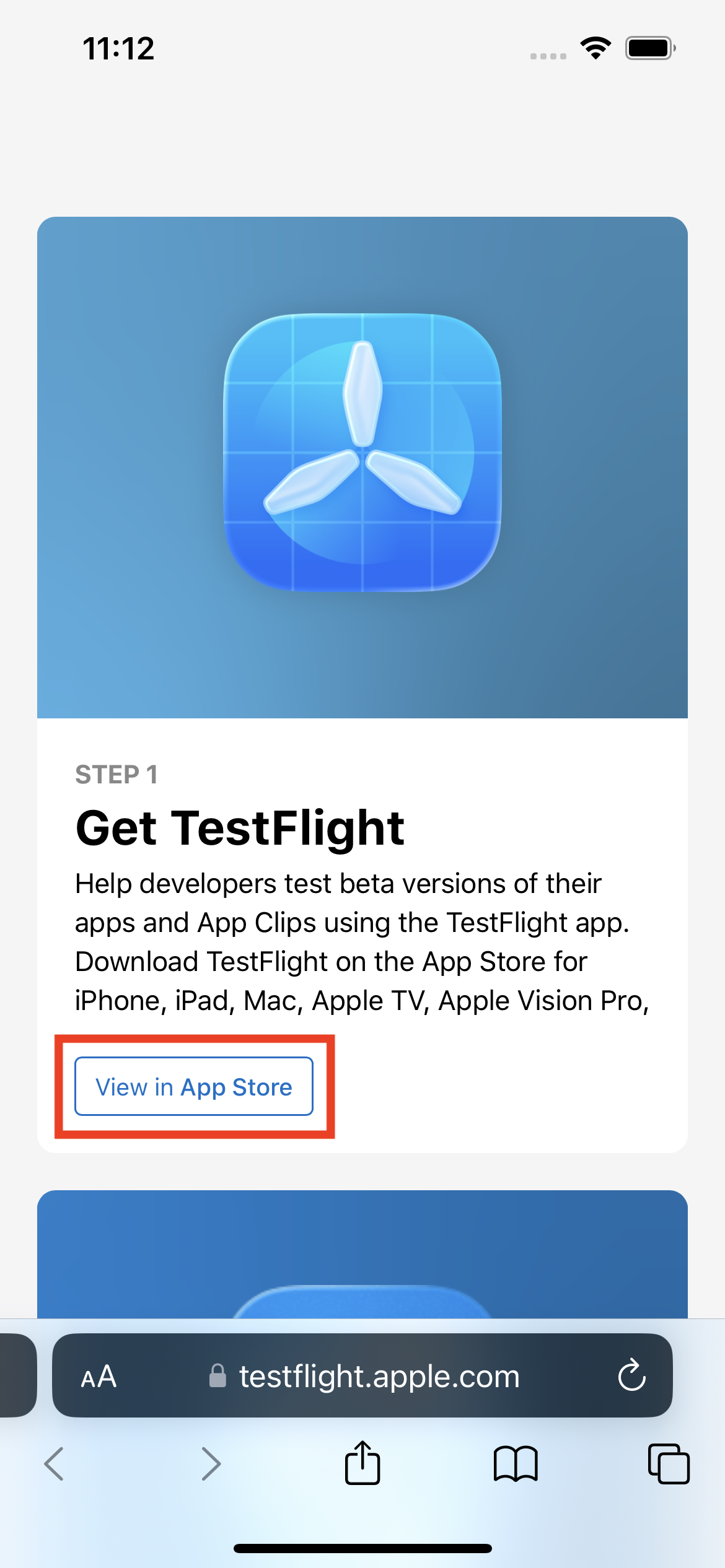
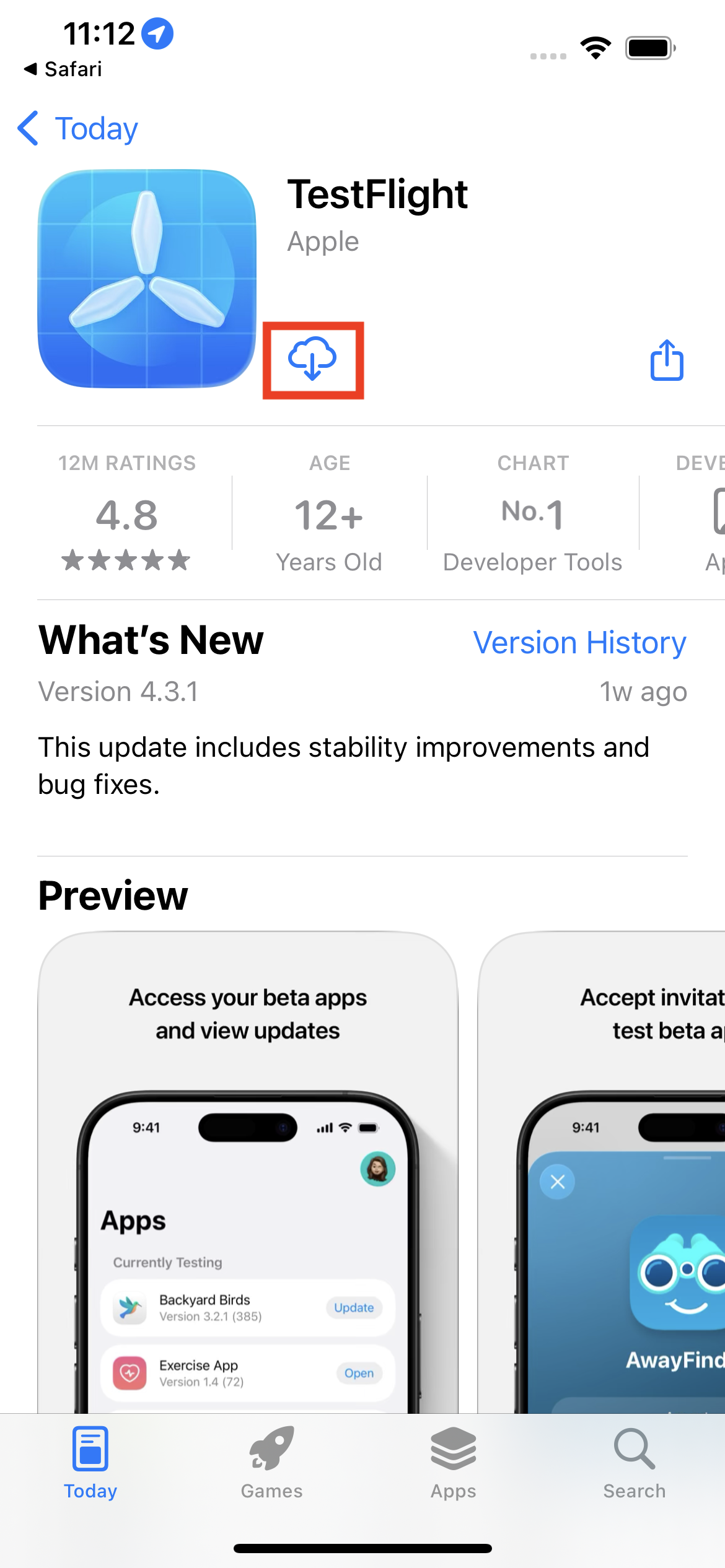
Open the link to TestFlight (opens new window), then tap View in App Store to download or update TestFlight.
¶ 2. Go to the PocketCloud Beta Page in TestFlight
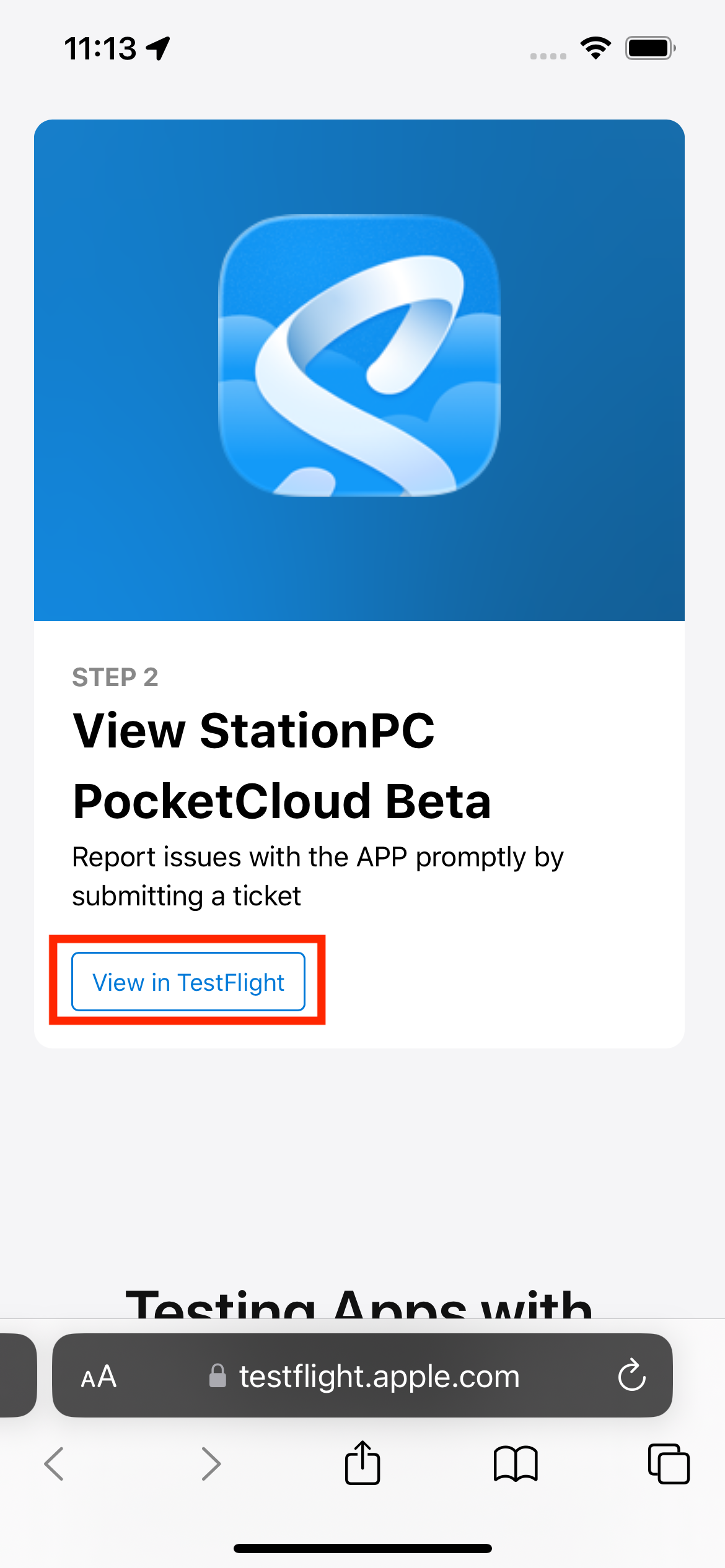
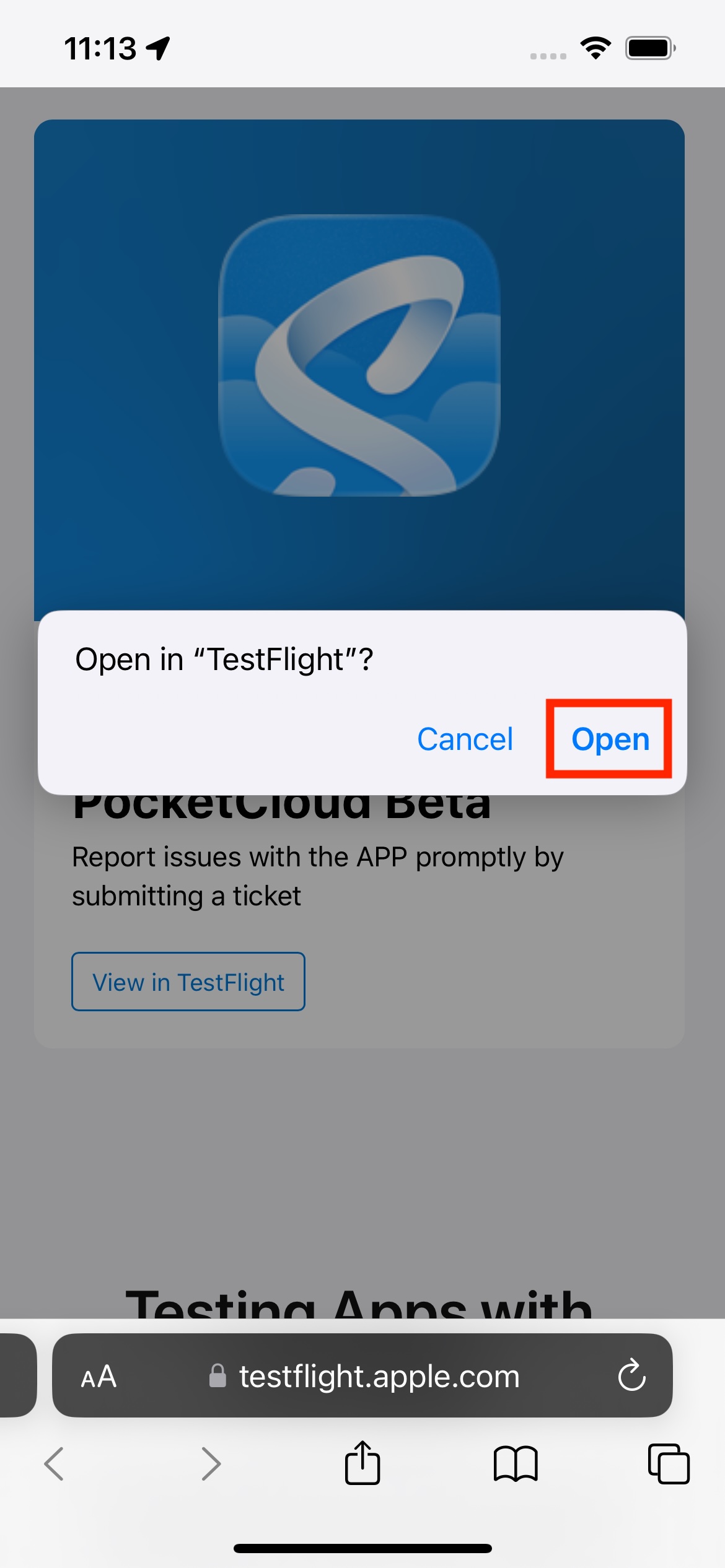
Open the link again: TestFlight (opens new window), then tap View in TestFlight to enter the app.
¶ 3. Install the Beta Version
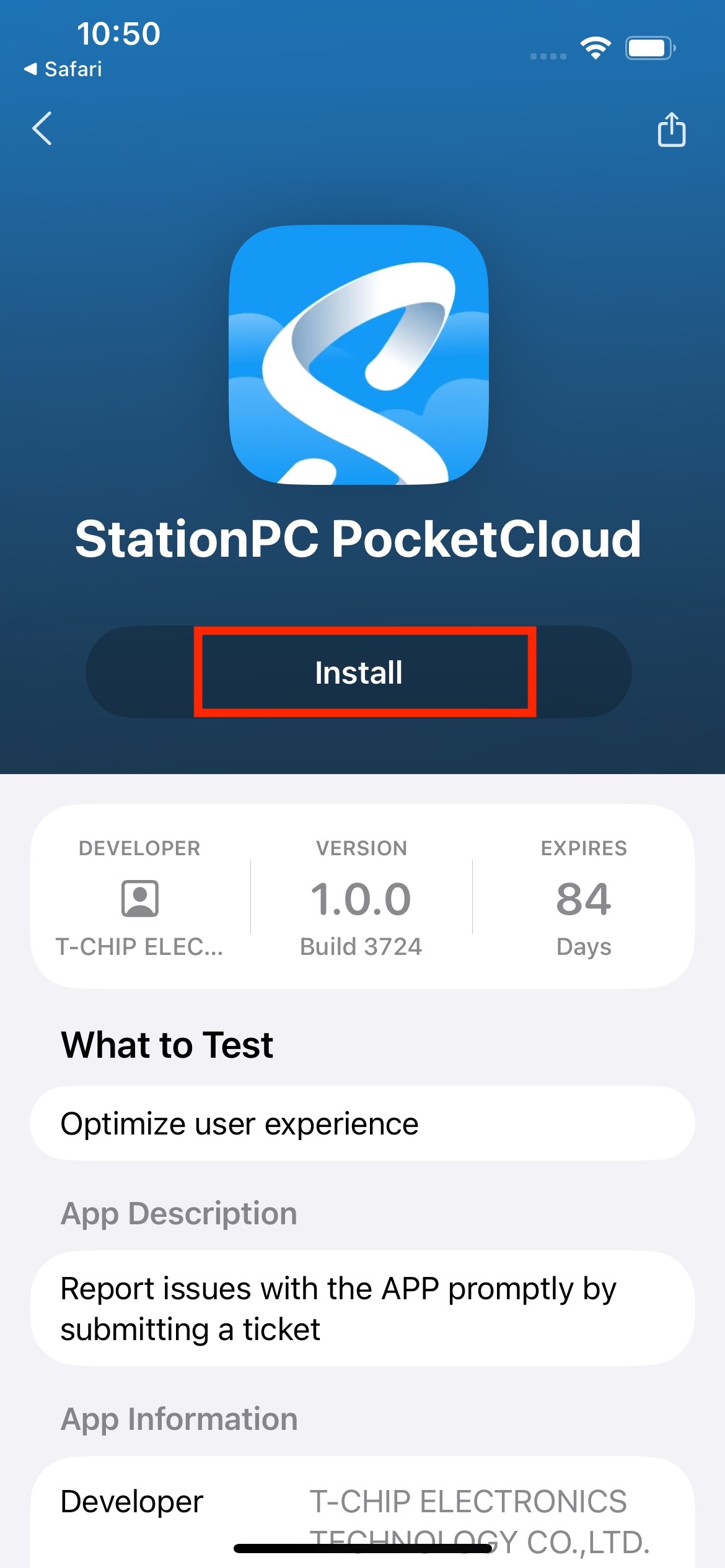
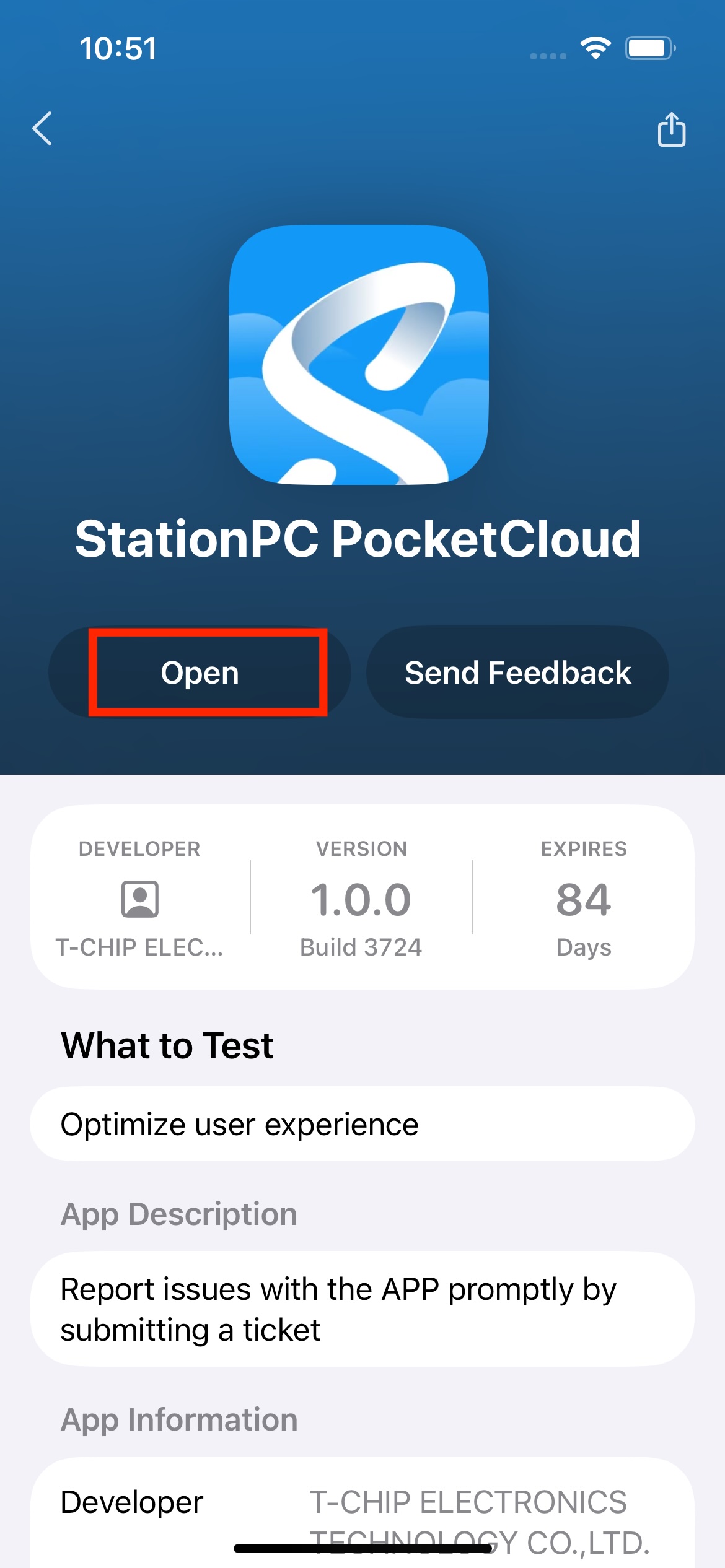
When the beta version appears, tap Accept to install the latest beta build.
¶ 4. Video Tutorial
Loading...
¶ Android Client Beta Update Steps
If you installed the Android client from the official website, no extra steps are required. You will receive an in-app update notification when a new beta version is available. If you installed it from Google Play, please follow the steps below.
¶ 1. Open the Google Play Beta Testing Page
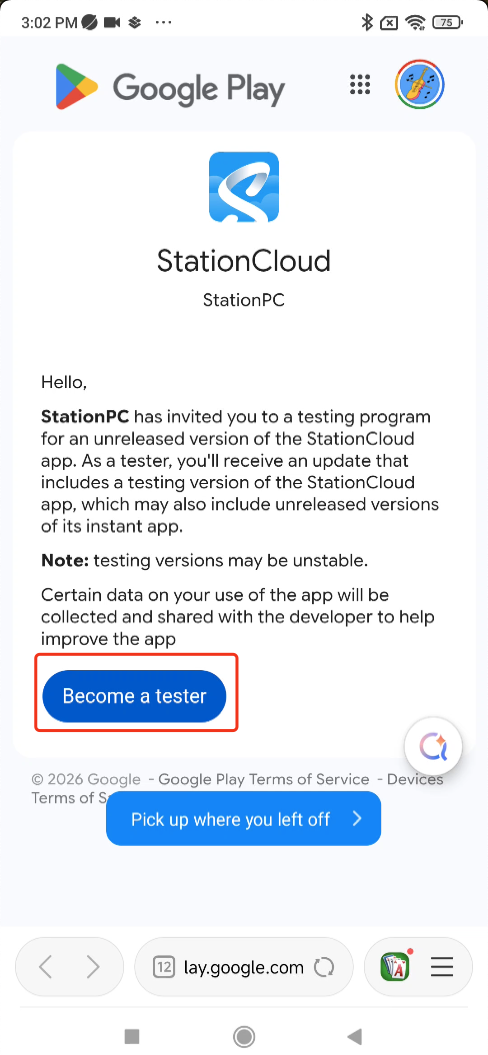
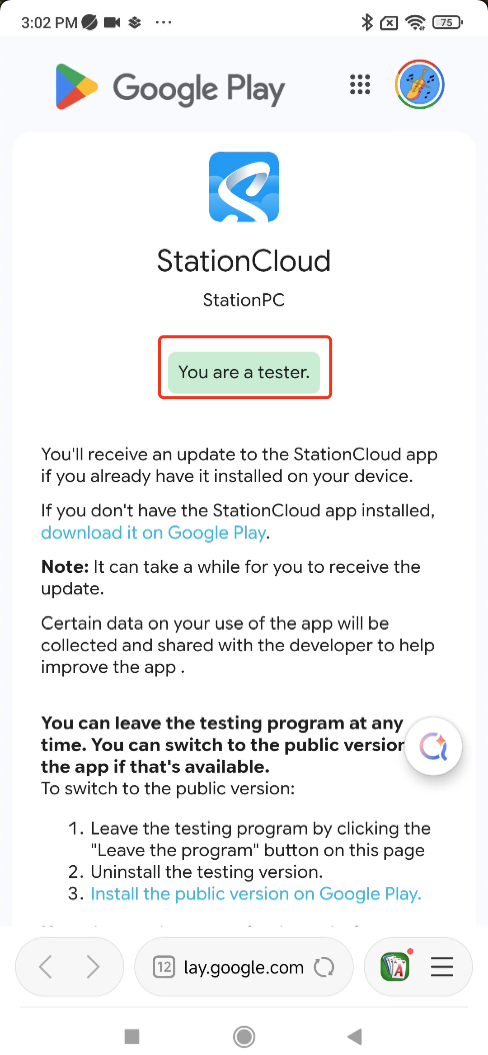
Open the link to Google Play (opens new window), then tap Become a tester to join the program.
¶ 2. Install the Beta Version
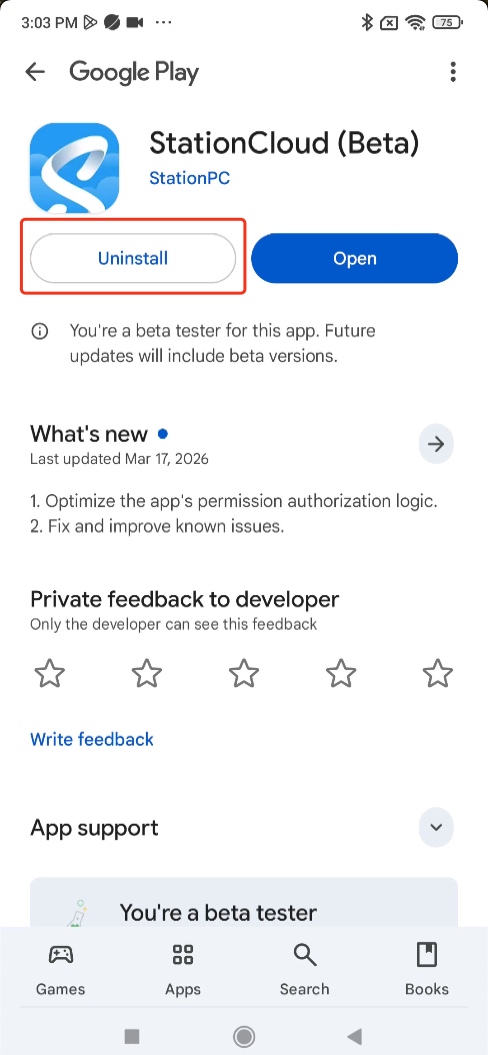
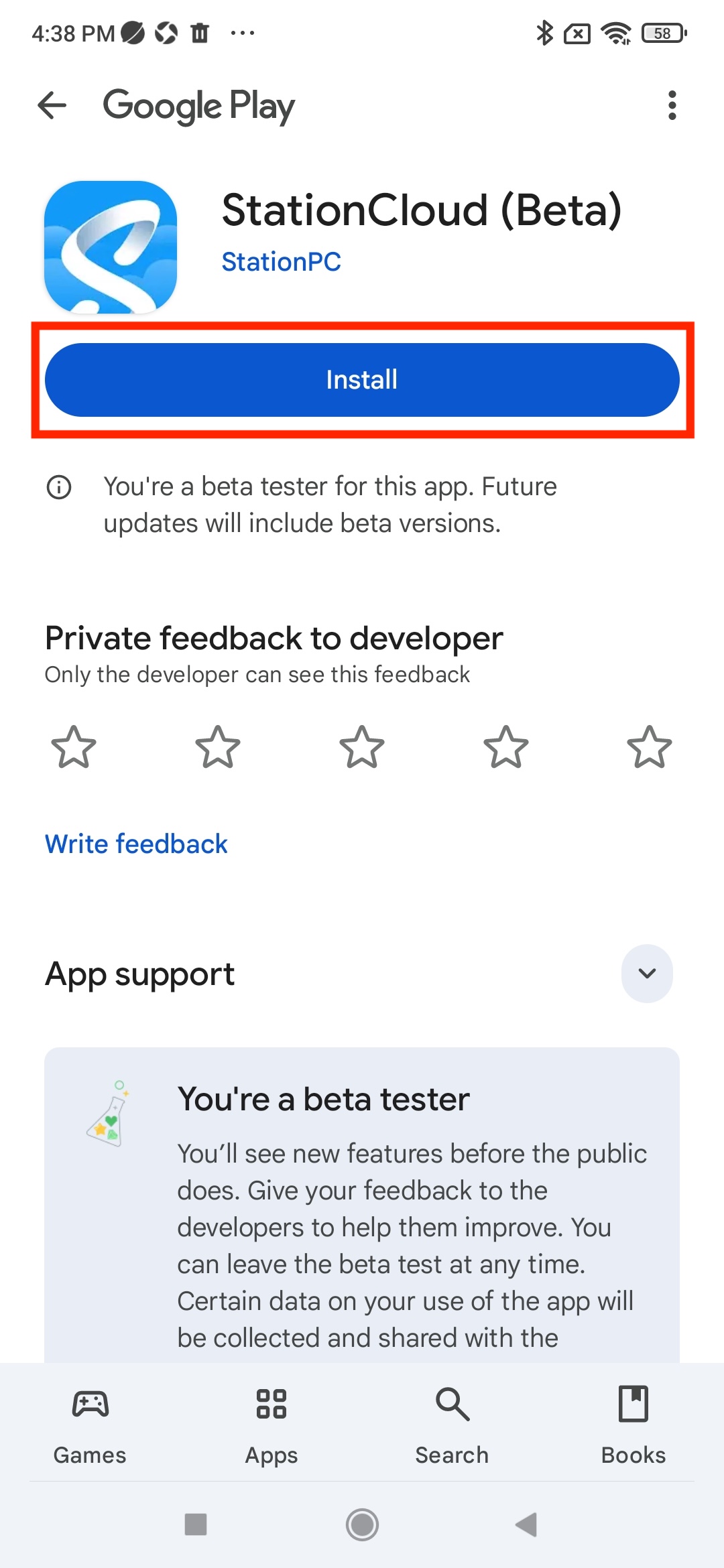
You must uninstall the official version first before installing the beta version.
¶ 3. Leave the Beta Program
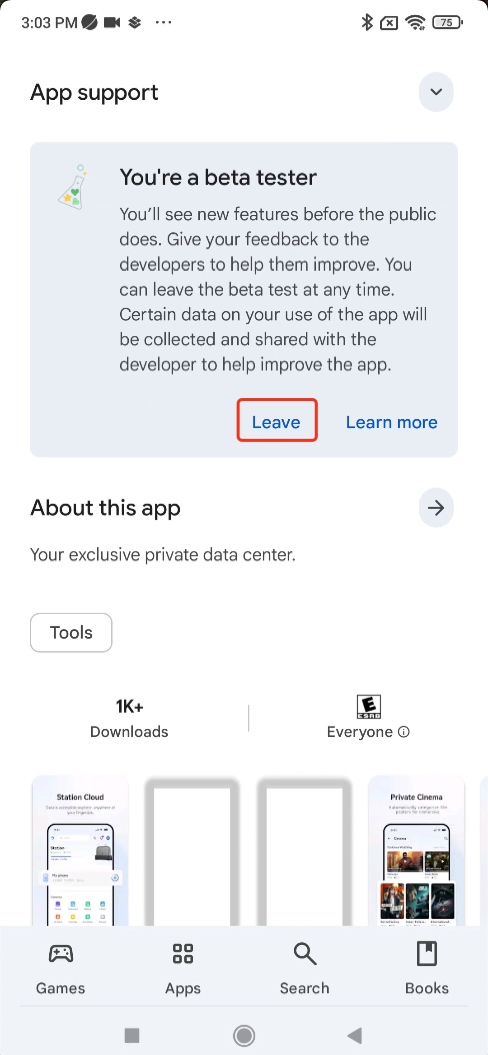
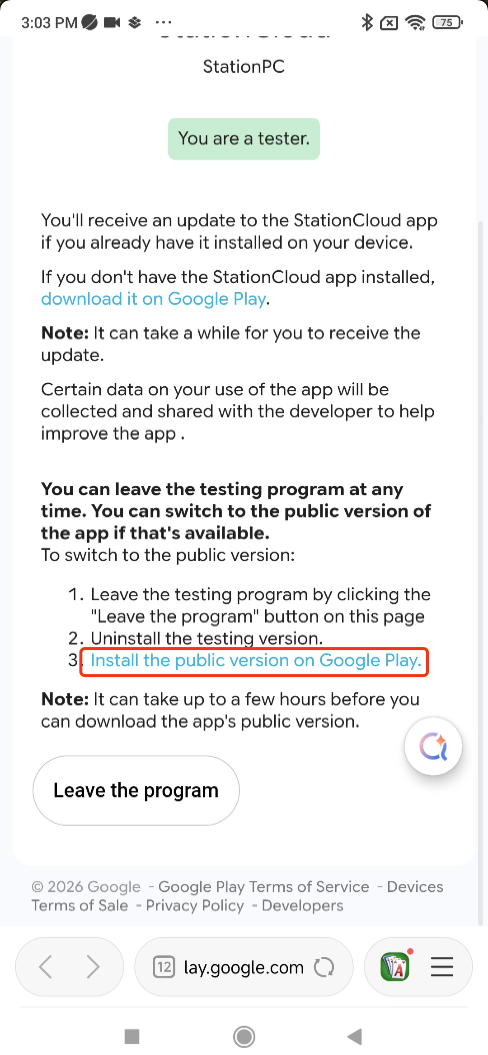
If you want to reinstall the official version, open the link to Google Play (opens new window) and tap Leave to exit the testing program.