
¶ PC Sync
PocketCloud supports file synchronization with multiple computers. Any new, modified, or deleted files will be synced in real time with no manual operation required, keeping file versions consistent across all devices.
Notes:
- PC client must stay running to keep sync active; sync stops once the client exits.
- Local network sync only; remote sync is not supported.
¶ Installation & Login
- Install the PocketCloud client on your computer.
- Log in and connect to your PocketCloud device via IP address.
- Go to the Apps menu on the left, then select File Sync.
- Click Add, choose the folders and sync policy, then create the sync task.
¶ Configure Sync Path
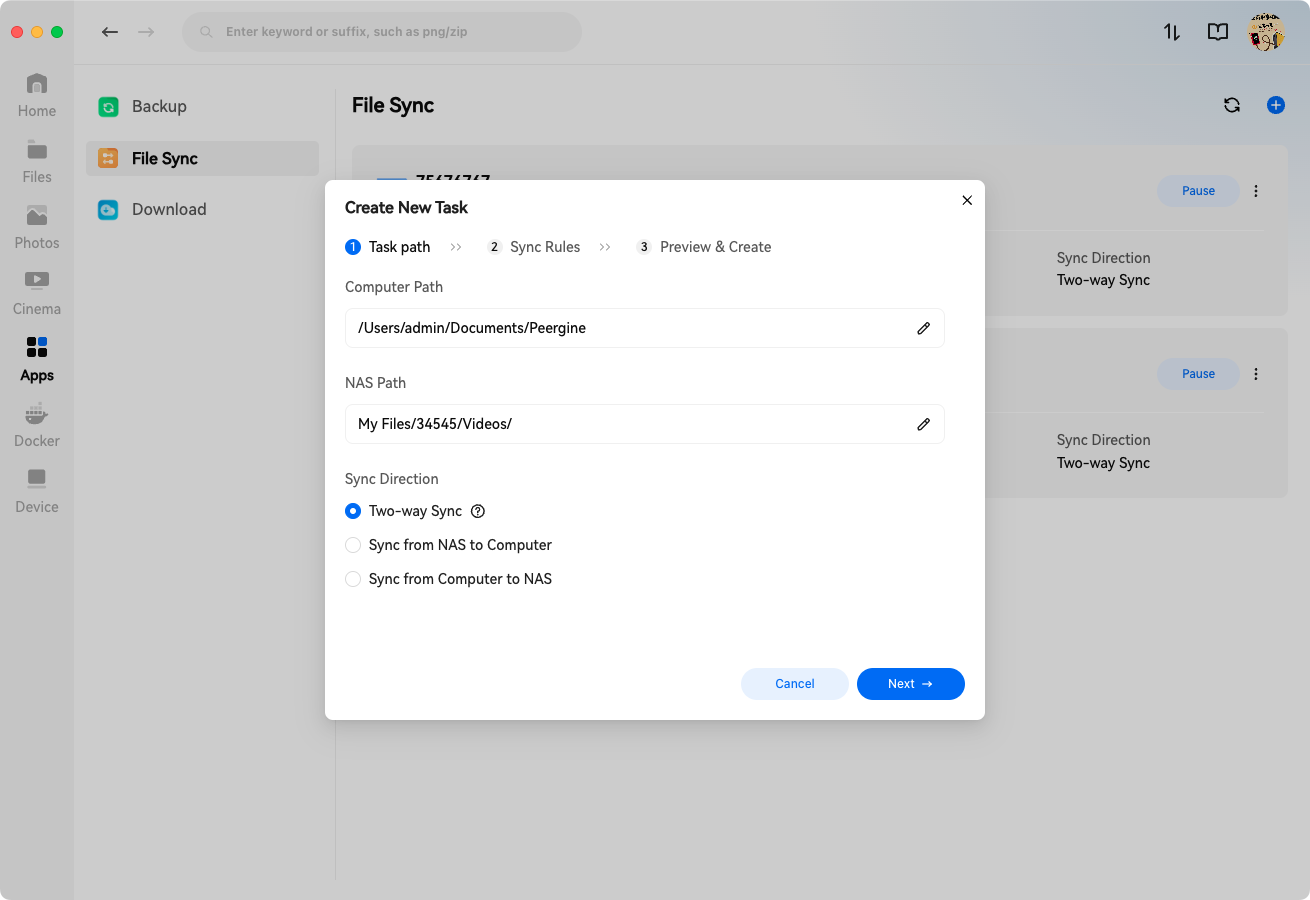
Set the following items on the Sync Path page:
¶ Path Settings
- Computer Path: Select the local folder to be synchronized.
- PocketCloud Path: Select the target folder on your NAS for sync files.
¶ Sync Modes (Choose one)
- Two-way Sync: Sync files bidirectionally between PC ↔ NAS to keep data identical.
- Download Only: Pull files from NAS to PC only.
- Upload Only: Push files from PC to NAS only.
¶ Example: Two-way Sync
To sync local data with NAS and keep both sides consistent:
- Computer Path: Folder B
- PocketCloud Path: Shared Folder A
- Sync Mode: Two-way Sync
Effect: Files on PC and NAS will always stay identical.
¶ Sync the Same Data on Multiple Computers
To sync the same NAS folder with another computer:
- Install and log in to the PocketCloud client on the second PC.
- Create a new sync task:
- Computer Path: Designated folder on this PC
- PocketCloud Path: Still select Shared Folder A
Effect: Data stays synchronized across multiple computers and the NAS.
¶ Set Sync Policy
After configuring the sync path, click Next to enter Sync Rules:
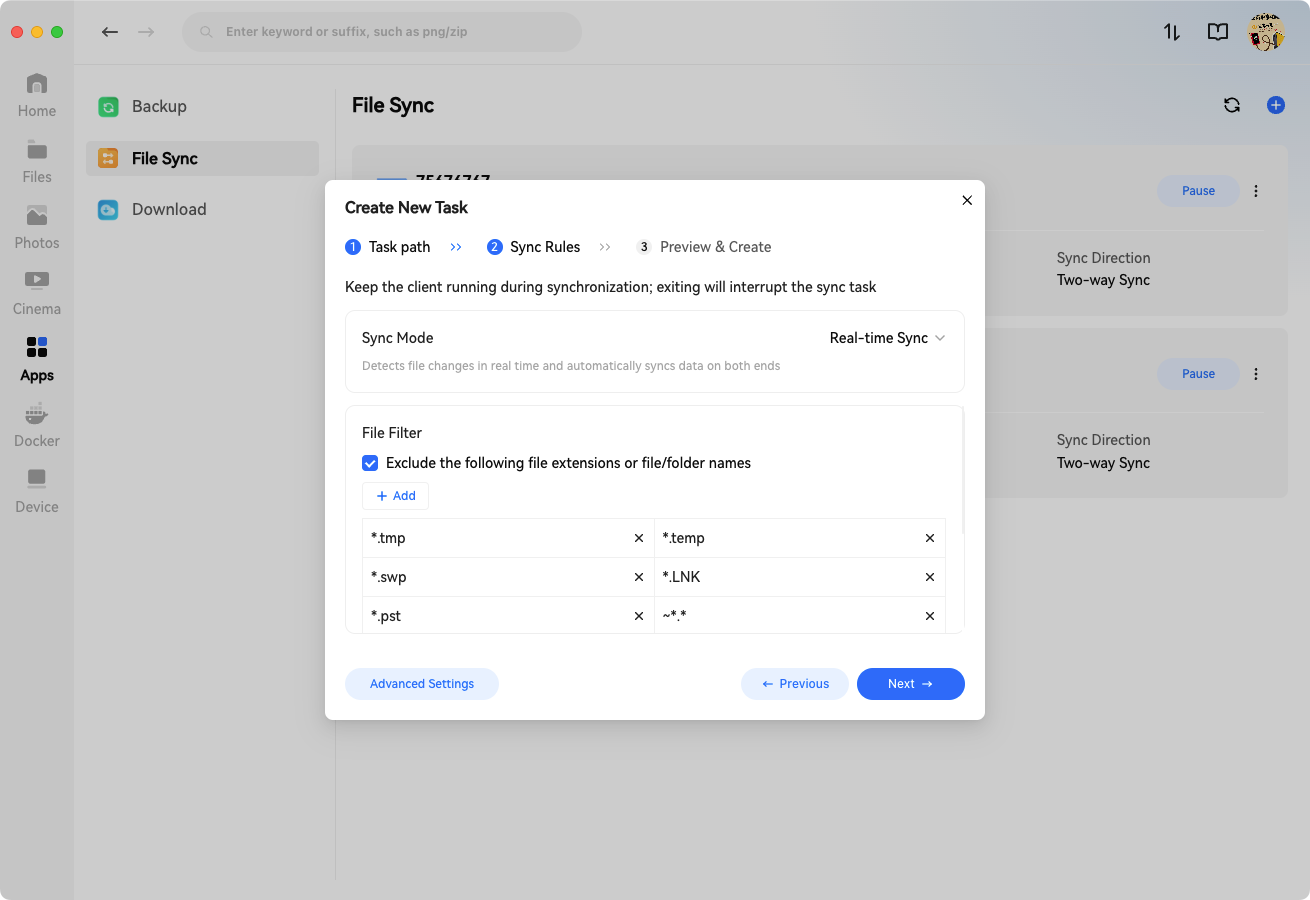
- Real-time Sync: Automatically sync once file changes are detected.
- Manual Sync: Sync only when you click Sync Now.
- File Filter: Exclude unwanted files or folders from synchronization.
¶ File Filter
Sync files/folders starting with “.”
- Default: Hidden files/folders are not synced.
- Enable manually if you need to sync hidden items.
Filter specified filenames or extensions
- Check Filter the following filenames or extensions.
- Edit or add filter rules as needed.
- Delete a rule: Click the X on the right.
- Add a rule: Click Add and enter the filename or extension.
- Separate multiple rules with a semicolon
;.
Filter Examples:
- Specific filenames:
abc.doc,test*.doc,tmp.* - File types:
*.jpg
Default Filter Formats: *.tmp, *.temp, *.swp, *.link, *.pst, ~*.*, @eadir, .SynologyWorkingDirectory, #recycle, desktop.ini, .DS_STORE, lcon\r, thumbs.db, $Recycle.Bin, @sharebin, System Volume Information, Program Files, Program Files (x86), ProgramData, #snapshot
¶ Advanced Settings
Further configure sync details in Advanced Settings:
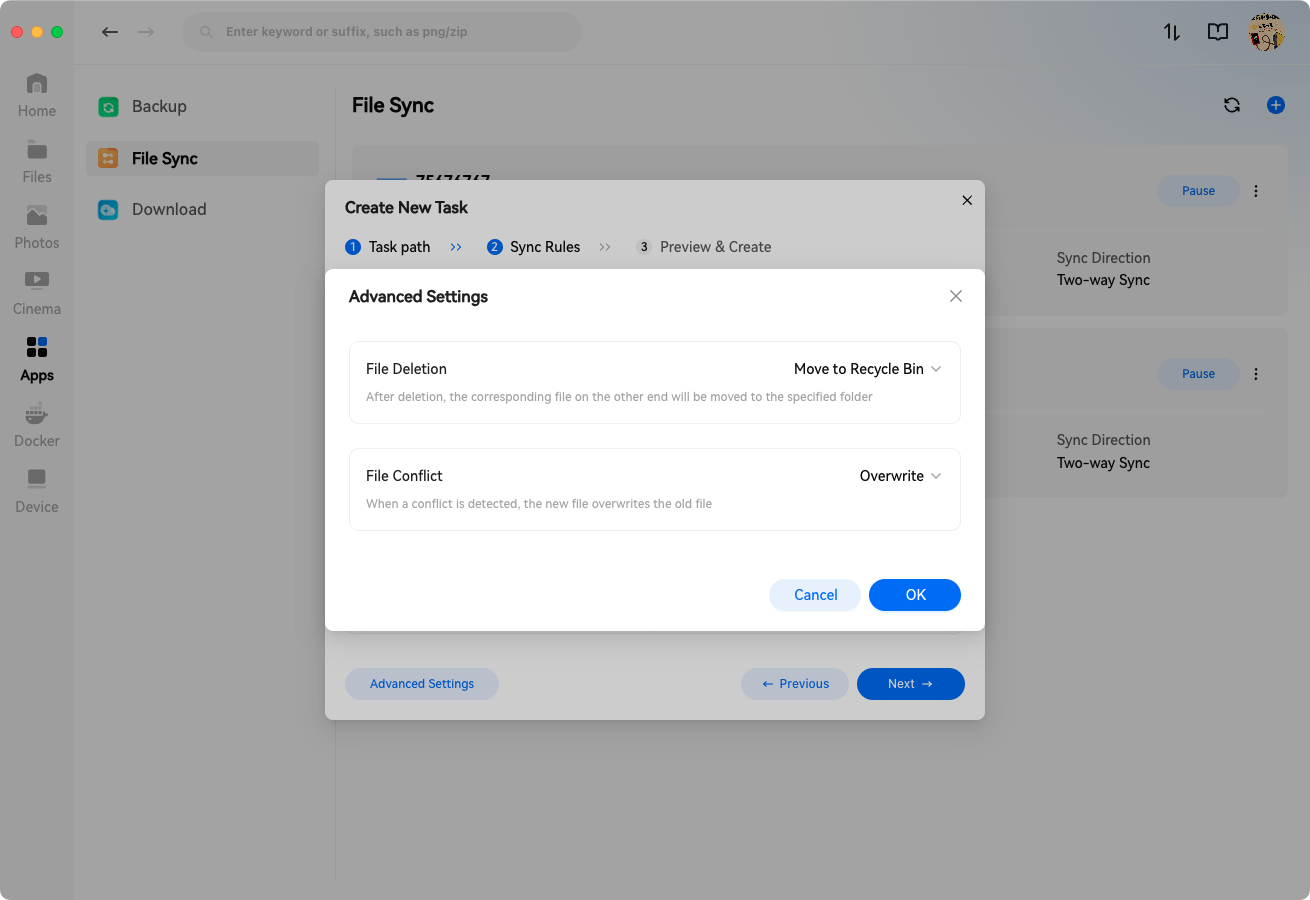
¶ File Deletion Policy
- Default: Move to Recycle Bin
- Optional: Permanently Delete
¶ File Conflict Handling
- Default: Overwrite
- Optional: Keep Both (duplicate file will be renamed automatically)
Select your preferences and click Next to preview.
¶ Preview & Task Creation
On the Preview page:
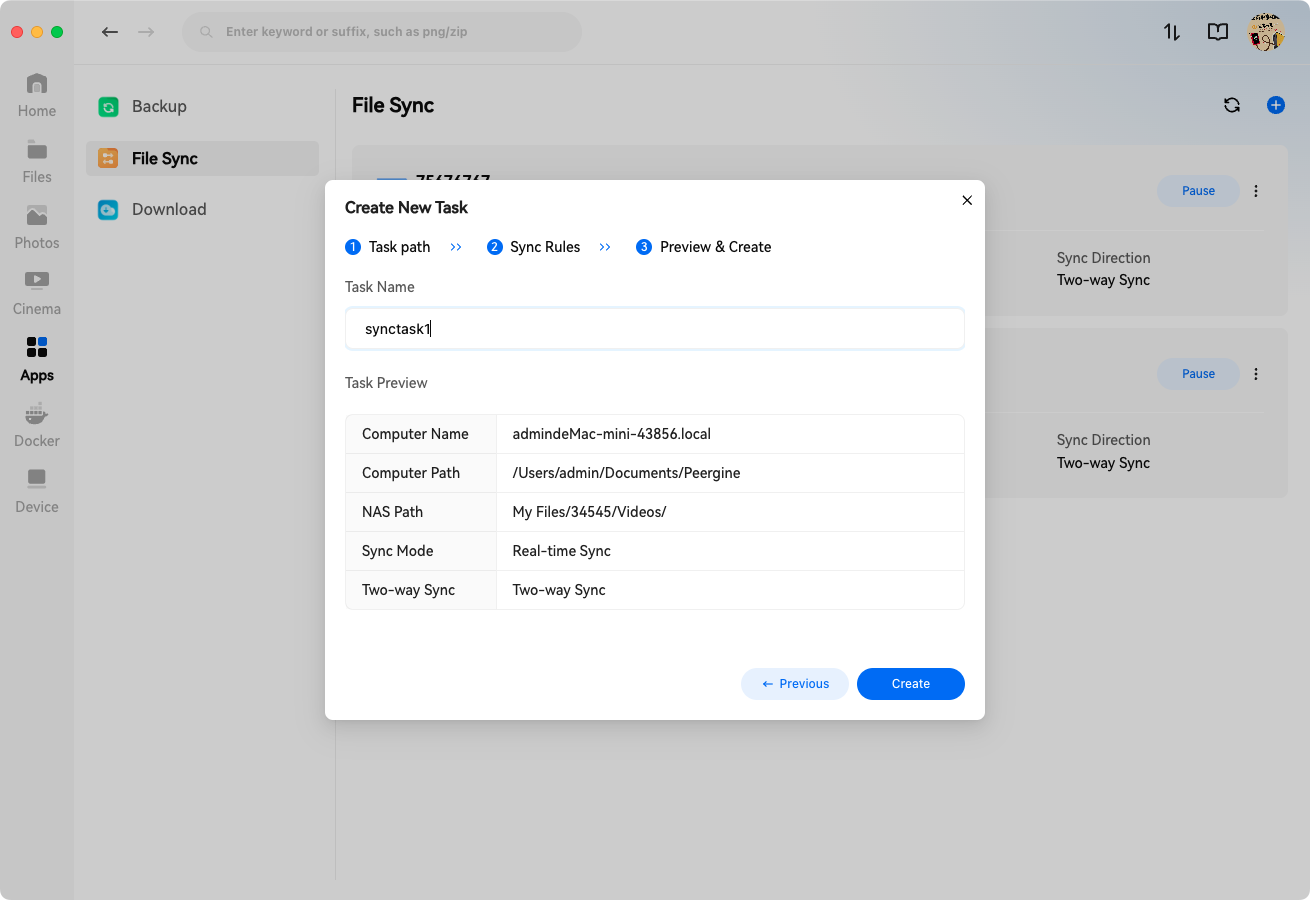
- Customize the sync task name.
- Review all configuration settings.
- To modify: Click Previous to adjust settings.
- Confirm and click Create to finish the task setup.
¶ Task Management
Manage devices and sync tasks on the Sync page after creation:
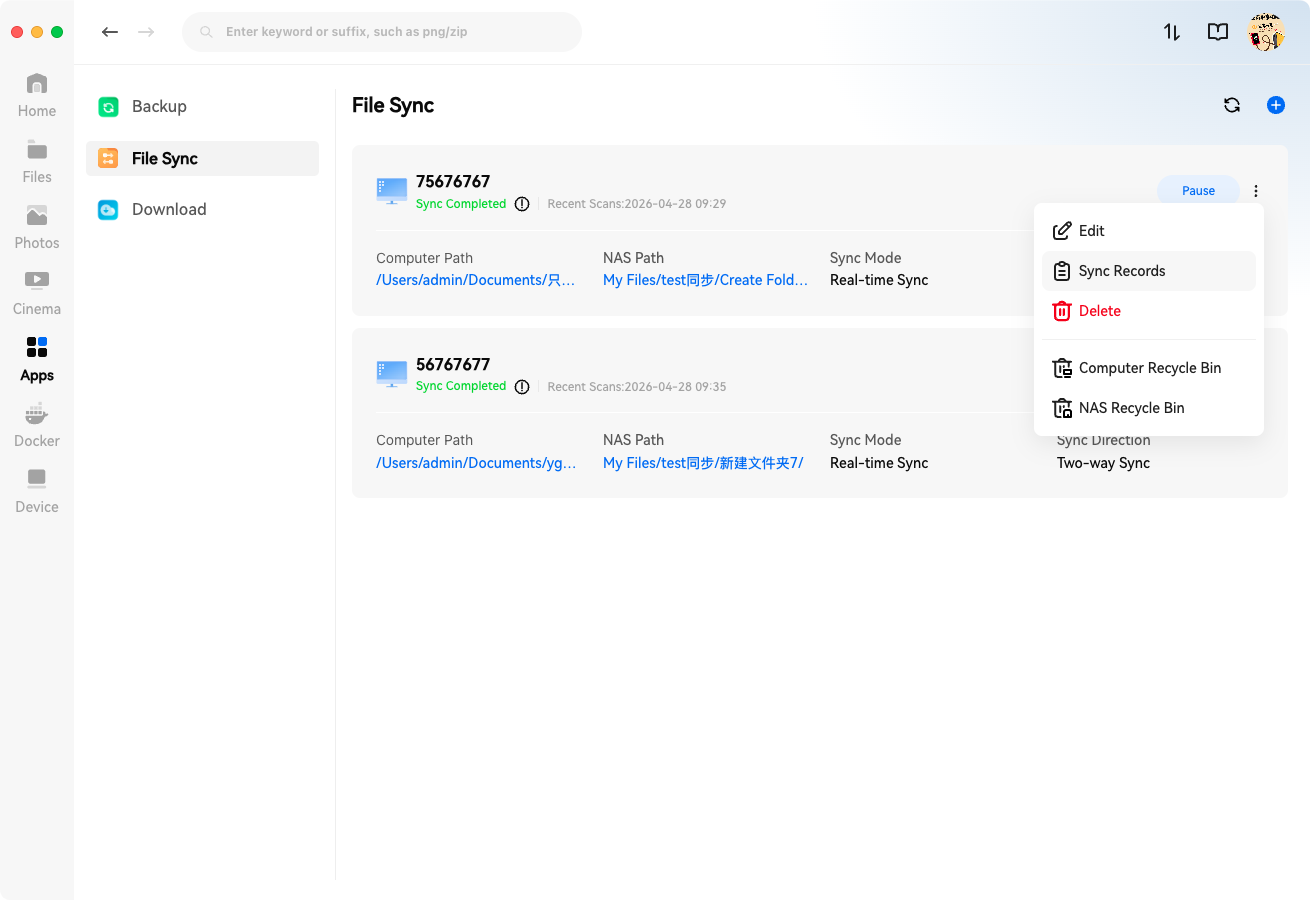
- Pause Sync: Click Pause Sync.
- More Options: Hover over More to view sync logs, edit or delete tasks.
- Quick Task Creation: Click the + next to an existing task to quickly create a new sync task for the same device.